
1. Payment Collection Method
- Only Payoneer accounts are supported for USD payment collection.
- Supported countries: Nigeria, Kenya, Ghana, Uganda
2. Billing Cycle
Each calendar month is divided into two cycles. The first half of the month’s bill is from the 1st to the 14th, and the second half is from the 15th to the 30th (or 31st). When the cycle is not over, the bill is in an open state; after the cycle ends, the bill is in a closed state.
3. Payment Collection Date and Settlement Exchange Rate
3.1 Payment Collection Date
Payments are collected twice a calendar month, usually on the 5th working day (local country time) after the end of each billing cycle.
Special notes:
- If it coincides with a local national holiday, the payment collection date will be postponed to the next working day in local time.
- The payment collection date shown on the bill is the date in the local country. Due to time differences, please check whether the payment has been successfully received one day after the payment collection date.
3.2 Regarding the Payment Collection Exchange Rate
Jumia settles payments based on the exchange rate applicable to the payment collection period, which is independent of the exchange rate on the actual payment collection date.
Example: The exchange rate for the period from May 1st to May 14th, 2025 is 1635 NGN, and the payment collection date is May 21st, 2025. Then, the exchange rate used for the payment will still be 1635 NGN.
4. Essential Conditions for Normal Payment Collection
- The Payoneer account has been successfully bound in the Vendor Center (please refer to the binding guide). When the binding is successful, the Vendor Center will automatically display “Your Payoneer account is successfully connected”.
- There are overdue but unpaid amounts in the backend bills.
- Passed the onboarding review, and both Shop Information and Business Information in the Profile show “Completed”.
5. How to Delete a Payment Instrument?
5.1 Select the corresponding country, then select “Payoneer Integration,” and find the payment instrument you wish to delete.
Please note: Payment instruments set to “Preferred” cannot be deleted. To delete one, please create a new payment instrument and set it to “Preferred”.
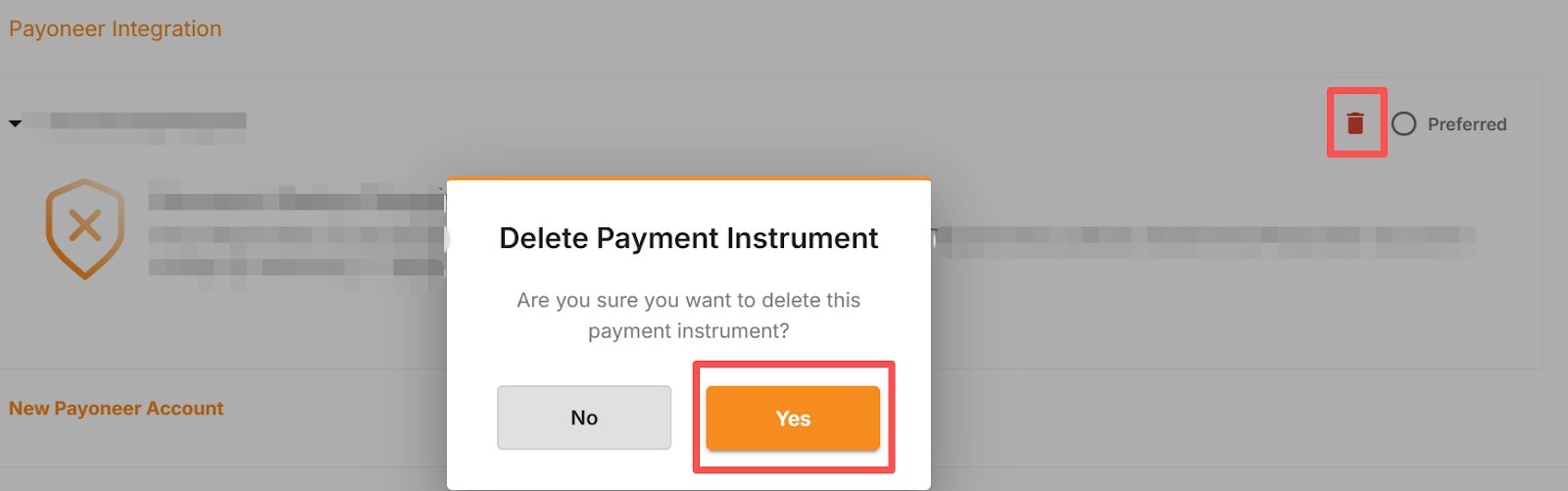
5.2 Click the red trash can icon in the upper right corner. A confirmation window will pop up asking if you are sure you want to delete it. To delete, click the “Yes” button in the pop-up window to complete the operation.
Please note: Once this operation is completed, the payment instrument data cannot be recovered.
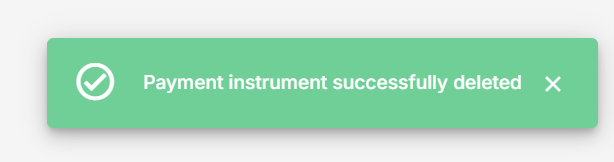
5.3 After clicking “Yes”, a message “Payment instrument successfully deleted” will appear in the lower right corner of the page, indicating that the payment instrument has been successfully deleted.
6. Frequently Asked Questions
1) How to determine if I have successfully bound my Payoneer account?
Please enter the store >> click Profile >> click Payment Information, select the corresponding country. Please refer to the table below to check the status and take appropriate action:
| Status Name | Core Meaning | Action Required by Seller |
| Approved | Successfully Linked | No action required. |
| Pending Payoneer | Awaiting Integration | No action required, please wait patiently. Your information has been submitted and is currently awaiting confirmation and feedback from the Payoneer system. Once Vendor Center receives a success receipt, the status will update automatically. This is an automated process; please monitor status synchronization. If there is no update after 3 working days, it is recommended to contact Payoneer customer service regarding the status of the system feedback. |
| Account Set Up Required | Registration/Linking Pending | Action required. Your binding process is incomplete or has been interrupted. Please click “New Payment Instrument” and follow the steps to complete registration or account linking. |
2) I have bound my Payoneer account, and the backend shows that the binding is successful, but why am I not receiving payments?
- There is no overdue and unpaid billing period.
- No Payoneer account linked: You need to successfully link your Payoneer account on the Profile->Payment Information page (linking guide), and the Approved status will be displayed;
- Failed to pass the onboarding review: You need to submit onboarding materials for review until both Shop Information and Business Information in the Profile show “Completed”. You can refer to the FBJ onboarding process.
- The minimum withdrawal amount of 50USD set by Payoneer has not been reached. The payee needs to accumulate up to 50USD before Payoneer will send the payment to the corresponding bank account. If you have any questions about this limit, please contact the Payoneer team directly.
3) My store is operating normally, and orders have been successfully delivered. Why am I not receiving payments?
If this happens, it means that the store has a problem of imbalance between income and expenditure in its current operations. The sales revenue cannot cover various costs and expenses, resulting in the store being in a state of loss and failing to form a profitable billing period. Therefore, first, you need to confirm whether the store has a profitable billing period with a positive balance: a) If yes, please refer to the 2nd question above; b) If no, you can check the details of each billing period, review the selling price and cost, and adjust the product prices.
4) How to switch the payment collection mode? (e.g., switching to USD)
- To switch from USD payment collection to Local Currency payment, please refer to this guide: Local Currency Funding
- To switch from local currency payment collection to USD payment collection, please directly bind the Payoneer account in the corresponding country and set it as the preferred account. After successfully binding the Payoneer account, the system will automatically use this preferred account for payment collection on the next Payoneer payment date.
