
1.Check-in Channel
1.1 Entry Mode
Currently, the Jumia platform only offers the FBJ (Fulfilled By Jumia) overseas warehouse mode, which means sellers need to choose their own logistics providers and send goods in bulk to Jumia’s local warehouses in various countries. Click here to view: Detailed Introduction to FBJ
1.2 Entry Qualifications
Possessing a legitimate business license and having cross-border e-commerce experience.
1.3 Required Documents
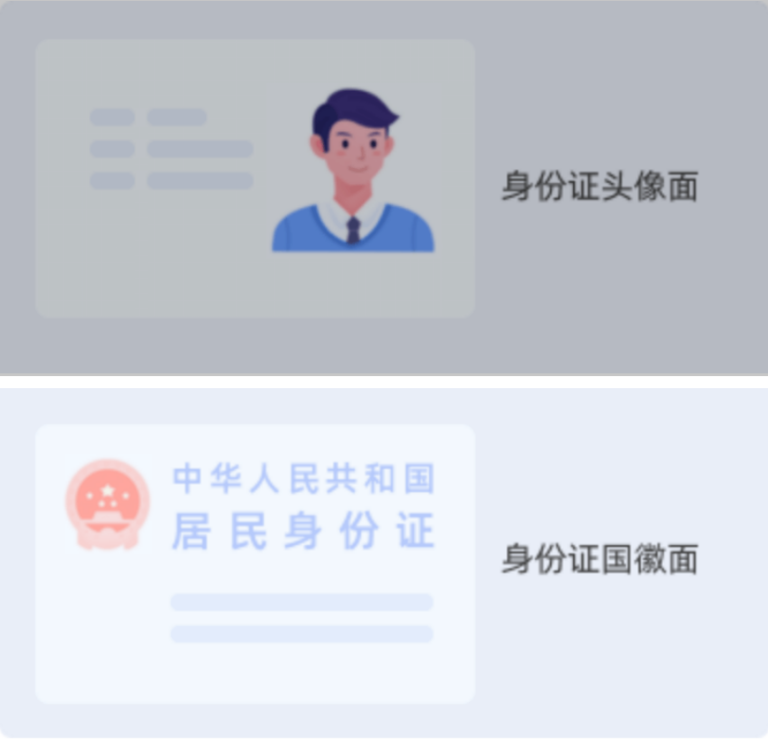
1.3.1 Legal Representative’s ID Card – Photos of both the front and back sides of the ID card need to be taken and uploaded (please take photos of the original document)
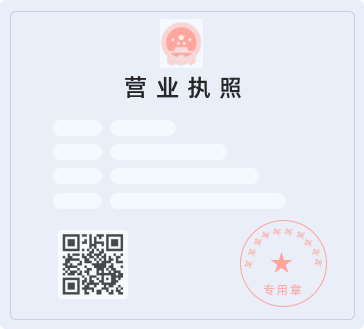
1.3.2 Company Business License
- The legal representative information on the company’s business license must be consistent with the information on the legal representative’s ID card.
- If the company is a Hong Kong entity, it is required to provide the legal representative’s “Hong Kong Identity Card” or “passport”.
1.3.3 Brand Registration Certificate
If you apply for a store name as XXX Official Store (official store), please provide the brand registration certificate; if the brand is not owned by the company, you also need to provide a brand authorization letter.
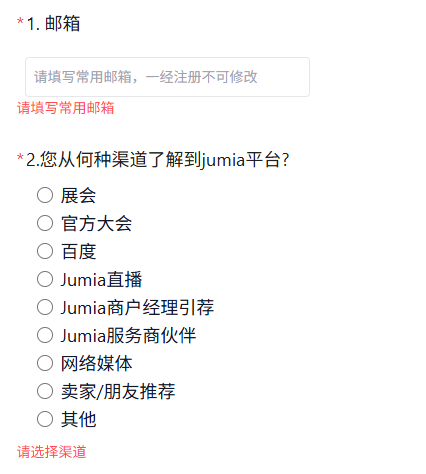
1.4 If you have understood the above content and decide to settle in Jumia, please fill in the information below to proceed to the next step of the settlement guidelines.
Basic Information (Note: Please do not use Chinese for all the following filled content; pinyin can be used. For example: Zhangshan)
2. Store Activation
2.1 Enter the Vendor Center
For detailed guidelines on Jumia Global seller onboarding, please refer to: Guidelines for FBJ Seller Onboarding Process
After the store information is completely submitted, the Jumia team will review the seller’s information within 5 working days. You can log in to the Vendor Center backend at any time to check the review status and pay attention to email notifications:
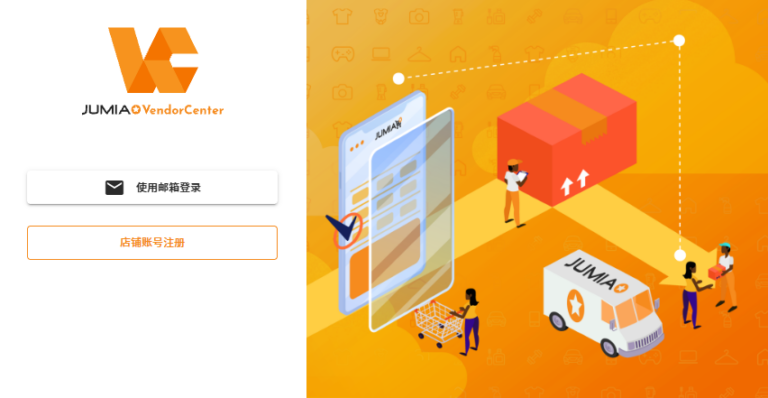
- You can log in again through the following link: https://vendorcenter.jumia.com/sign-in
- Please select “Sign in with Email” and log in using your registered email and password
2.2 Filling in the Entry Information [Business Information]
Business information requires providing the business license, company address, and the ID card information of the legal representative.

2.3 [Delivery Information] Supplementary Information
Click “Delivery Information” and select “China” for the delivery country.
Note: The payment receipt information can be filled in after the store is successfully opened, and the additional information is optional.
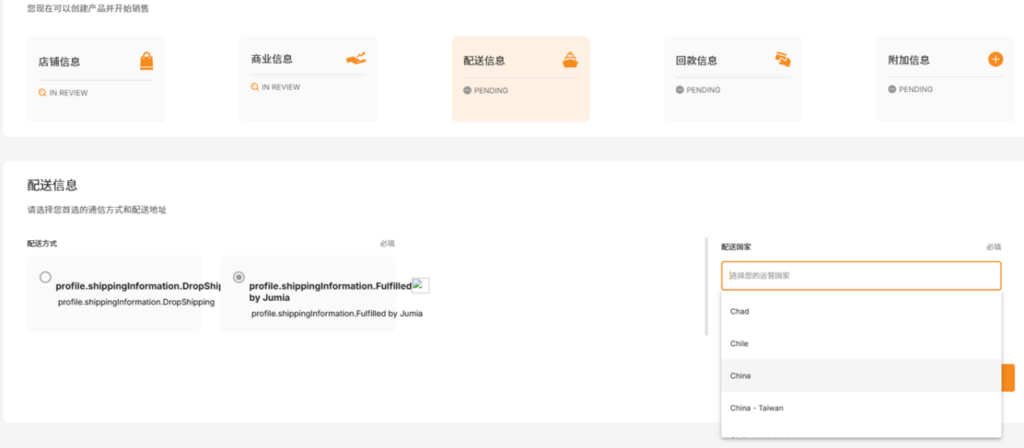
2.4 Awaiting Review
Once you have completed filling in all the above information, it means you have successfully submitted your Jumia entry materials. Your store will be activated once the materials are reviewed and approved. We will reply via email within 5 working days. You can also log in to the Vendor Center to check the review status.
2.5 Successful Store Opening
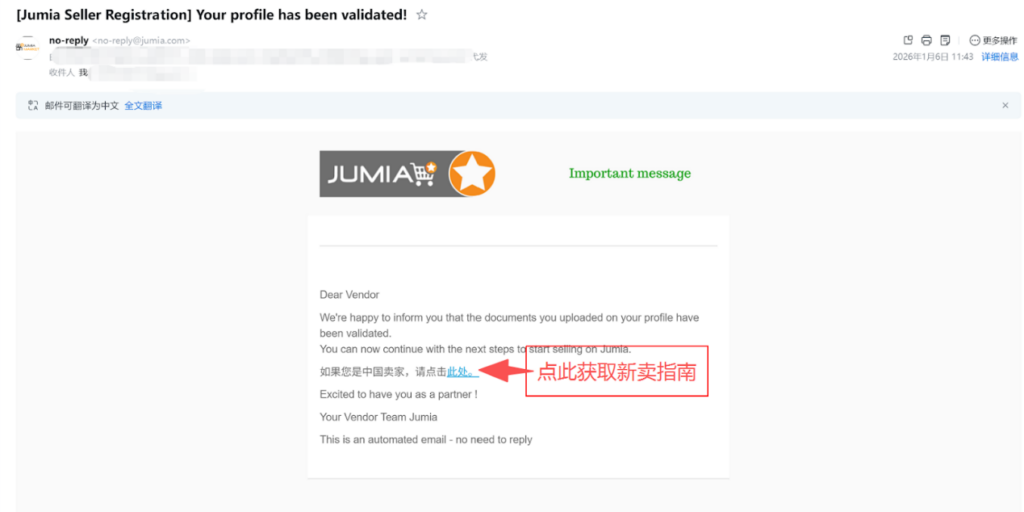
- If you receive an email with the subject: [Jumia Seller Registration] Your profile has been validated! , it means the overseas warehouse store entry is completed. Click “here” in the email to check the new seller guide and start selling on Jumia.
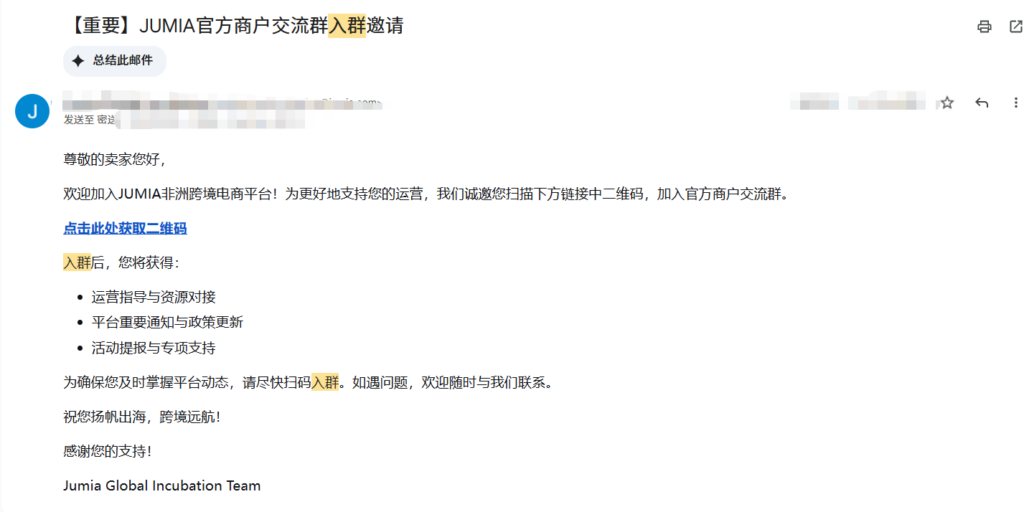
- On the day after you settle in, you will receive an email titled [Important] Invitation to Join JUMIA Official Merchant Communication Group. You can join the official overseas warehouse merchant group by scanning the QR code.
2.6 Upload Products
Please batch upload products through the following guide: Create Products in Bulk
