
We are excited to announce the launch of our new Bulk Price Management feature! You can now update your product prices quickly and accurately by exporting and importing product spreadsheets. This feature eliminates the tedious task of manual, one-by-one updates, allowing you to easily adjust prices for products across a single country or even across all countries at once.
How to use the Bulk Price Update feature? Follow these simple steps to get started:
1. Log in to your Jumia Vendor Center account
2. Export your product price information:
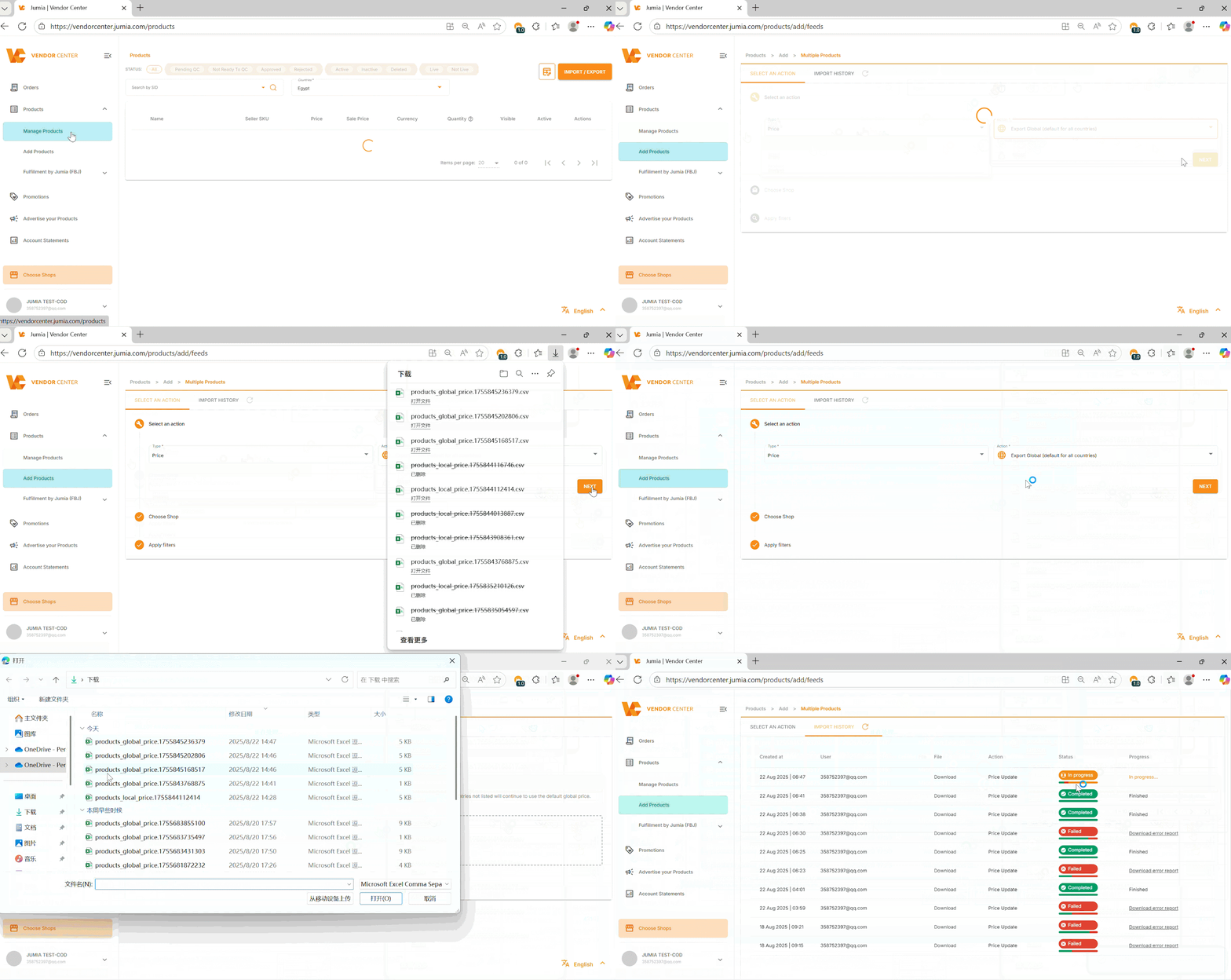
- On the left navigation bar, go to Products > Manage Products.
- In the top right corner of the page, click the Import / Export button.
- On the page that appears, select Select an action > Price.
You will have two options for exporting:
-
- Export Global (default for all countries): Export commodity information for all countries. If you want to adjust the price of the same commodity for all countries, please select this option.
-
- Export Countries (Export product information of specified countries): Select one or more specific countries to export only the product prices of these countries. If you only want to adjust the product prices for a certain country individually, please select this option.
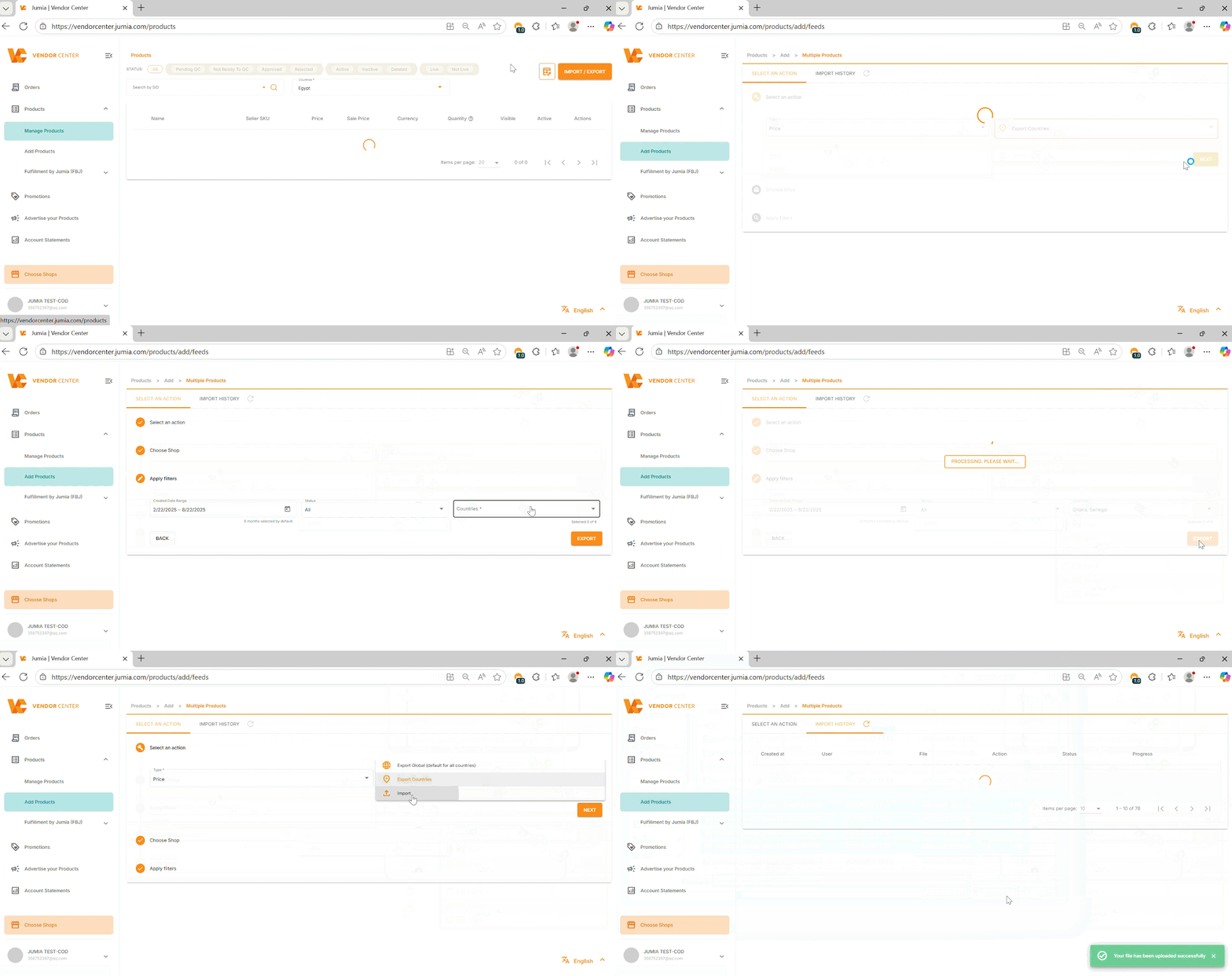
After making your selection, click Export, and wait for the system to generate the spreadsheet file and download it.
3. Edit the Price Spreadsheet
Open the downloaded CSV file, where you will find the following key columns:
- PRODUCT_ID: Product ID (Please do not modify).
- SELLER_SKU: Your SKU (Please do not modify).
- PRICE: The regular price you wish to update.
- SALE_PRICE: The promotional price for the product.
4. How to Properly Adjust the Date Format
When using the Bulk Price Update feature in the Jumia Vendor Center, some sellers may encounter errors with date formatting. Don’t worry—we have prepared a simple guide to help you upload your file successfully!
- Locate the date columns: Open your downloaded price spreadsheet and find the columns that need adjustment,It is usually the column titled SALE_PRICE_START_AT or SALE_PRICE_END_AT
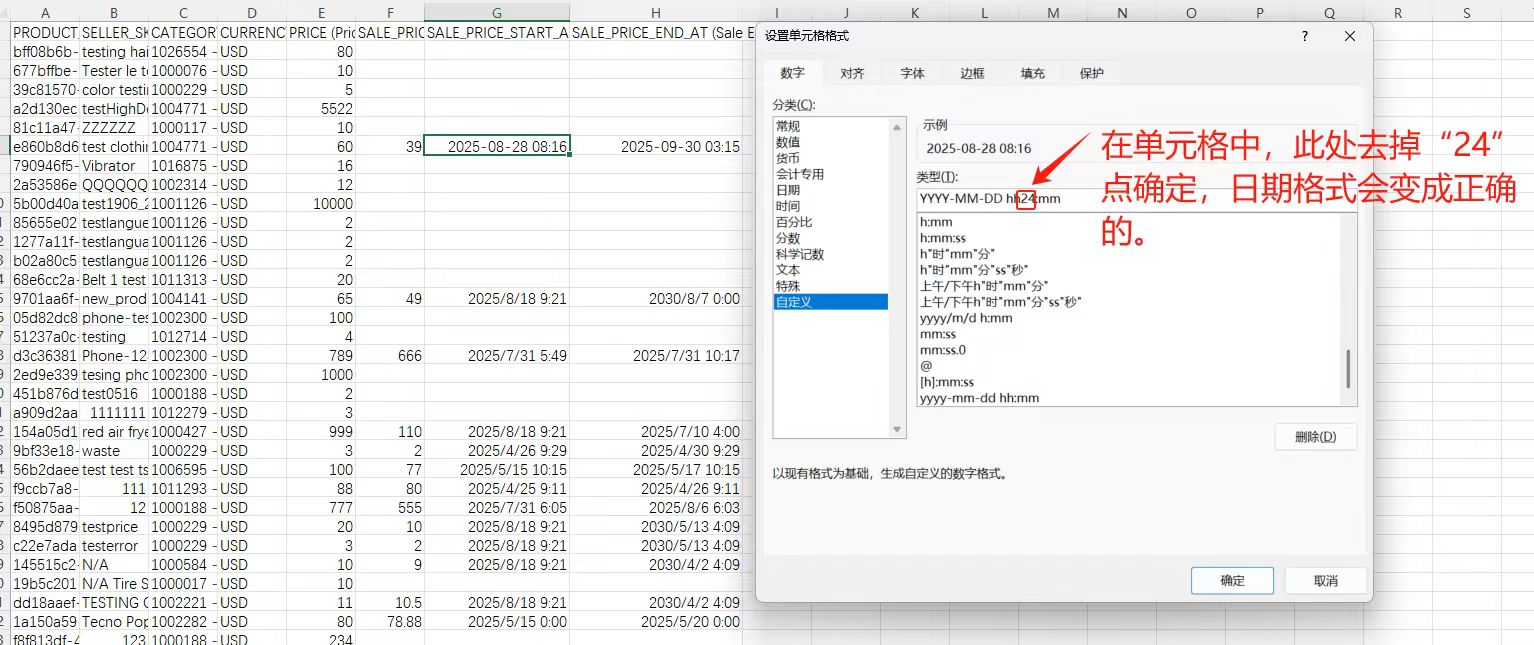
- Copy the correct format: In the header row (the first row) of the table, look at the SALE_PRICE_START_AT You will see a format provided in parentheses: (Sale Start date YYYY-MM-DD hh24:mm). Copy the string inside the parentheses:YYYY-MM-DD hh24:mm.
- Format the date cells:
- Select the date cells you wish to modify (e.g., “2025/8/13 9:12”).
- Right-click and select “Format Cells”.
- In the pop-up window, go to the“Custom”category.
- Paste and adjust
- In the“Type” box under “Custom,” paste the format you copied: YYYY-MM-DD hh24:mm.
- Manually remove the“24” from “hh24:mm” so that it becomes “hh:mm”.
- Click “OK” to save your changes.
- Batch modify other dates. Now, you have successfully modified the first date. You just need to move the mouse to this cell, click “Format Painter”, and with a single click, the cursor will turn into a “+” sign with a small brush icon next to it. Hold down the mouse and drag downward, and you can refresh the format of all other dates to the correct style.
After completing the above steps, your table can be uploaded! Isn’t it simple?
Important Notes:
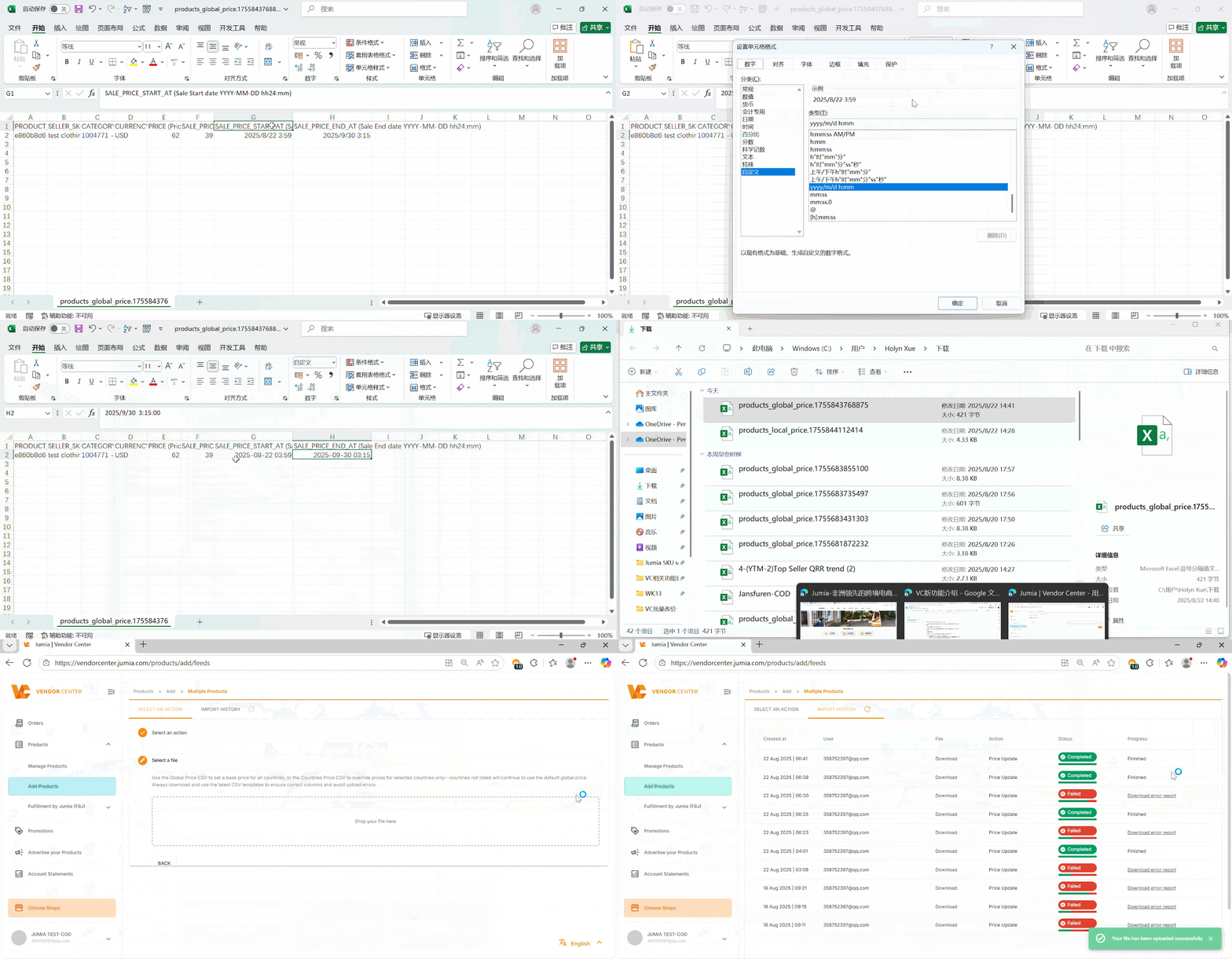
- When modifying prices, thecorrect date format is crucial for successfully uploading the spreadsheet. Please open it with “Excel” and follow the text instructions or the guidance in the following GIF to step by step change the date format in the spreadsheet from YYYY/M/D HH:MM to YYYY-MM-DD HH:MM. For example, 2025/8/13 9:12 needs to be modified to 2025-08-13 09:12.
- Ensure that the price is in the correct numeric format, which can retain two decimal places.
5. Check the import results
After the upload is complete, you can check the import status on the Import History page.
- Completed: Indicates that the file has been successfully uploaded and the price update is completed.
- Failed: Indicates that the upload failed. You can click Download error report to check which row or column has incorrect data format, so that you can modify it and re-upload.
6. Check the import results
After the upload is complete, you can view the import status on the Import History page.
• Completed: Indicates that the file has been successfully uploaded and the price update is completed.
• Failed: Indicates that the upload failed. You can click Download error report to check which row or column has incorrect data format, so that you can modify it and re-upload.
Summary
This new feature allows sellers to manage product prices more flexibly and efficiently, especially when conducting large-scale promotions or market price adjustments, which can greatly save time.
