
For an introduction to the API interface, please click here to view.
Bulk creation of products
Step 1: Download the form
1. Path to download the form:
Products >> Add Products >> Add multiple products
2. Steps to download the form:
- Select “Product” in the Type field on the left.
- Select “Download Template” in the Action field on the right.
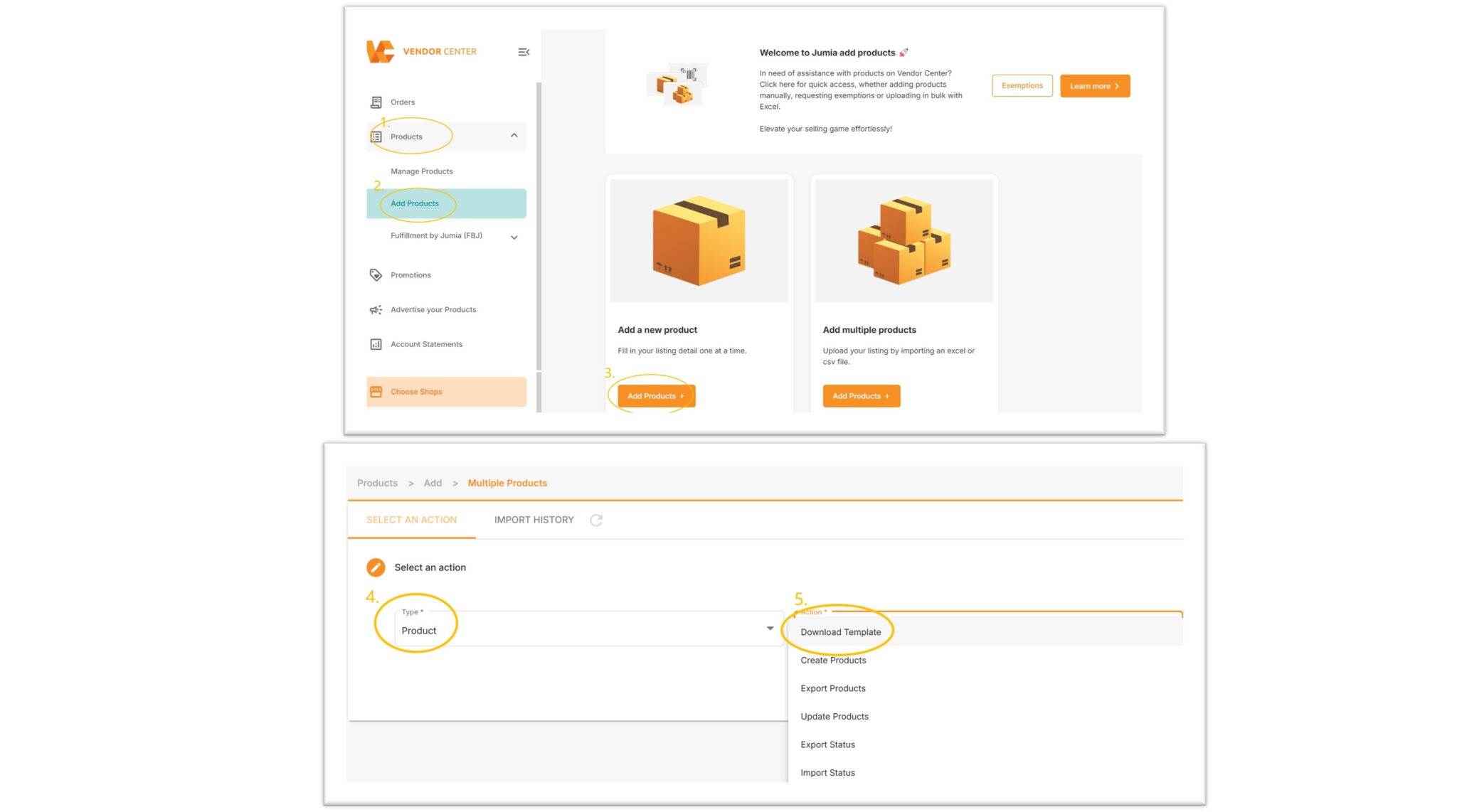
- Click “NEXT” and then select “Shop”.
- Select “Category” (click the “X” symbol to display categories, ensuring accurate positioning to the lowest-level category).
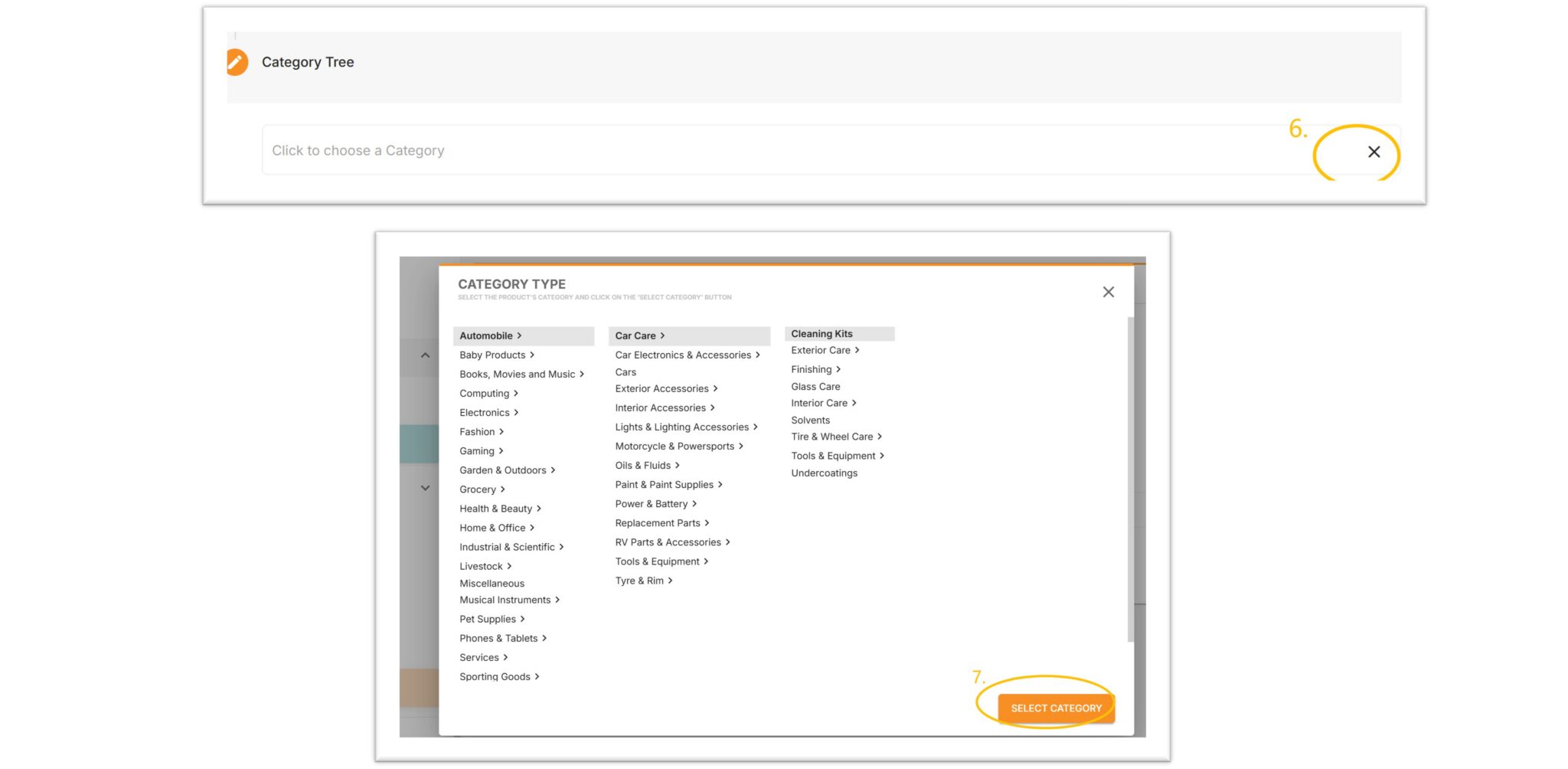
Just click “SELECT CATEGORY” and “EXPORT”
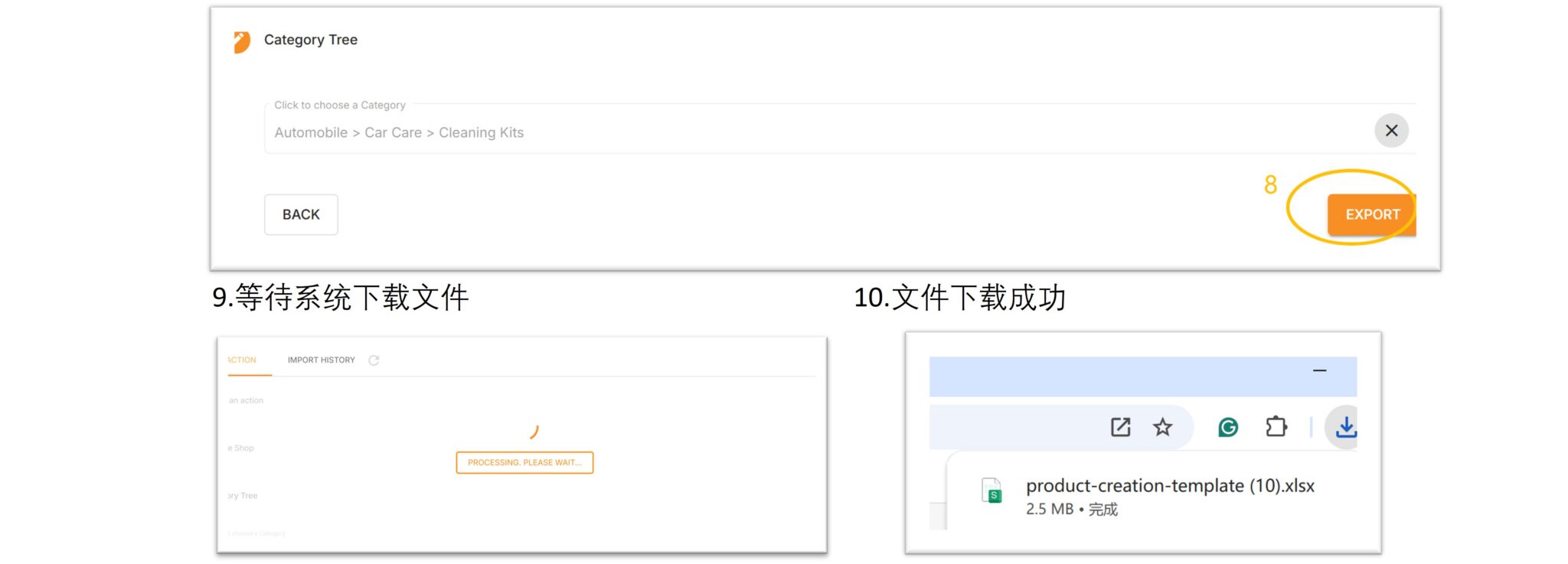
Step 2: Fill in the form
- Do not modify the title row, otherwise the upload will fail.
- Please use the .xlsx format when uploading.
- A maximum of 10K products can be created in a single batch.
1. Introduction to batch upload form
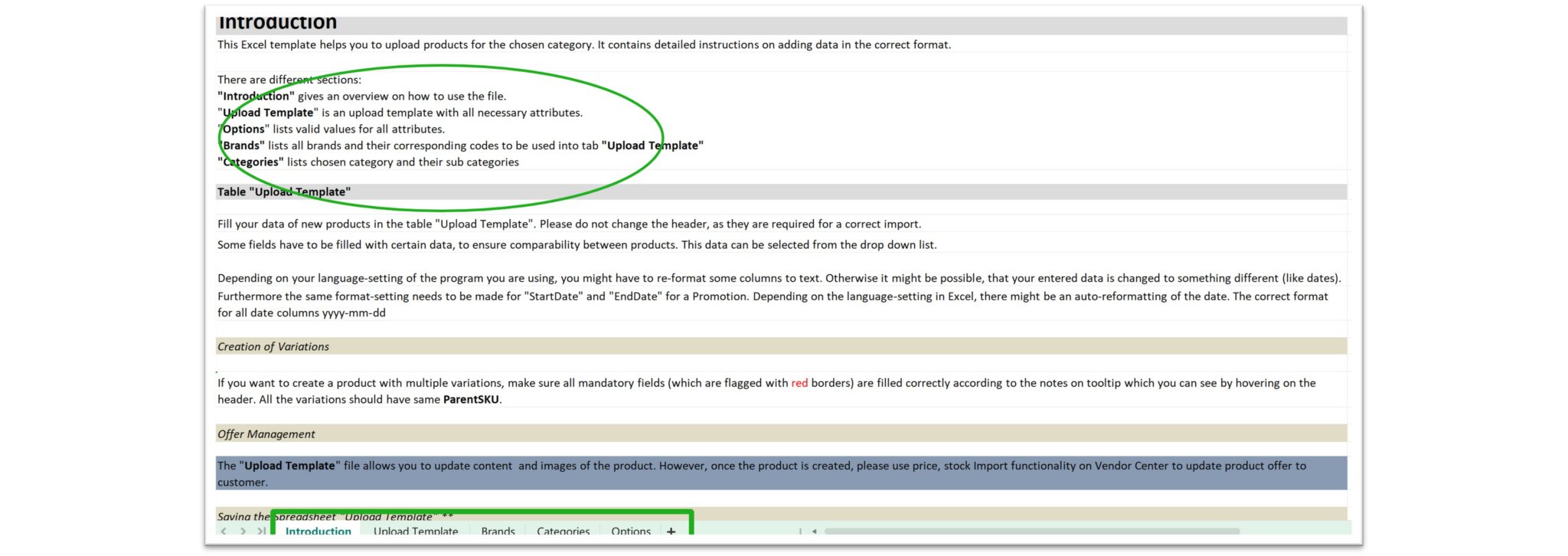
The table contains 5 worksheets:
- Introduction: Detailed interpretation and introduction on how to use the file and other related precautions.
- Upload Template: All mandatory information for product creation and other relevant information should be filled in this worksheet.
- Brands: Contains all brand options provided by Jumia.
- Categories: The categories and their subcategories where the product categories are located.
- Options: All contents related to drop-down options in the bulk upload form template (Upload Template).
2. Guidelines for filling in the upload template – Upload Template

For filling in the content of the upload template, click here “Single Product Upload” to view the relevant filling standards and precautions. Other important matters to note are as follows:
1) Name: The product name is a required field.
Name_AR is the Arabic title of the product, and Name_FR is the French title of the product. Both are non-required fields but it is recommended that sellers fill them in. This will make the product display in the local language on the buyer pages of the corresponding countries, facilitating the buyer experience. If not filled in, all countries will display the product in English.

2) Description: Product description is a mandatory field. Description_AR is the Arabic description, and Description_FR is the French description. Both are non-mandatory but it is recommended that sellers fill them in. This will make the product display in the local language on the buyer pages of the corresponding countries (Arabic will be synchronized to the Egypt site, and French will be synchronized to the Côte d’Ivoire and Senegal sites), facilitating the buyer experience. The product description should provide consumers with useful information about the product; please ensure the description is clear and accurate, and the content filled in supports HTML code format.

3) Seller SKU and Parent SKU: Both are mandatory. If a product has multiple variants, the Parent SKU names of the variants must be consistent, and the Seller SKU names must not be duplicated.
Example: A blue shirt comes in different sizes, filled in as follows (Jumia does not allow color as a variant; if there are shirts of other colors, a separate product for that color needs to be created)
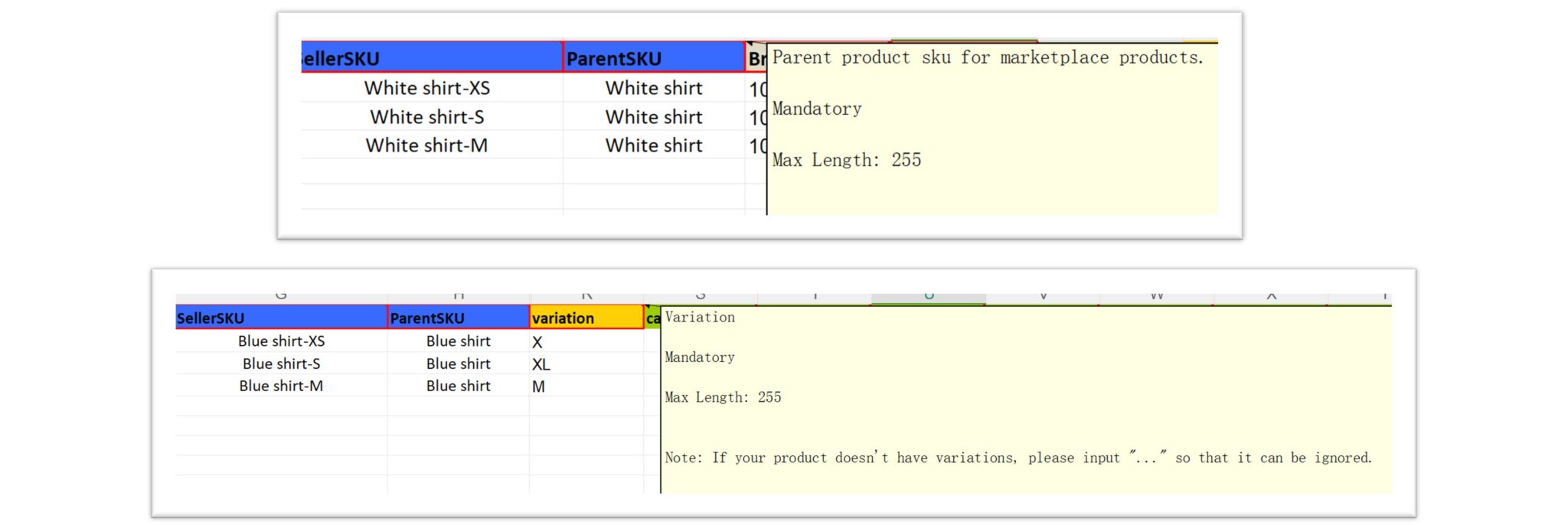
If the product has no variations, the Parent SKU can be copied from the Seller SKU, and “…” should be filled in the Variation field.
Example:

Do not fill in words related to colors, such as “white surface with a black base”, as this will increase the risk of the system considering the color as a variant.
4) Brand: The brand is a required item. You can view all brands in the “Brands” worksheet.
To sell branded products, enter the desired brand in the box and click the drop-down box to select it.
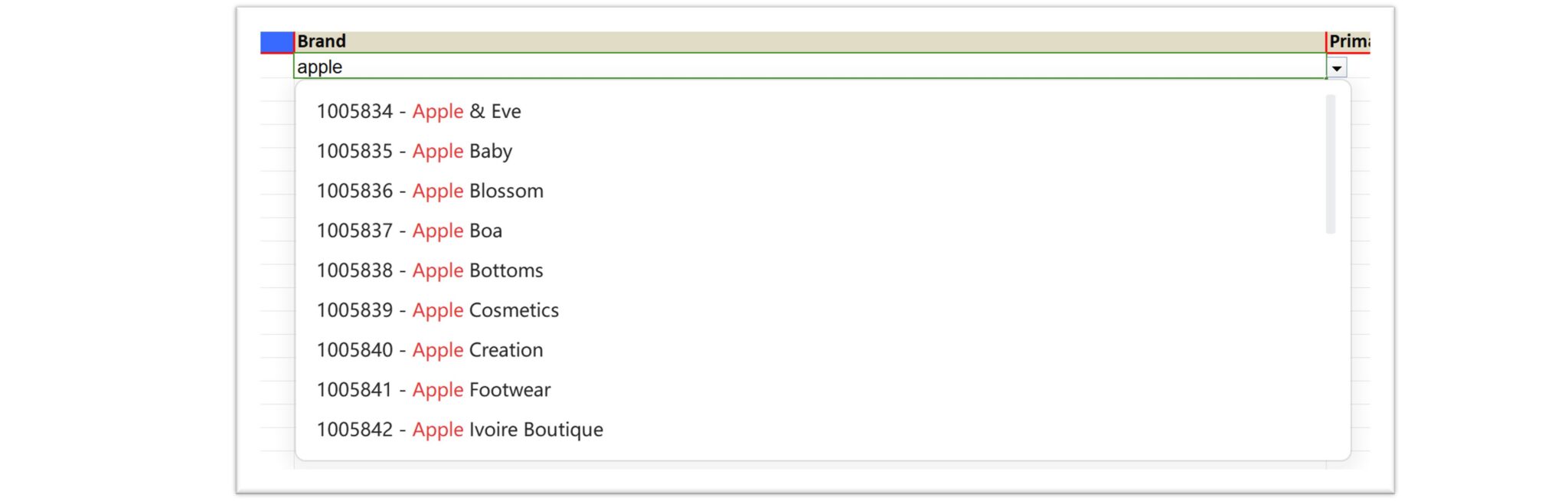
Selling unbranded products: For fashion products, fill in “1039426-Fashion”. For other non-restricted categories, you can uniformly fill in “1045133-Generic”.

For categories with restricted use of Generic and more details, please refer to section 4.Brand or the Product Listing Guideline in the individual product addition.
a. When a Jumia merchant applies for entry, if the store name registered in the entry form is XXX Official Store, the data reviewer will take the initiative to contact you via email to provide the corresponding brand authorization letter for registering a brand store. Once the store is successfully registered, the store name is not allowed to be modified.
b. If the brand already exists in the backend but is restricted, please check Individual Product Creation – 4.Brand for specific details.
c. If the brand does not yet exist in the backend, please check Individual Product Creation – 4.Brandfor specific details.
5) Primary Category: For the main category, please select the product category from the drop-down list. The available options should be the category selected when downloading the template.

6) Price in Local Currency: Original product price in the local currency (mandatory field).
Sale Price in Local Currency: Promotional product price in the local currency (optional). The discount must not exceed 50%.
Sale Start Date & Sale End Date: Promotional period dates. These two fields are mandatory if a sale price is entered.
Prices are set directly in the local currency; please take the latest exchange rates for each marketplace into account.

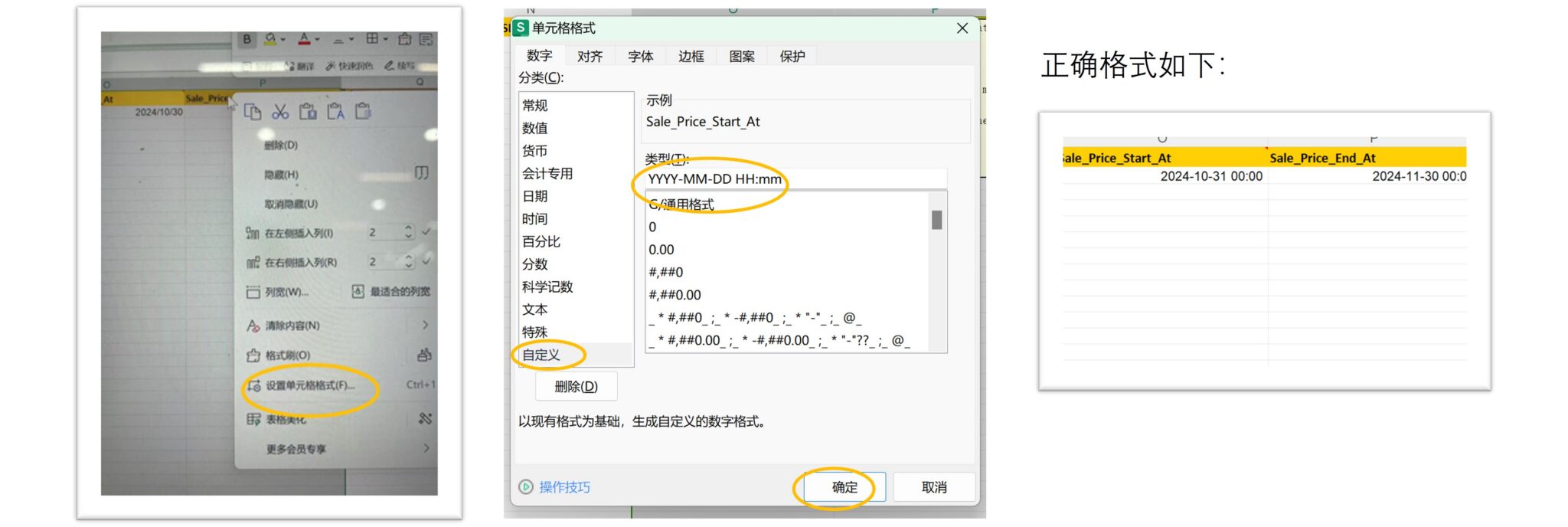
Note! The date format is: YYYY-MM-DD HH:mm. The specific steps are as follows:
You can click here to watch the video on how to fill in the date box.
7) Stock: Inventory is an optional item.
When uploading products for overseas warehouse stores (COD), leave this field blank. The inventory will go online only after your products are successfully stocked, warehoused, and shelved, and the product front-end link will go online accordingly. The inventory of overseas warehouse products is uniformly managed by the Jumia team, and sellers have no editing rights.
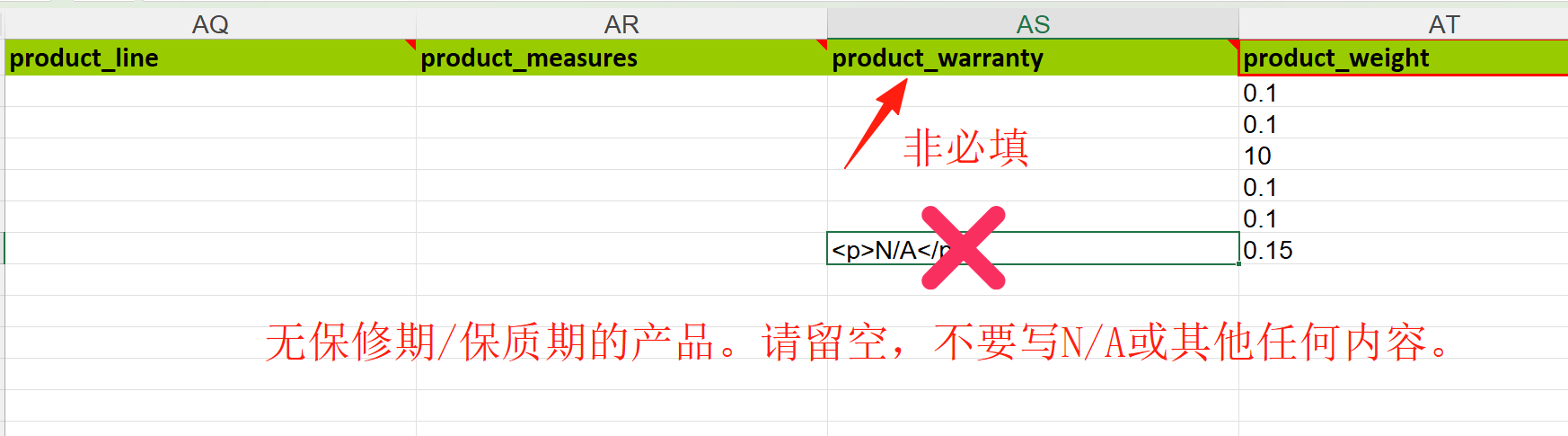
8) Product_warranty: Optional, product warranty period/shelf life. For products not in the 3C category or the Beauty skincare/cosmetics category, leave this field blank.
- For 3C category products, the warranty period can be filled in the following format examples: 1 year/3 months/60 days
- For Beauty category products, the shelf life can be filled in the following format example: 2026-10-08, which represents the expiration date (year, month, day) of the product’s usable period
9) product_weight: Weight is a required field, measured in kilograms (KG). If a product weighs 250 grams, 0.25 should be filled in here.
The product weight entered by the seller here is for consumers’ reference only.
10) Short-description: Required field. AR stands for Arabic, and FR stands for French. It is recommended that the content filled in be in HTML code format. Key notes must be presented in bullet points, and the number of bullet points must be 4 or more. Among them, the key notes for 3C electronic products must have at least 7 descriptions, including but not limited to operating system (OS-Operation System), camera (Came), display (Display), memory (Memory), processor (Processor), battery capacity (Battery), product color (Colour), etc.

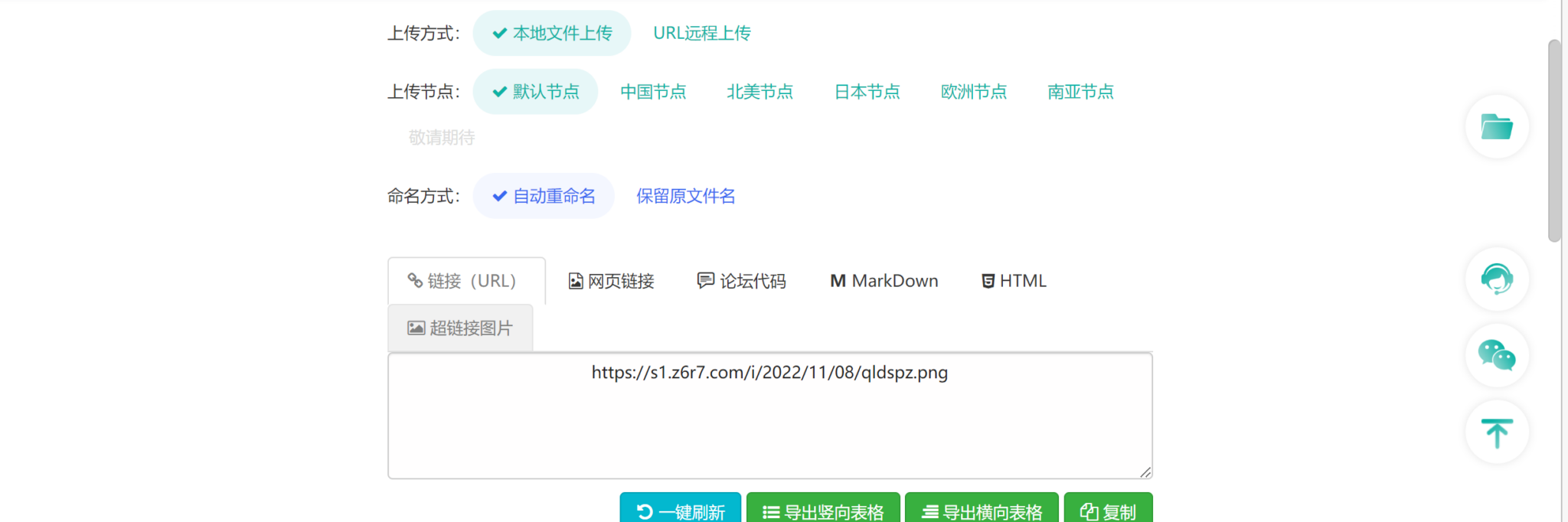
11) Image: Product images are mandatory. You can upload up to 8 images. The main image must show the front of the product. The image resolution is required to be between 500×500 and 2000×2000 pixels, and the maximum size of the image must not exceed 2MB. The content to be filled in should be the image in URL format.
How to upload an image in URL format?
Log in to a regular image hosting conversion tool, upload the image to the tool, select to convert the image to “URL” format, and paste the URL link into the form.
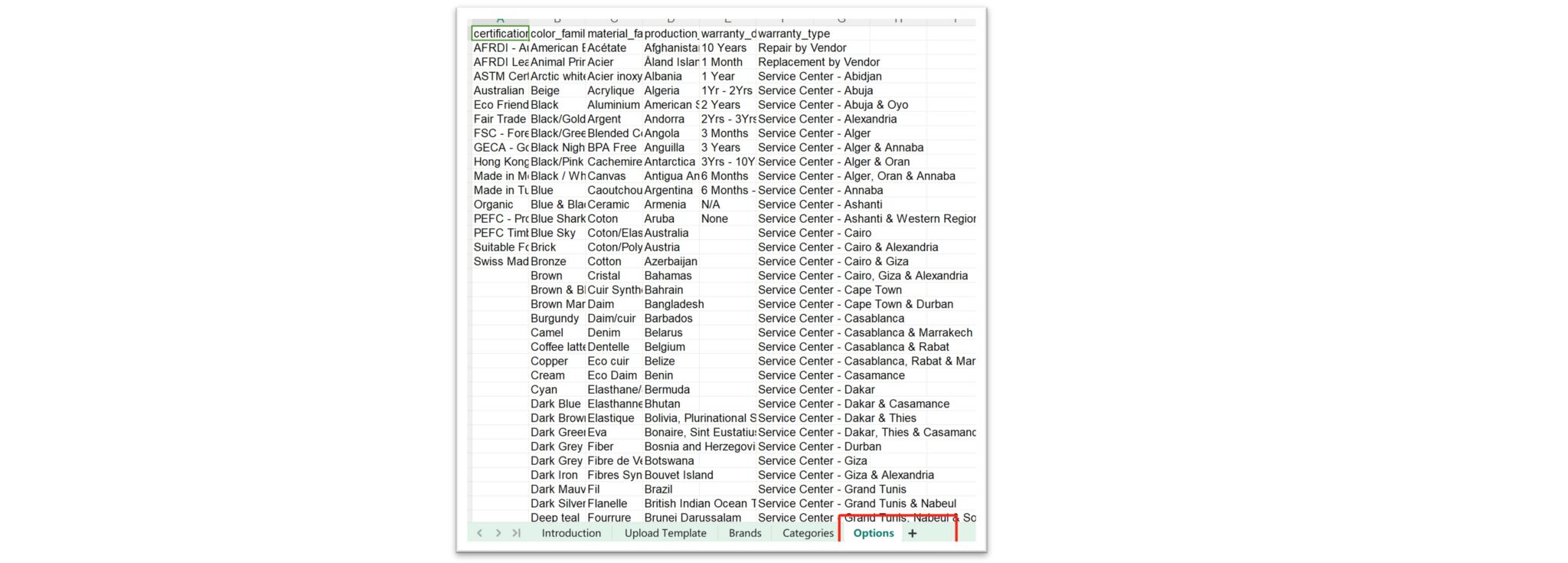
12) Others: Information such as Shop Type, Color Family, Material Family can all be found in the “Option” table for existing variables, which can be selected through the drop-down menu. For filling in other contents, please refer to the “Single Product Upload” here to check the relevant information filling standards and precautions.
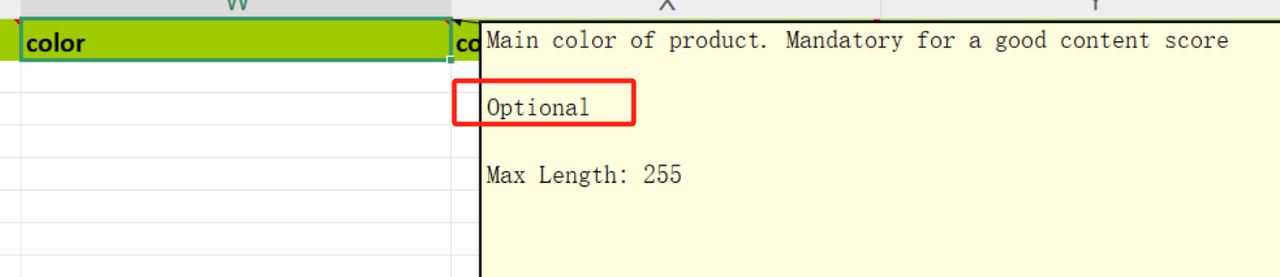
Special Notes:
The color attribute is optional when importing templates, but for the Fashion category (especially men’s clothing, women’s clothing, children’s clothing, shoes, etc.), color is a necessary reference item in the QC process. Please ensure that the color attribute is filled in when creating such products.
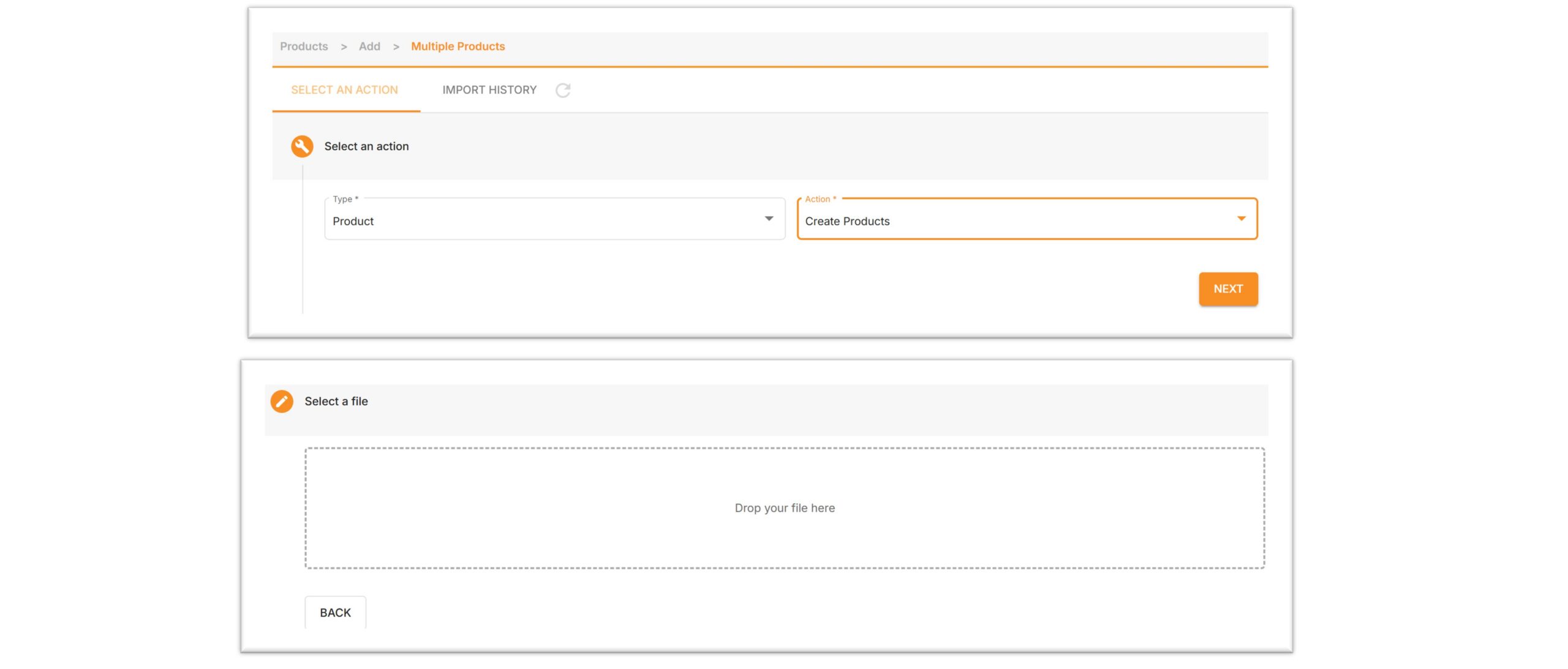
Step 3: Upload the table
1. Import the edited table, select Product for Type, and select Create Products for Action.
2. Select the store, then drag and drop the edited table here to upload.
Step 4: Check the upload results
Path: Manage Products >> IMPORT / EXPORT >> IMPORT HISTORY

Upload status can be divided into the following 5 types:
- Pending: Waiting for upload.
- Completed: Completed.
- In progress: Currently uploading.
- Failed: Upload failed. Please download the error report to check the reason.
- Failed: Partially failed. Click the progress bar to view the success percentage.
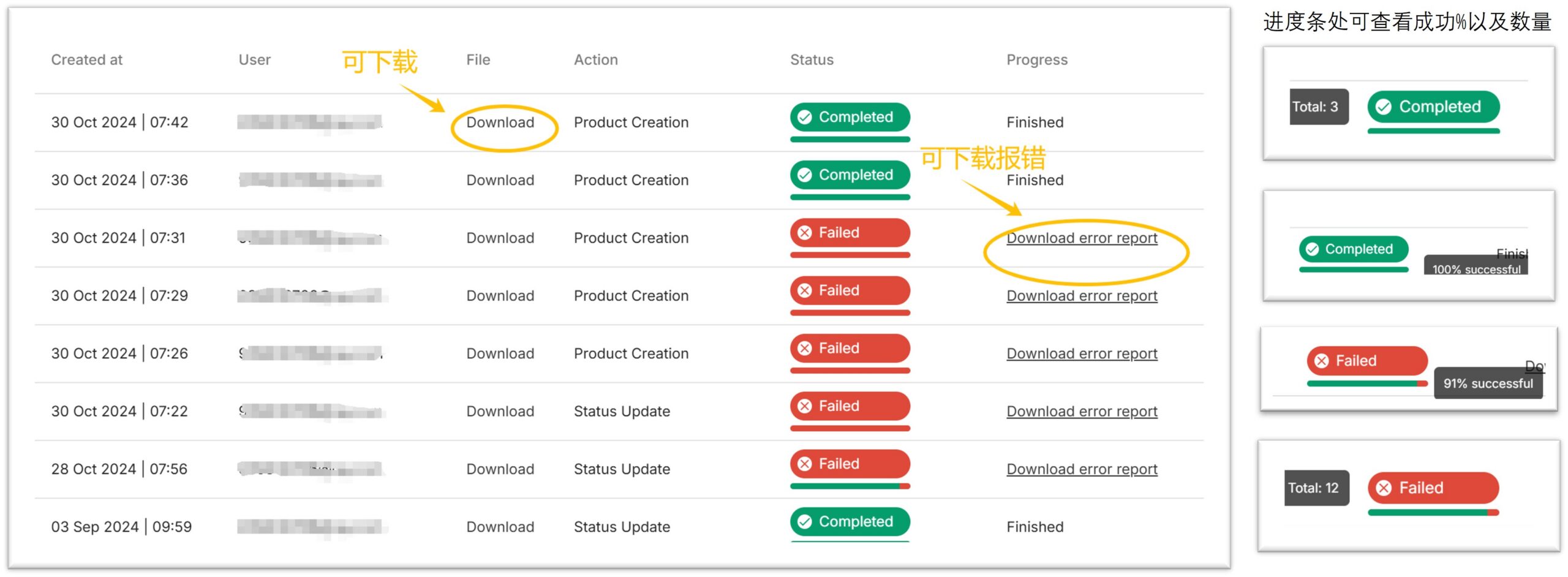
Analysis of the Upload History Page:
- Created at: Creation time.
- User: Creator.
- File: The uploaded file can be downloaded.
- Action: Operation category.
- Status: Status. Click on the status to view the completion progress percentage (%).
- Progress: “Fished” means completed, or download the error file.
After the product is successfully created, it will enter the product review process.
For specific details, you can click here to view.
