
Introduction to Product Management
Click here to view the video introduction
1. General introduction to the product management page
1.1 Product status filtering
Status indicates the product’s condition. Sellers can filter products based on their status and can select multiple status values simultaneously, eliminating the need to view each status individually. For example:

Status Filter Options:
- All: All products (including deleted products).
- Pending QC: Awaiting system review.
- Not Ready To QC: Not yet in the review queue.
- Approved: QC approved.
- Rejected: QC rejected.
- Active: Product successfully created and active.
- Inactive: Product successfully created but not active.
- Live: Online in the foreground.
- Not Live: Offline in the foreground.
- Unauthorized: Product removed by Jumia; product is offline in the foreground.
- Pending Deletion: Products awaiting deletion; products rejected for content review for 60 days.
1.2 Product Search
The system search is set to “Search by Product Name” by default.
- Search by Product Name: Search for products by name; fuzzy search is supported.
- Search by SID: Product Identifier Code. Each product has only one SID, which is shared across all countries.
- Search by Seller SKU: Search for products by Seller SKU.
- Search by Jumia SKU: Search for products by Jumia SKU. The Jumia SKU is automatically generated by the system after product creation; the corresponding country must be selected.
- Countries: Sellers can filter products by country.
1.3 Product Display Fields
- Name: Product title.
- Seller SKU: Seller SKU, a merchant code created by the seller based on their management habits when creating the product.
- Product SID: A unique numerical identifier for this product within the platform system.
- Price: Product price; can be edited directly on this page.
- Sale Price: The actual selling price of the product; can be edited directly on this page.
- Subsidy Price: The price subsidized by the platform. This will be automatically activated and displayed when the product enjoys a valid platform subsidy.
- Promotion Price: This refers to the product price applicable to platform promotions. The number of current and upcoming promotions is displayed as a numerical badge; if there are no promotions, a “-” is shown. Clicking the badge opens a pop-up window displaying the full list of promotions; this view is for reference only and cannot be edited:
- LIVE NOW: Displays the names, promotional prices in local currency, and start/end times (UTC) of currently active promotions.
- UPCOMING: Displays confirmed or approved future promotions in advance, helping sellers plan their inventory and pricing strategies early.
- Quantity: The current inventory quantity of the product.
- Creation Date: The date the product was first entered and generated on the platform.
- Visible: Whether the product is displayed to consumers. If there is an error, click to view details.
- Active: Whether the product has been approved and successfully created. If an error is displayed, click to view details.
- Actions: Click to perform operations such as “View Product Details”, “Edit Product Information”, “Copy Product”, and “Delete Product”.

♦ Filter Display Fields
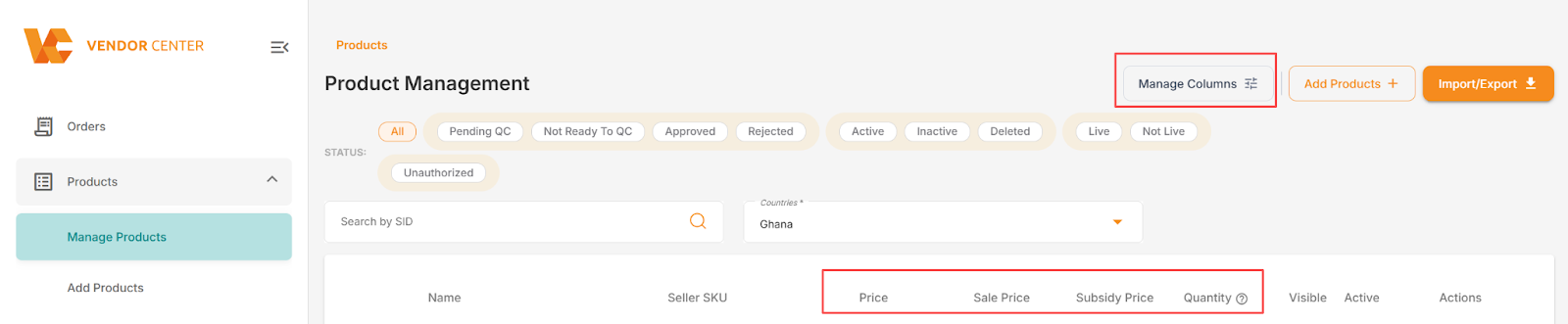
Click “Manage columns” above to filter the fields displayed on the management page. The number of fields displayed on the page is 4. Currently, the fields that can be filtered are: Price, Sale Price, Subsidy Price, Promotion Price, Quantity, Product SID, and Creation Date.
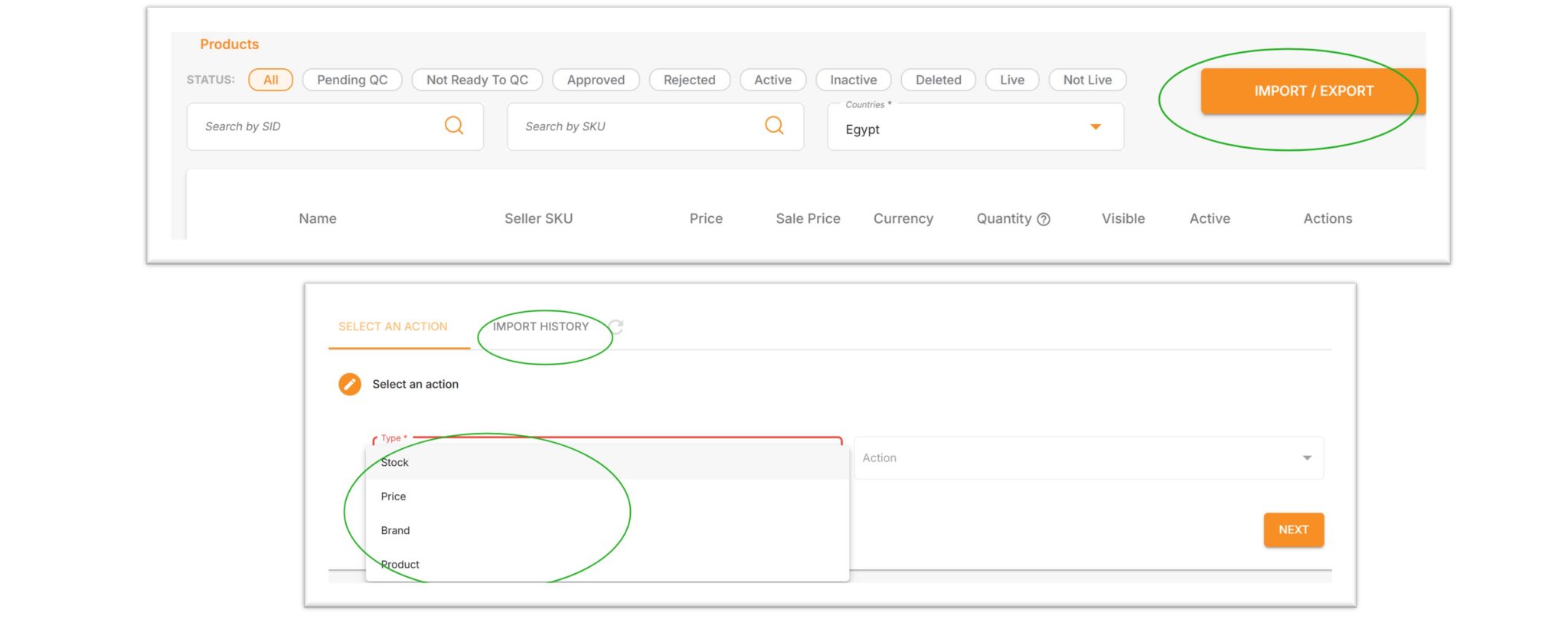
1.4 IMPORT / EXPORT Upload and Download
Clicking on import/export allows for batch processing of products, including but not limited to batch uploading, updating product statuses, and viewing upload history, etc.
2. Interpretation of Product Status
2.1 After a product is created, it needs to go through 4 steps:
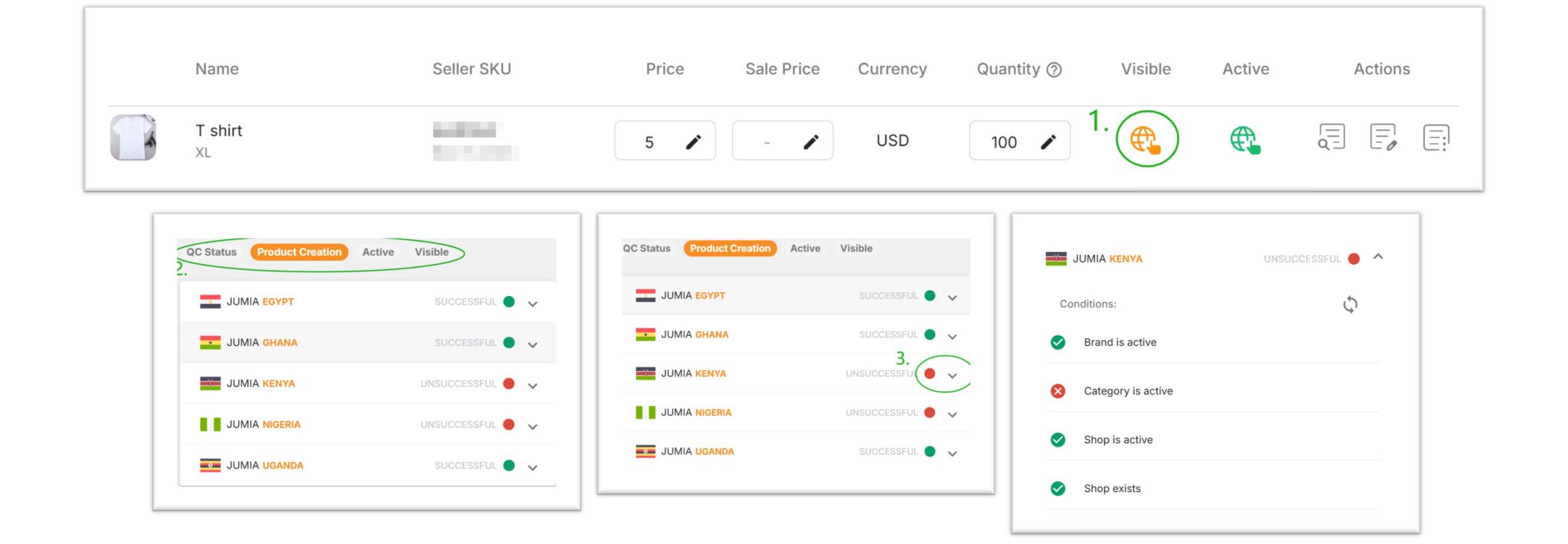
Each step and each country has a drop-down arrow to view details. The path is as follows: 1. Click the spherical icon > 2. Click the step to be selected > 3. Click the arrow.
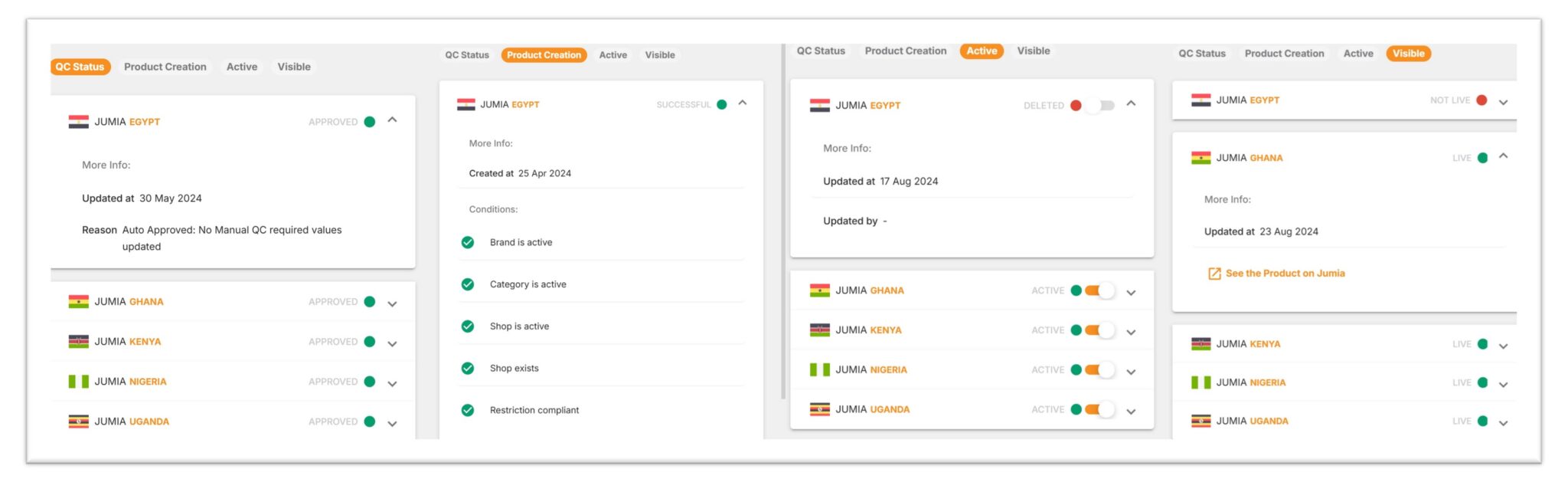
Step 1: QC Status (Product Review)
Step 2: Product Creation
Step 3: Active (Product Activation)
Step 4: Visible (Online on the Frontend)
2.2 Meanings of Different Colors for Spherical Icons
| Colour | Active | Visible |
| Green | Countries that have been successfully created(QC √+ Product Creation √) All products have been activated. |
Countries that have been successfully created(QC √+ Product Creation √) All products are online. |
| Orange | Some countries have been successfully activated. | Some countries have successfully gone online. |
| Red | All countries are not activated | All countries are offline. |
2.3 Detailed Explanation of Creation Steps
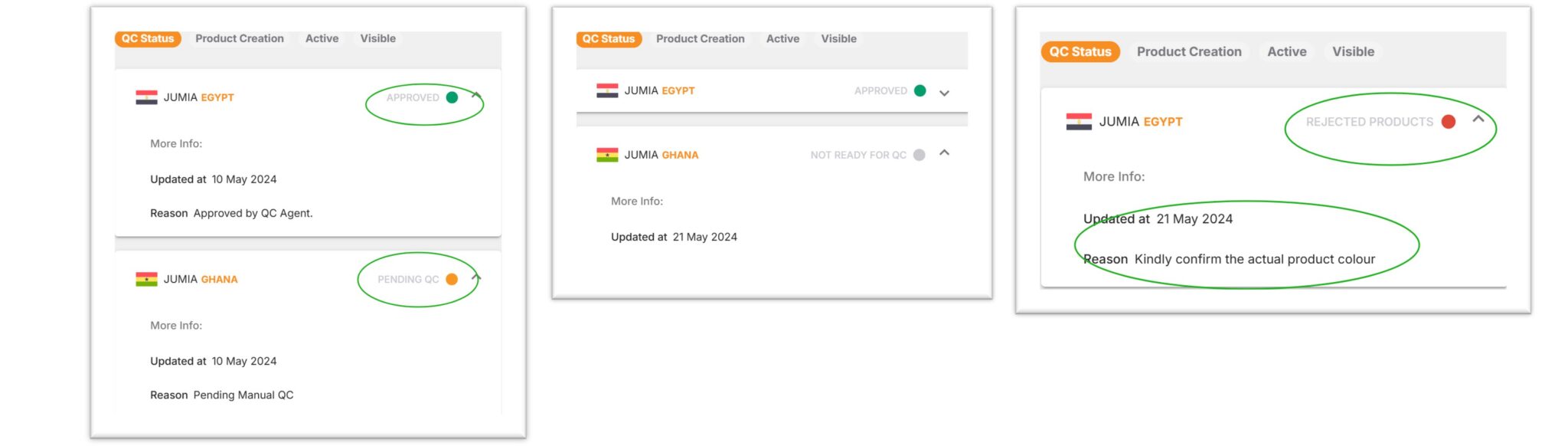
Step 1: QC Status, which stands for Quality Check Status, refers to product review.
After a product is created, it will enter the product review step.
Product review is mainly divided into automatic review (the system will complete the review in a short time and give the review result) and manual review (which takes 1-2 working days).
- If the product review is successful, it will show “approved”.
- If the product is pending review, it will show “Pending QC”.
- If the product has not entered the review queue, it will show “Not Ready To QC”.
- If the product fails the review, it will show “REJECTED PRODUCTS” (specific details can be obtained through the drop-down arrow, for example: color not filled in).
Step 2: Product Creation
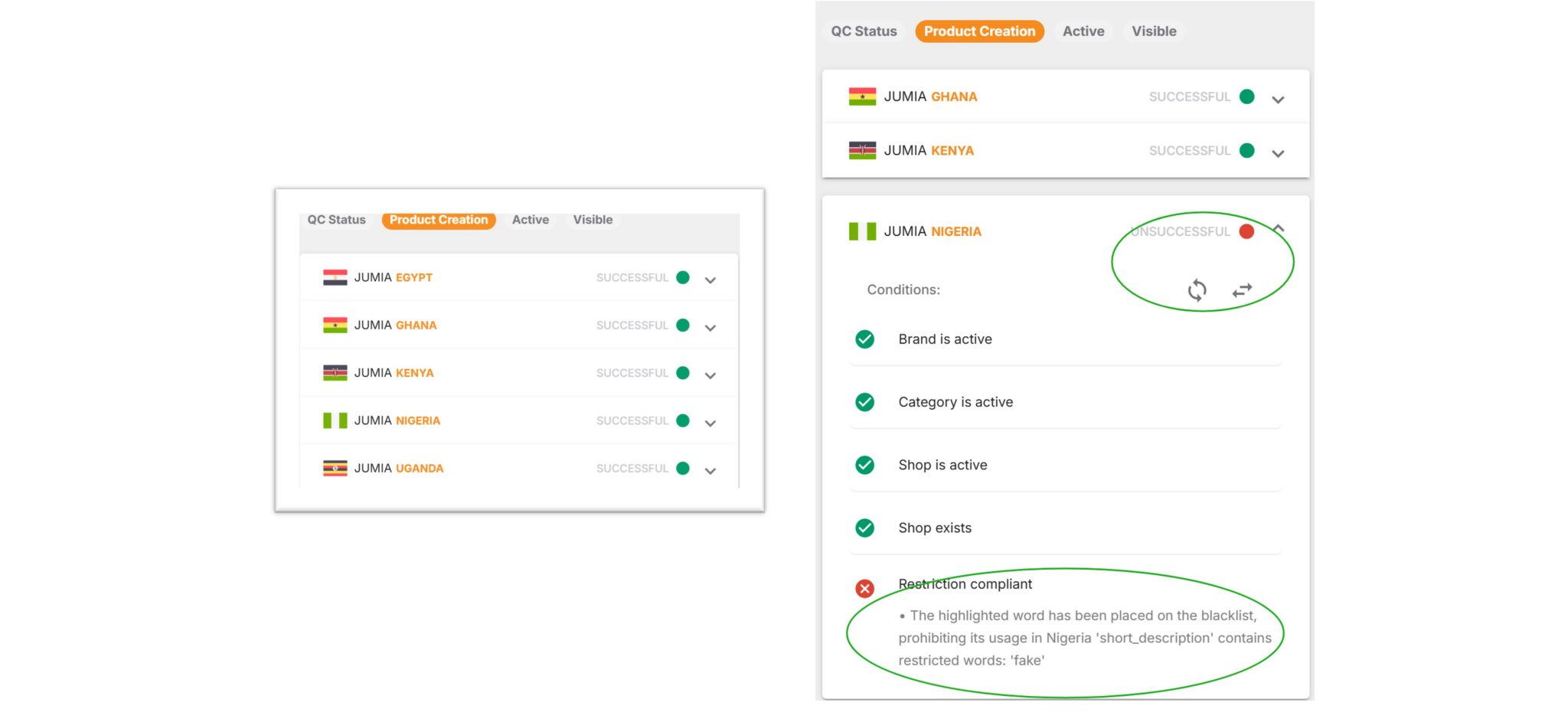
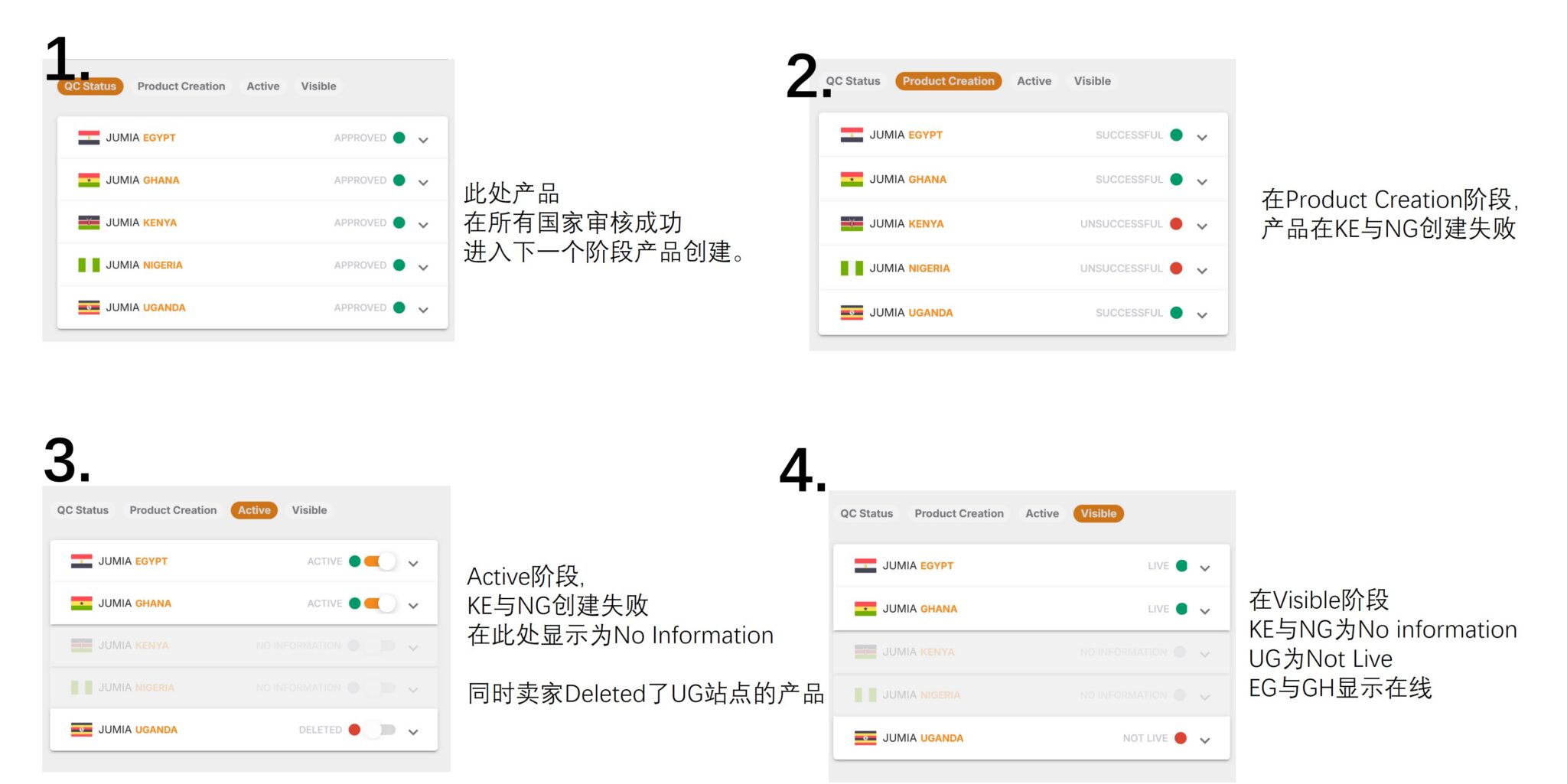
If the creation is successful, “Successful” will be displayed; if the creation fails, “Unsuccessful” will be displayed.
The main factors affecting creation failure are:
- Brand is active? Whether the brand is activated
- Category is active? Whether the category is activated
- Shop is active? Whether the shop is activated
- Shop exists? Whether the shop exists
- Restriction Compliant? Whether it contains prohibited words
Step 3: Active indicates whether the activation is successful.
Products that are successfully activated display ACTIVE. When QC fails (Step 1) or creation fails (Step 2), the ACTIVE section displays NO INFORMATION.
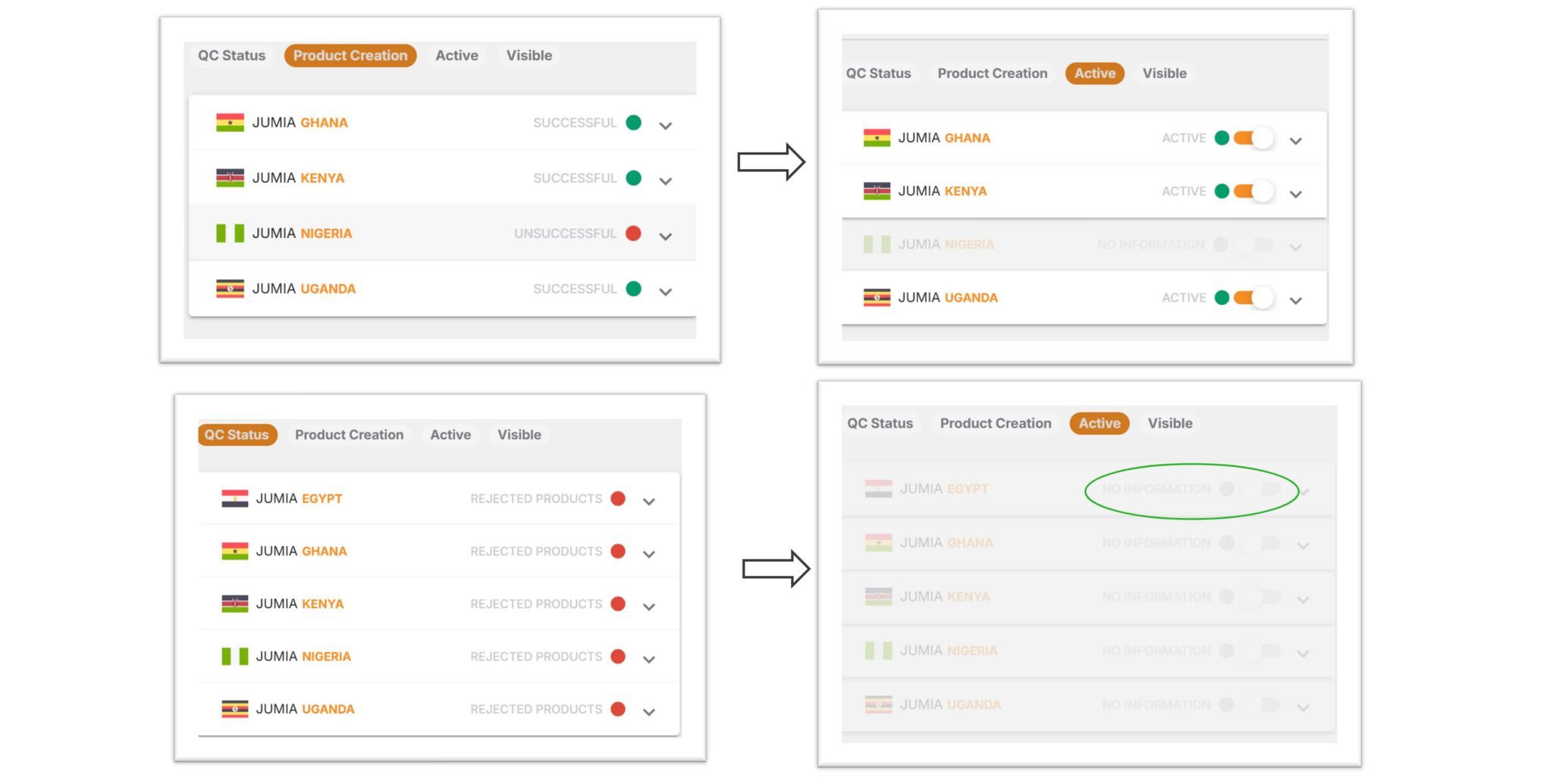
Deactivate or activate products directly by clicking the button.
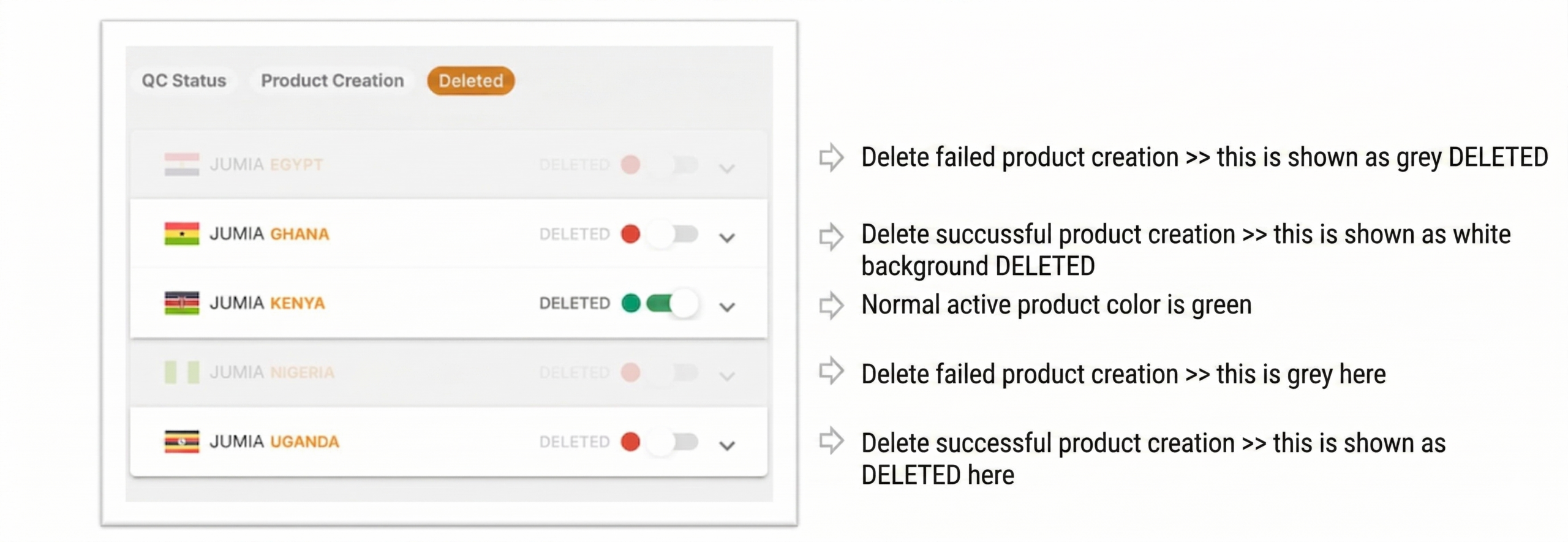
Delete products through batch upload or delete products under “Products -> Manage Products -> Actions” page directly.
Step 4: Whether the front desk is online.
If it shows “Live”, it means the product is visible on the front desk. If it shows “Not Live”, it means the product is offline on the front desk.
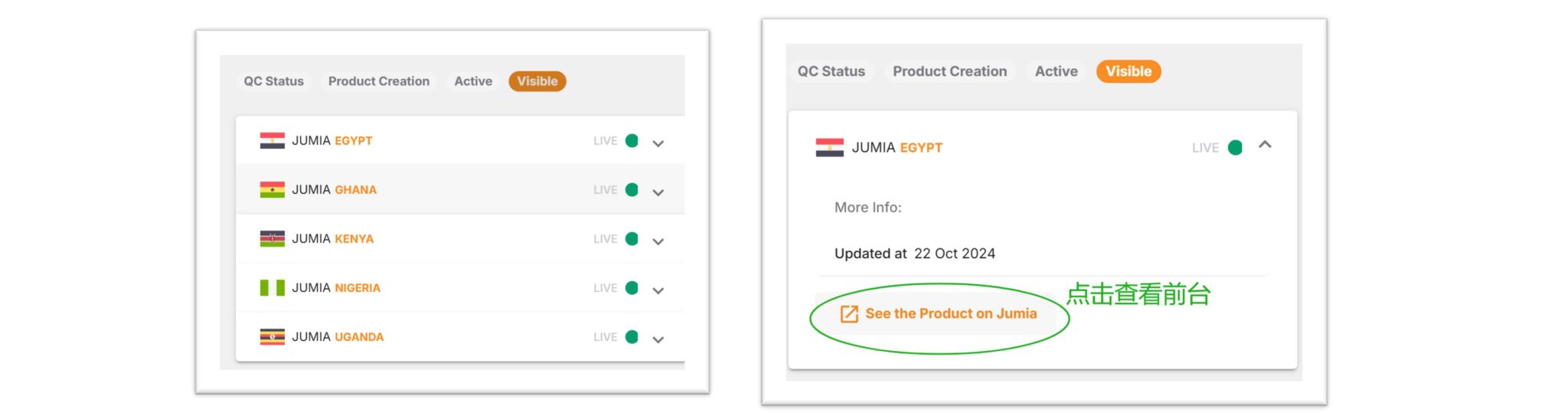
The factors that affect whether the front desk is online generally include: whether QC is passed, whether the creation is successful, whether it is activated, whether it has been deleted, whether prices/inventory have been added, and whether the store is online, etc.
The following are examples of products that are not live:
The following is an example of the product being activated and online in all countries:

If the product is not created successfully or is not online, sellers can troubleshoot and modify it according to the above explanations.
If the product still remains Not Live after meeting the following conditions, you can consult further through RAC.
- QC Status √
- Product Creation √
- Active √
- Inventory filled √
- Store online √
