
Before creating an advertising campaign, you first need to clarify your business goals. Different goals will directly affect the formulation of advertising strategies. For example, the strategies for promoting new products and increasing the sales volume of hot-selling products will be different. Clarifying your goals will help you better select advertising products, plan the advertising structure, and evaluate the advertising effect.
AI can assist you in the following four aspects: establishing ad groups, selecting products, setting bids, and choosing keywords.
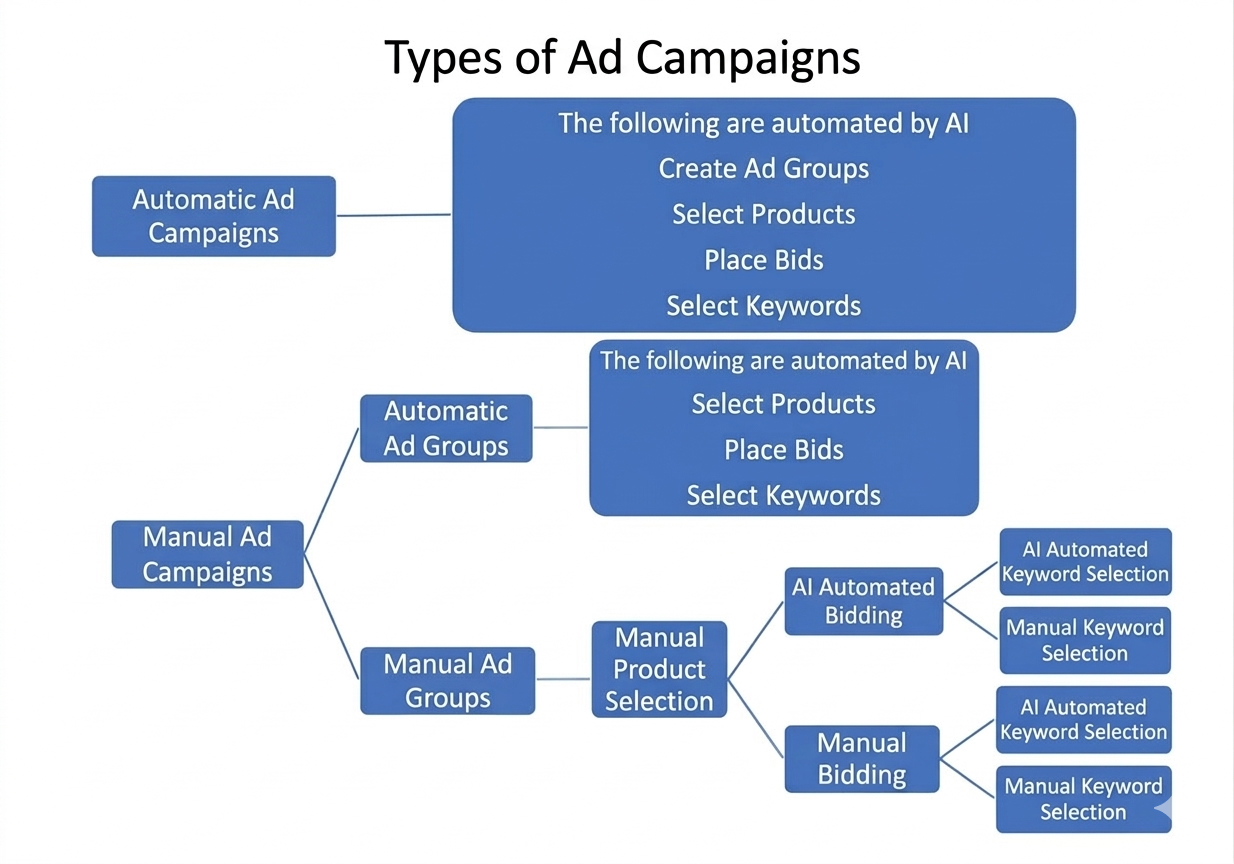
Four steps to successfully create your own advertising campaign. Creating an automated advertising campaign takes only one step.
1. Click the advertising entry in the VC backend >> 2. Create an advertising campaign >> 3. Create an ad group (for manual advertising campaigns) >> 4. Set product bids (for manual ad groups)
1. Click the Ads entry in the VC backend: “Advertise your Products”
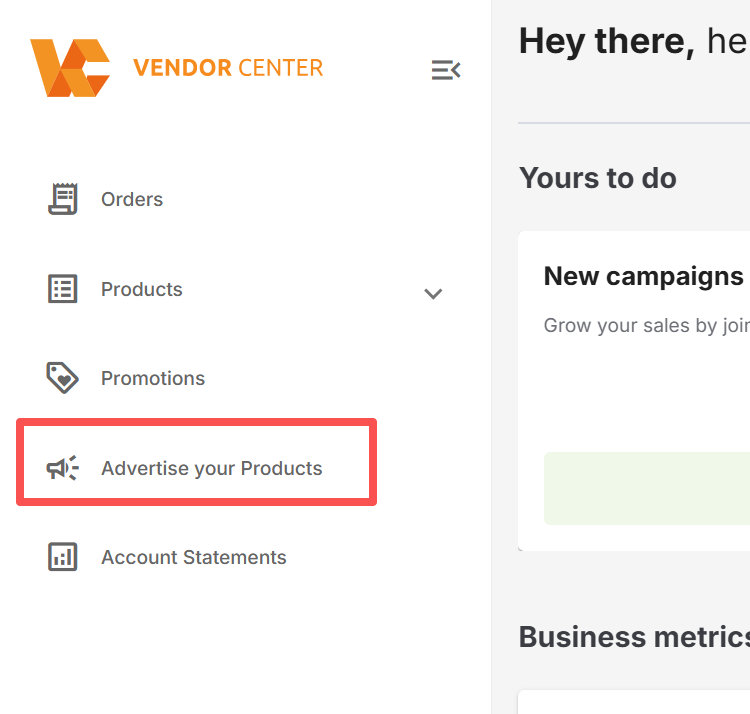
2. Create an advertising campaign
2.1 Enter the “Campaign manager”
Select the corresponding country from the dropdown box
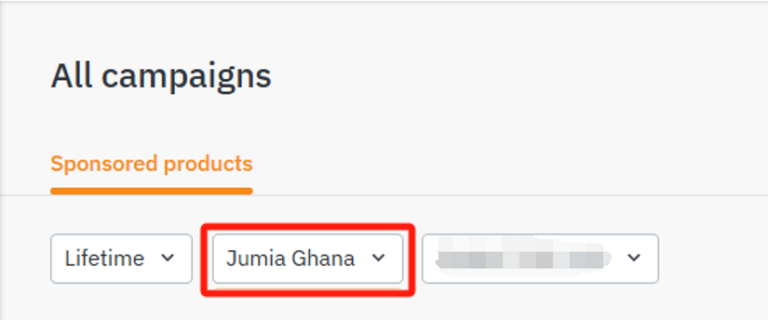
Click the orange button “Create campaign”
2.2 Configure the advertising campaign type
In the “Campaign Type” section, you have two options:
- Manual: You can independently select SKUs and set keywords or product targeting
- Automated: The system algorithm automatically selects well-performing products in your store and automatically matches relevant customer searches
(1) If you choose the automated type of advertising campaign, there is no need to create an ad group. You only need to complete steps 1-8 in the following picture to finish the creation. The system will automatically select potential products, match corresponding keywords, and set reasonable bids:
- Country of publication: Your country is selected by default
- Campaign name:Enter a clear and descriptive name for easy identification
- Start date: Set the launch time of the advertising campaign
- End date (optional): If no end date is set, the advertising campaign will run continuously until the budget is exhausted
- Budget type:
- Daily budget: Set the daily expenditure amount
- Total budget: Set the total expenditure amount for the entire advertising campaign
- Budget amount: Enter a specific value according to the selected budget type (for example: a total budget of 500 local currency, or a daily budget of 50 local currency)
Remarks:
When setting your budget, you can choose to set a daily budget limit or set an overall budget limit without limiting the number of days.
It is recommended that you choose to set a limit based on the daily budget. When using the daily budget limit, when you reach the daily budget limit, the advertisement will automatically pause promotion for the day, and the next day, the advertisement will automatically resume promotion.
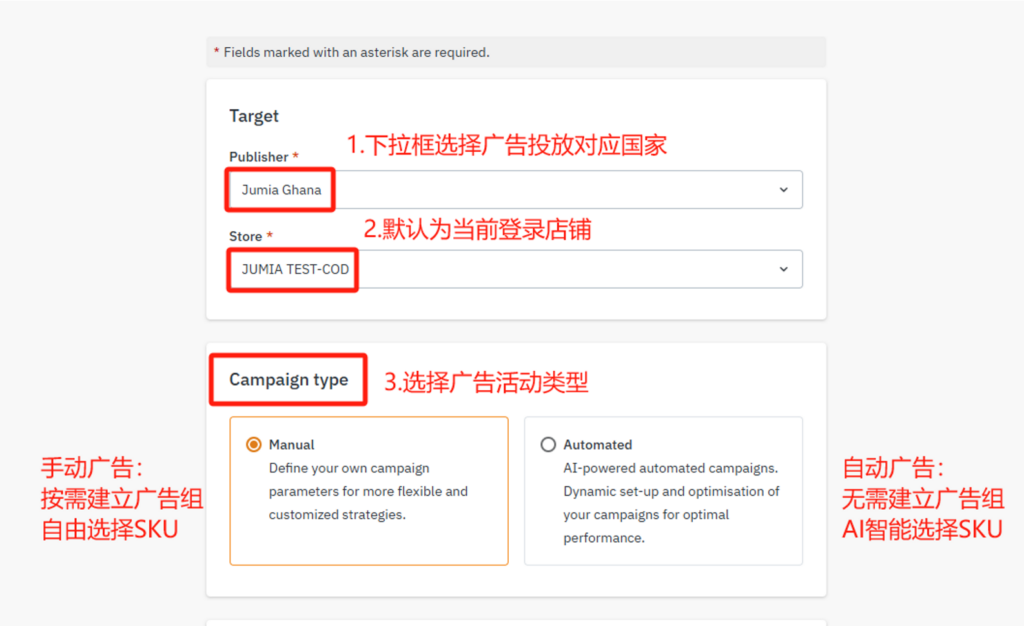
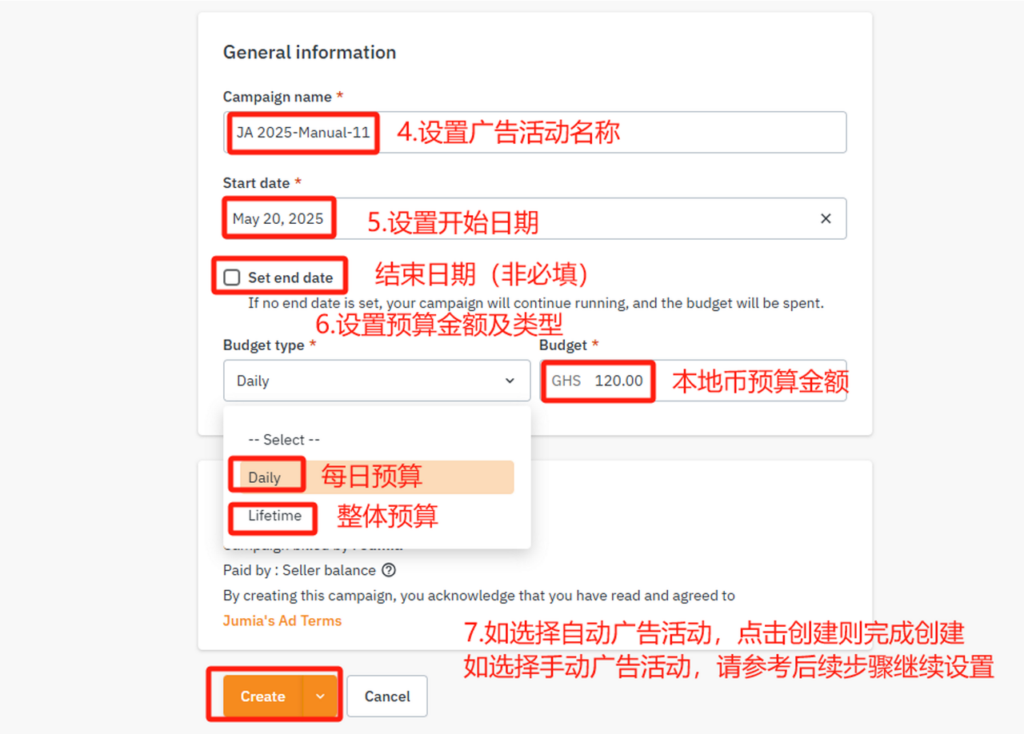

(2) If you select a manual-type advertising campaign, after completing steps 1-7 in the above image, the system will automatically jump to the next interface, prompting you to continue creating an ad group.
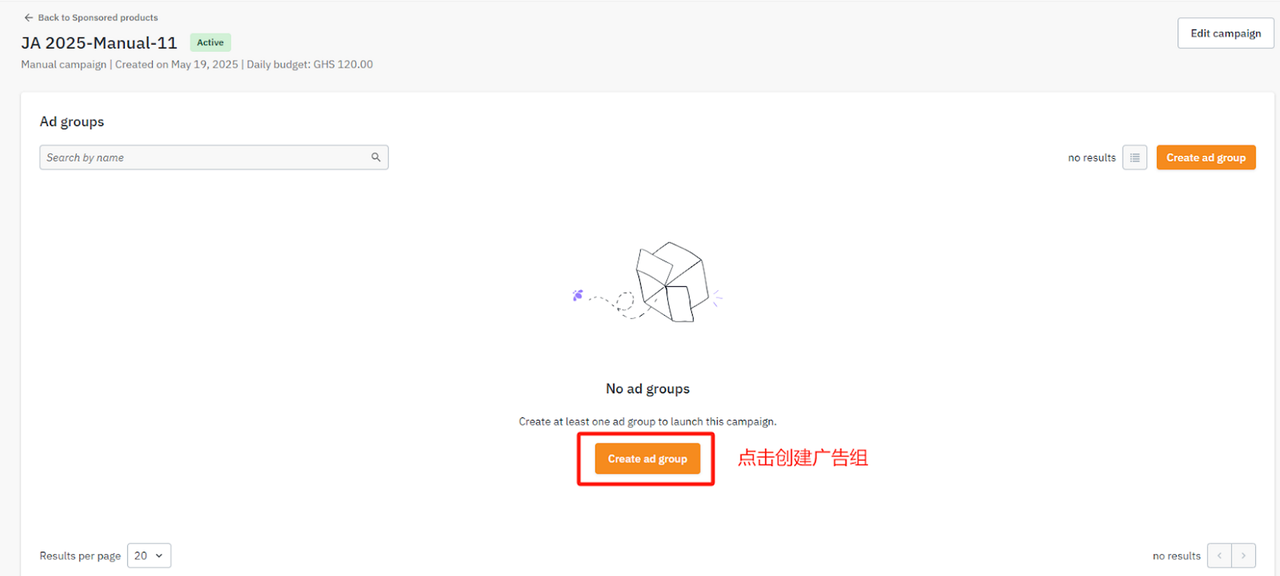
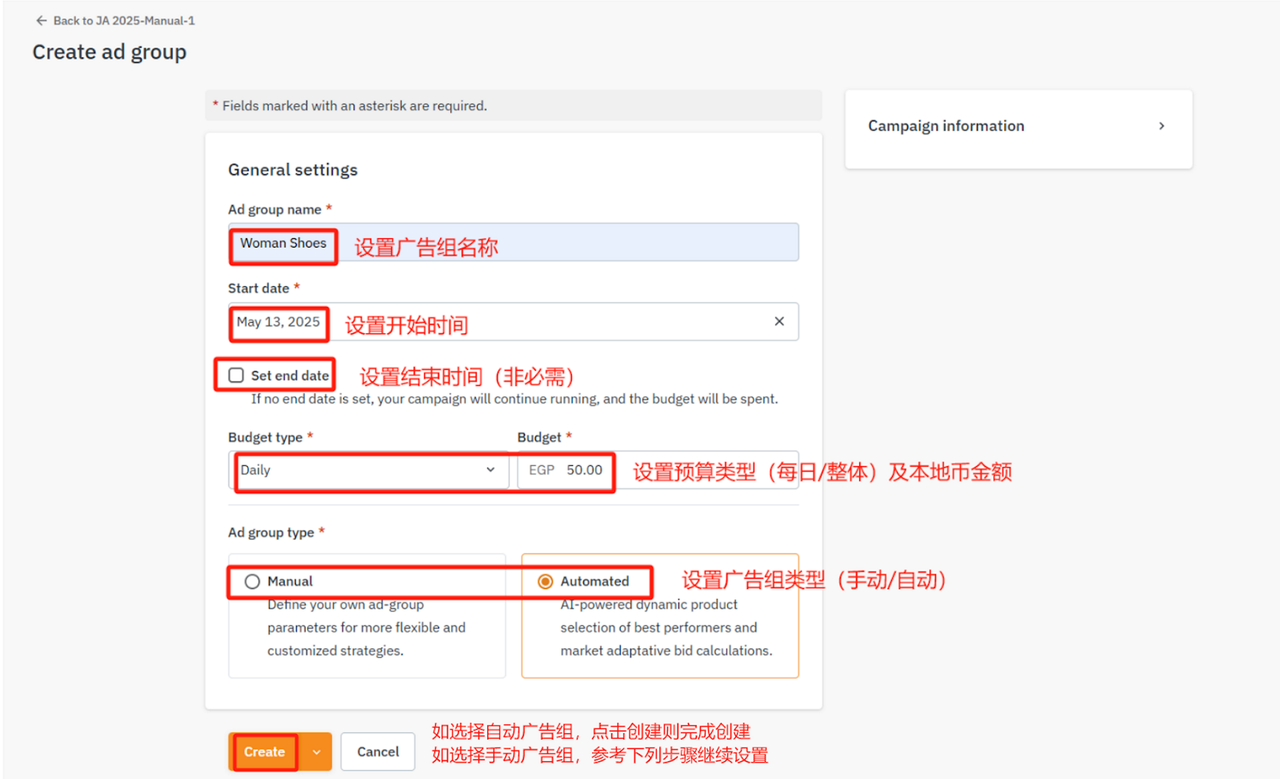
3. Create an ad group (for manual advertising campaigns)
- Ad group name: Enter a clear and descriptive name for easy identification
- Start date: Set the start time of the ad group, which by default follows the start time of the advertising campaign
- End date (optional): If no end date is set, the ad group will run continuously until the budget is exhausted
- Budget type:
- Daily budget: Set the daily spending amount
- Total budget: Set the total spending amount for the entire ad group
- Budget amount:Enter a specific value based on the selected budget type
Please set up ad groups separately according to the types of products you are promoting. For example, during Black Friday promotions, if you are promoting both electronic products and shoes, you need to create separate ad groups for these two categories of products.
The importance of segmentation
(1) Improve the relevance between products and keywords (ensure that “Bluetooth headset” ads are not shown to shoe buyers)
(2) Optimize bidding strategies (suggested bids may vary significantly across different categories)
(3) Facilitate separate monitoring and adjustment of the performance of each category
4. Set product bids (for manual ad groups)
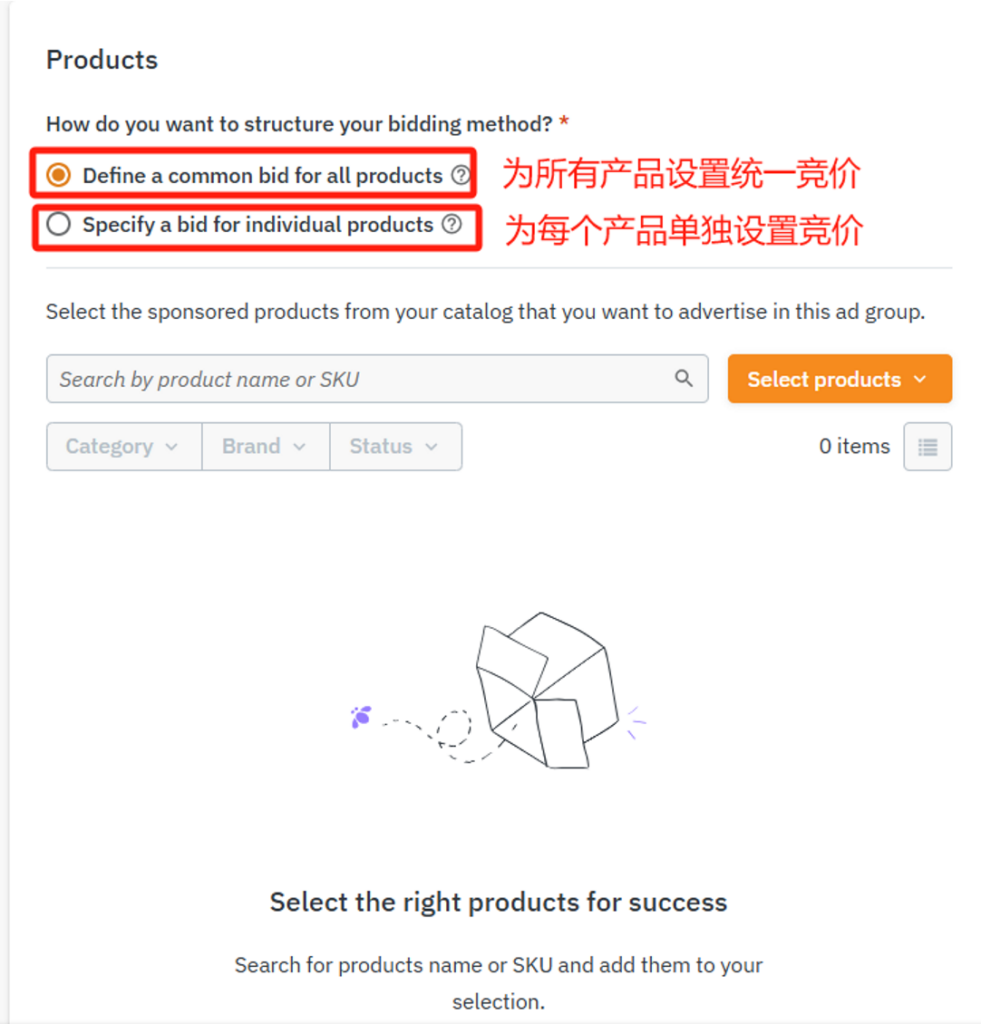
4.1 Select product bid type
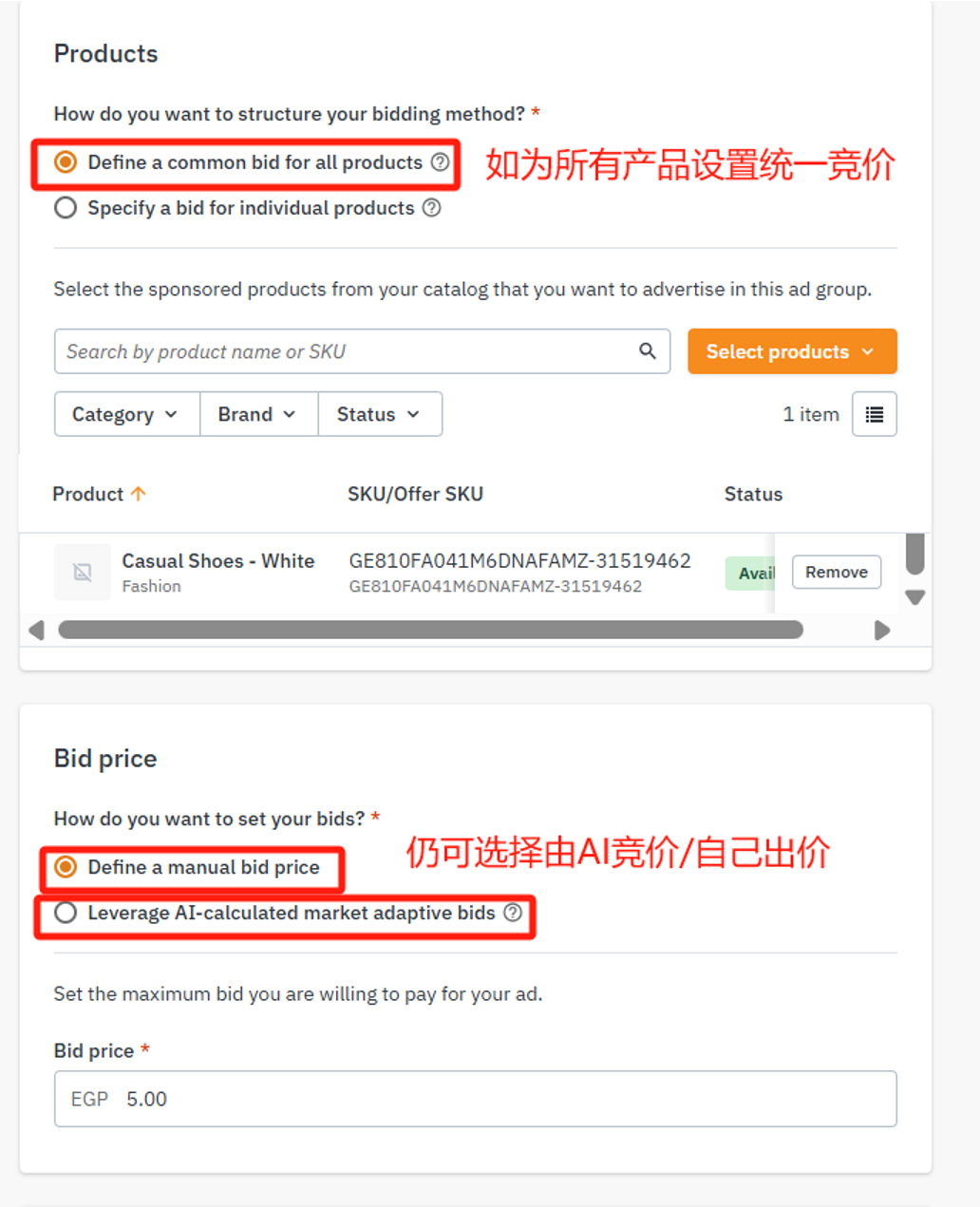
- Define a common bid for all products -> Set a unified bid for all products
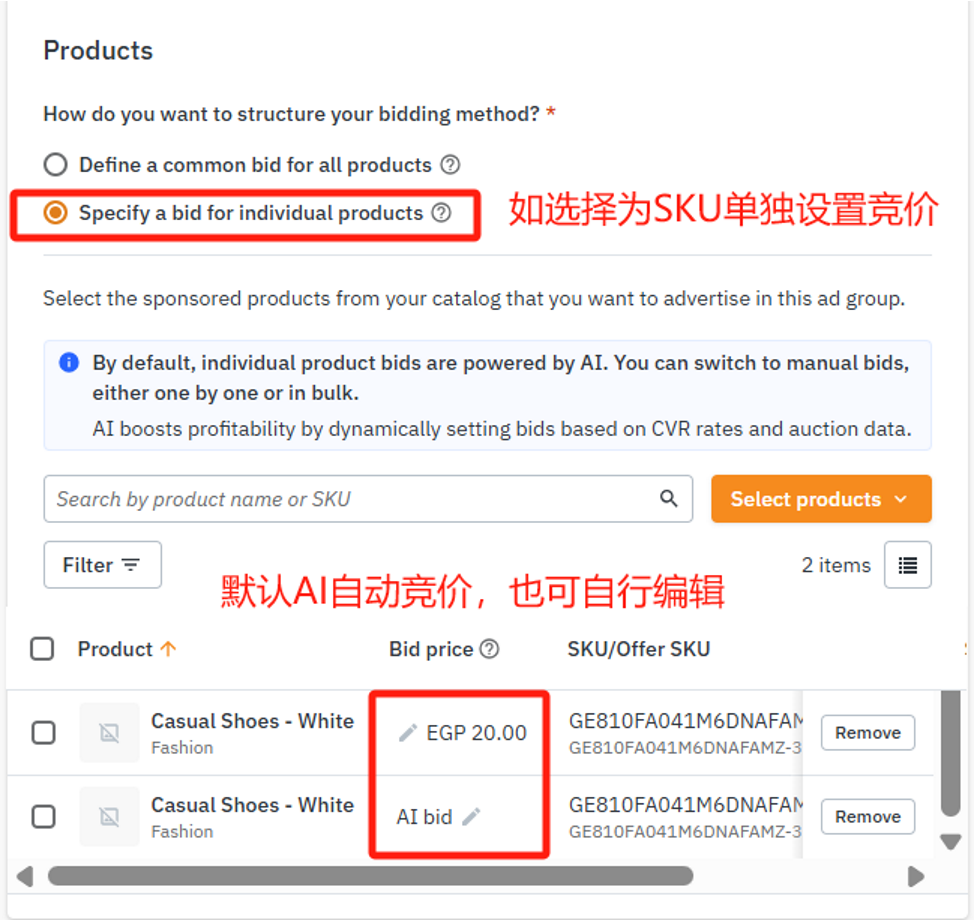
- Specify a bid for individual products -> Set different bids for each product
When setting the maximum ad bid, you can choose between automatic bidding or manual bidding.
After selecting automatic bidding, the advertising system will intelligently bid according to the market competition level, saving you time and effort.
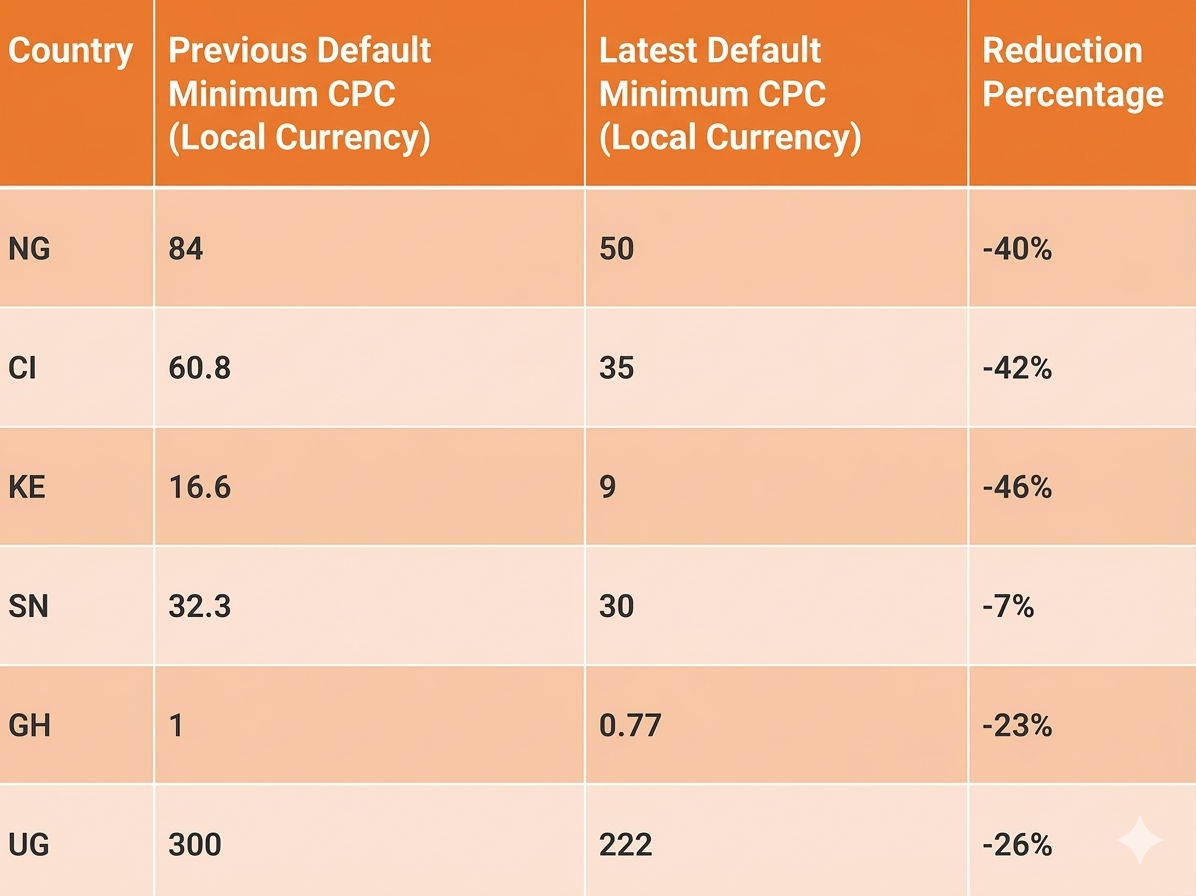
If you choose manual bidding, you need to set the ad bid yourself. In manual bidding mode, you can choose to set a unified bid for all products or set different bids for different products, which can more accurately meet your customized needs. If the bid is lower than the base price, the product will not be displayed. Please refer to the figure below for the base price.
Note:
- Set your maximum bid: When creating a promotion campaign, you will set the maximum amount you are willing to pay for a single ad click. This is your “bid”.
- Actual cost per click: The actual amount you pay for a click is usually lower than your maximum bid. This depends on the bidding mechanism and other sellers’ bids for the same ad space. You usually only need to pay a little more than the next highest bidder to win the ad space.
4.2 Selecting Promotional Products
When choosing advertising products, you can either use them to promote new products to create market demand or to further increase the sales volume of best-selling products. After the inventory is updated in the Seller Center (VC), the relevant information will be synchronized to the advertising platform within 3 hours.
Note:
- If promoting non-new products, ensure that the products participating in the promotion are among the top 50% of potential products in the store in terms of performance (in terms of sales, ratings, and natural click-through rates);
- The selected products must have a price competitive advantage and ensure sufficient inventory;
- In a manual ad group, please select at least 5 products for promotion (too few selected products will affect the promotion effect);
- Ensure that the products in the same ad group are from the same category and are within a similar price range (the price difference does not exceed 7 times);
Two ways to select products:
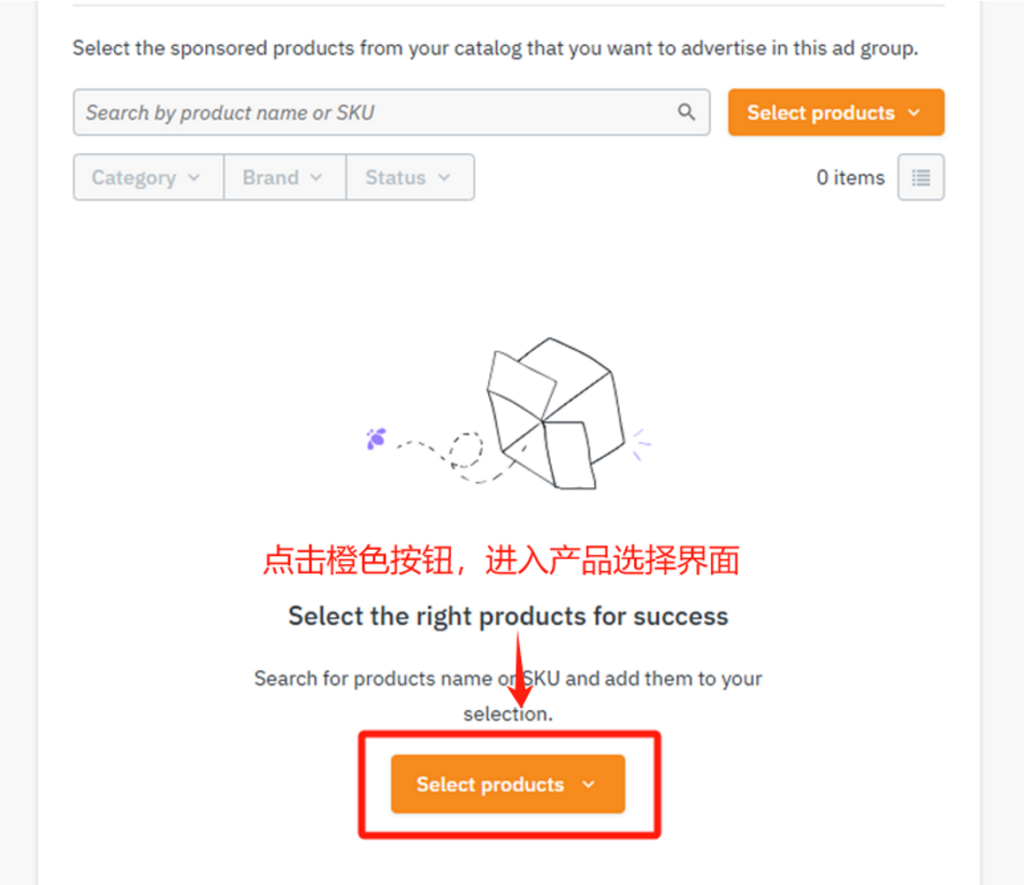
a. Selection method: Select offers/Select products
b. Input method: Import offer SKUs/Import product SKUs
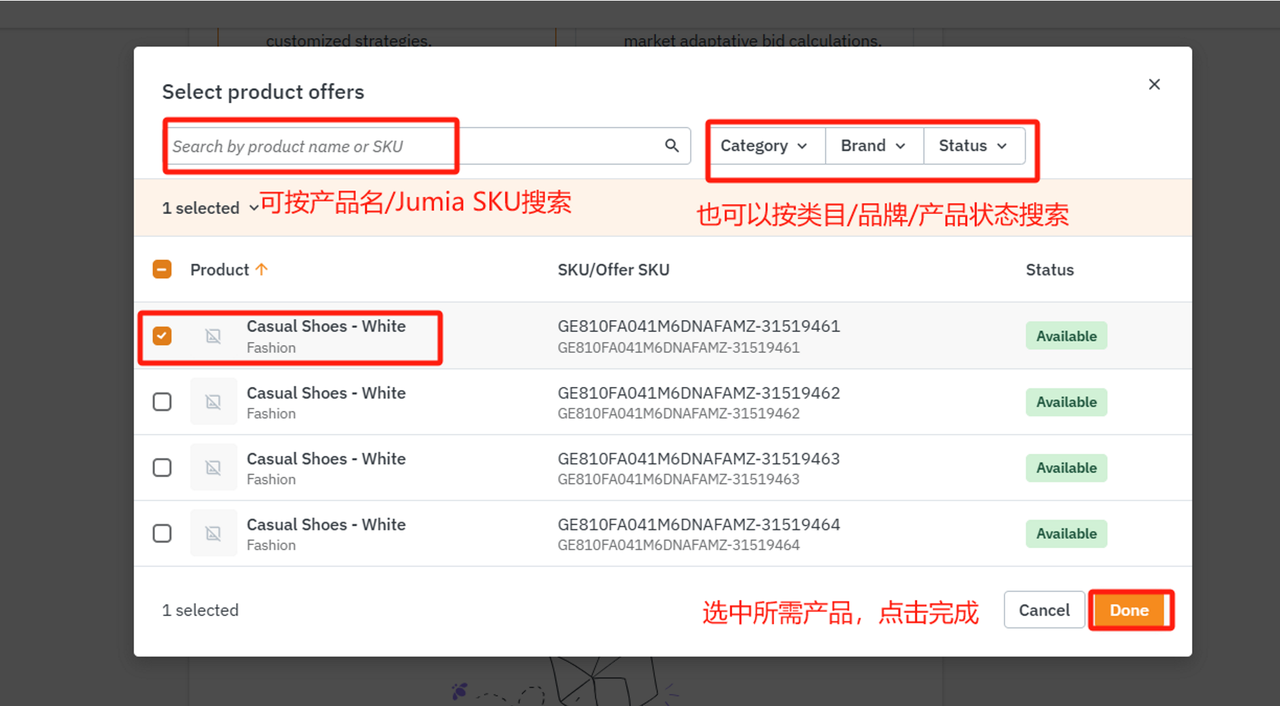
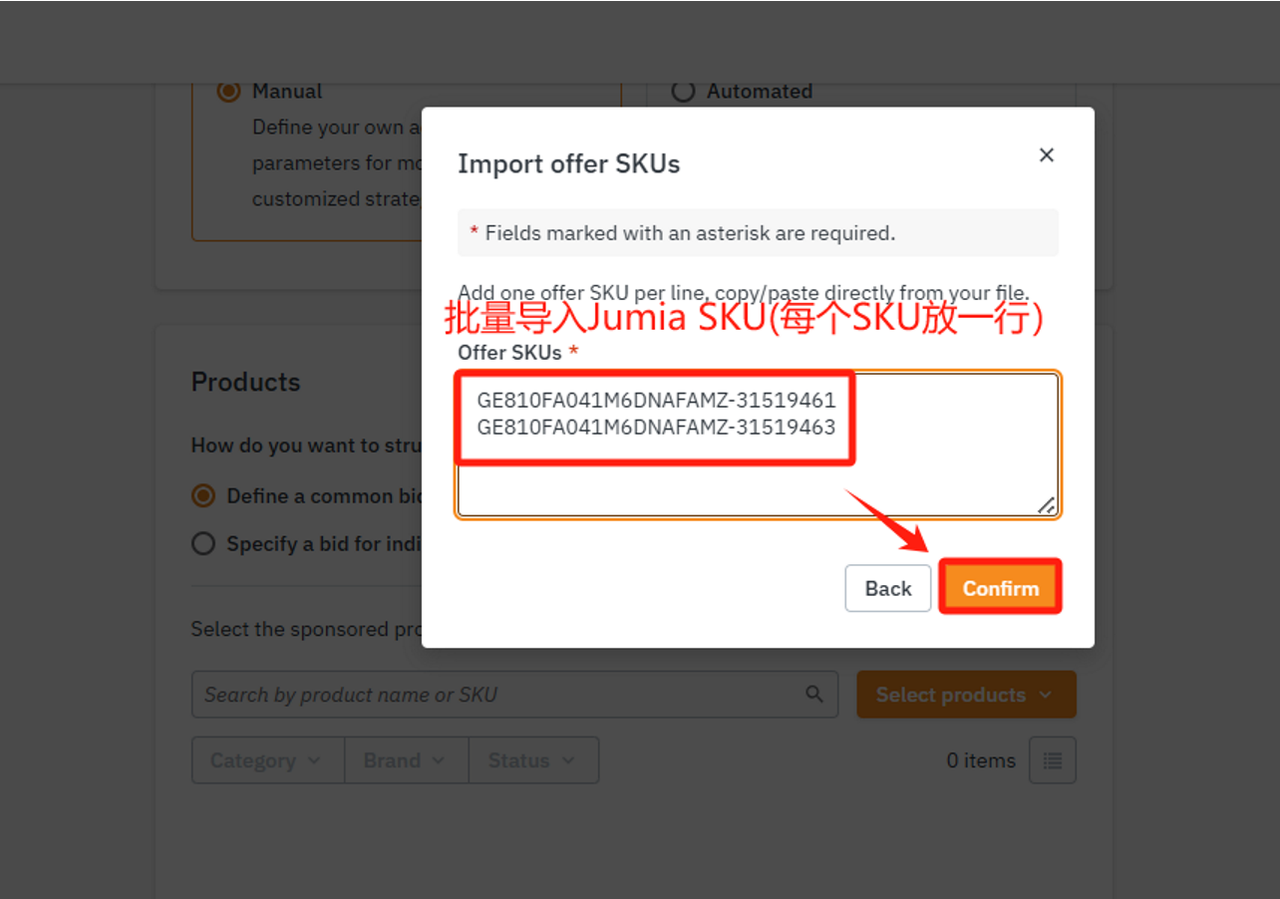
4.3 Selecting Keyword Strategies
With “Automatic Keyword Selection”, the system will help you automatically select all relevant words related to the product category that shoppers have searched for on the Jumia website for promotion. It is recommended to prioritize the automatic keyword selection mode.
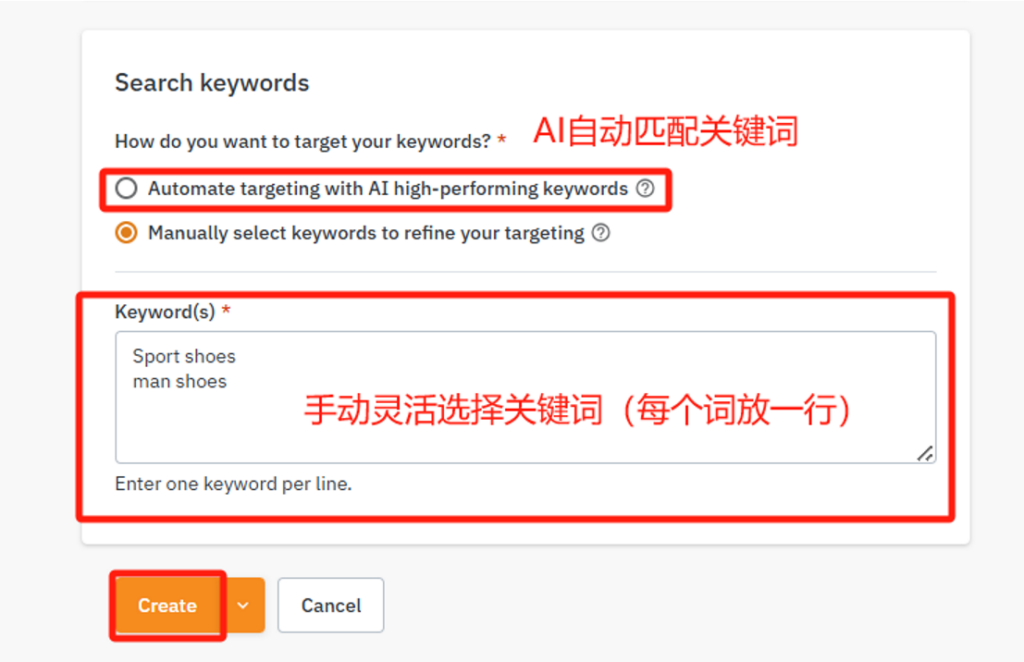
After completing the settings, you can choose to directly create the advertisement to make it take effect immediately, with the status displayed as Active; or you can choose to save it as a draft, with the status displayed as Inactive, so that you can continue to improve the configuration later. This is very important for manual advertisements that require detailed targeting settings.
After creation, the advertisement will be displayed in the list of the corresponding country on the Sponsored products page. If it is a manual advertisement saved as a draft, remember to activate it after completing the ad group configuration.
Note: If you have any questions, please report them through the following Wenjuanxing links:
Mirakl Advertising Backend Permission Application Link: Jumia Paid Advertising Backend (Mirakl) Permission Application (wjx.cn)
Mirakl Usage Issue Collection Link: New Advertising Platform Training – Issue Collection Form (wjx.cn)
