
Currently, Vendor Center supports sellers to batch Active/Inactive products through the page or file upload. Special note: If an FBJ product has inventory, the system does not allow deactivating the corresponding product.
The operations are as follows
1. Active/Inactive a product on the backend page
- On the Manage Products page, click the icon under “Active”.
- After the page expands, you can launch (Active) or discontinue (Inactive) products by country by clicking the white circular button.

2. Batch Active/Inactive Products
2.1 Batch Activation/Deactivation of Products on the Backend Page
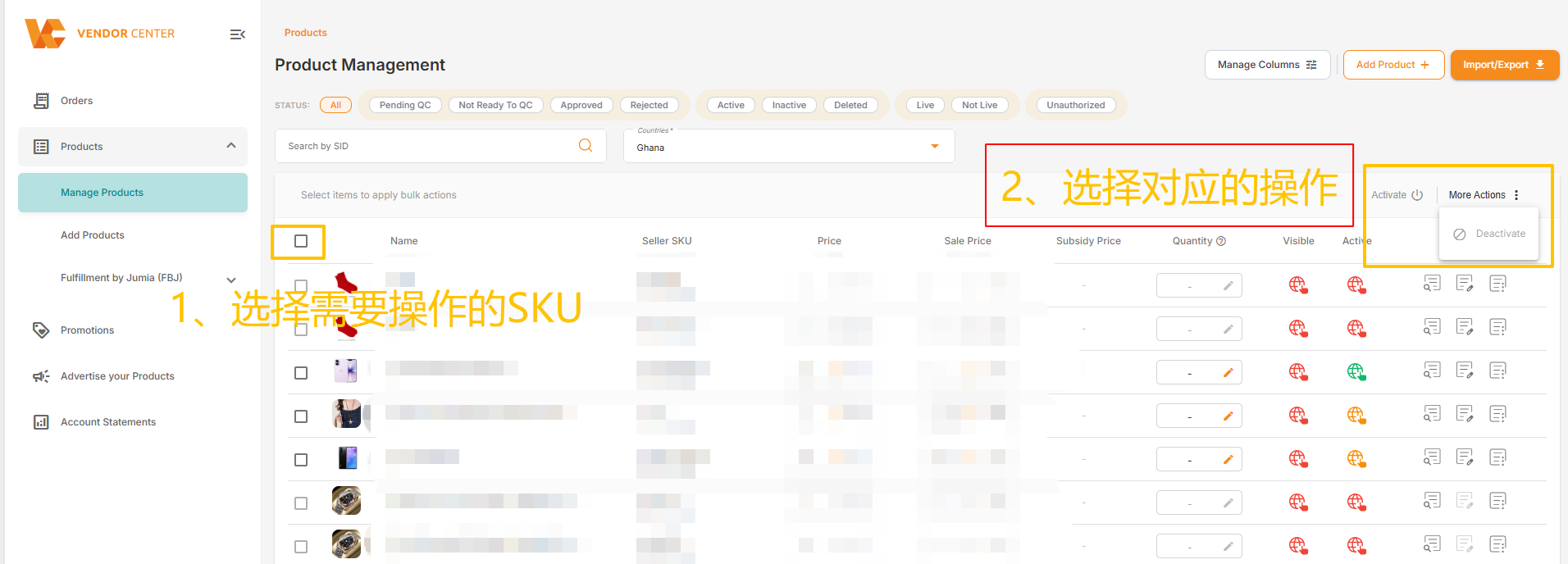
- On the Manage Products interface, select the products to be activated/deactivated.
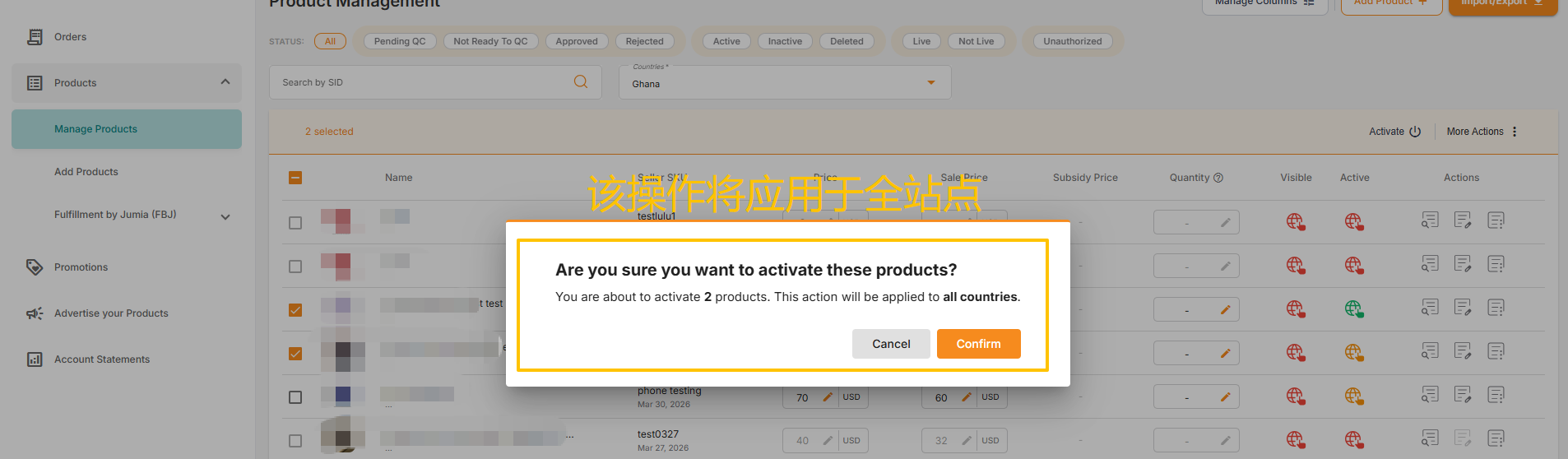
- Click “Activate” in the upper right corner for the selected SKUs; the operation will apply to all sites.
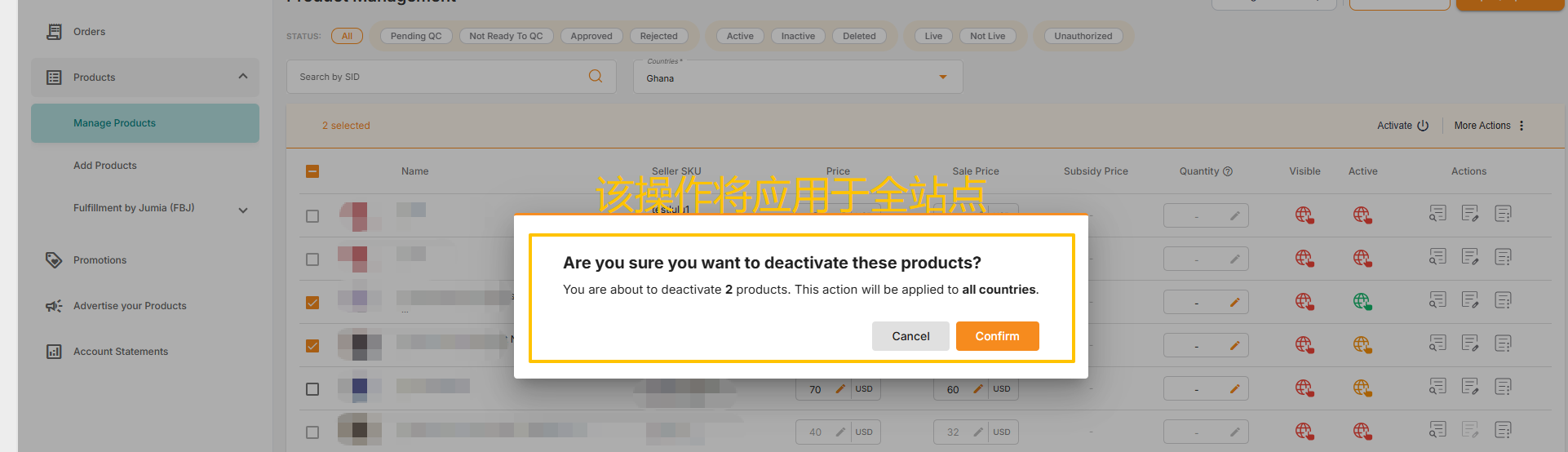
- Click “More Actions” and select “Deactivate” for the selected SKUs; the operation will apply to all sites.
2.2 Batch File Upload
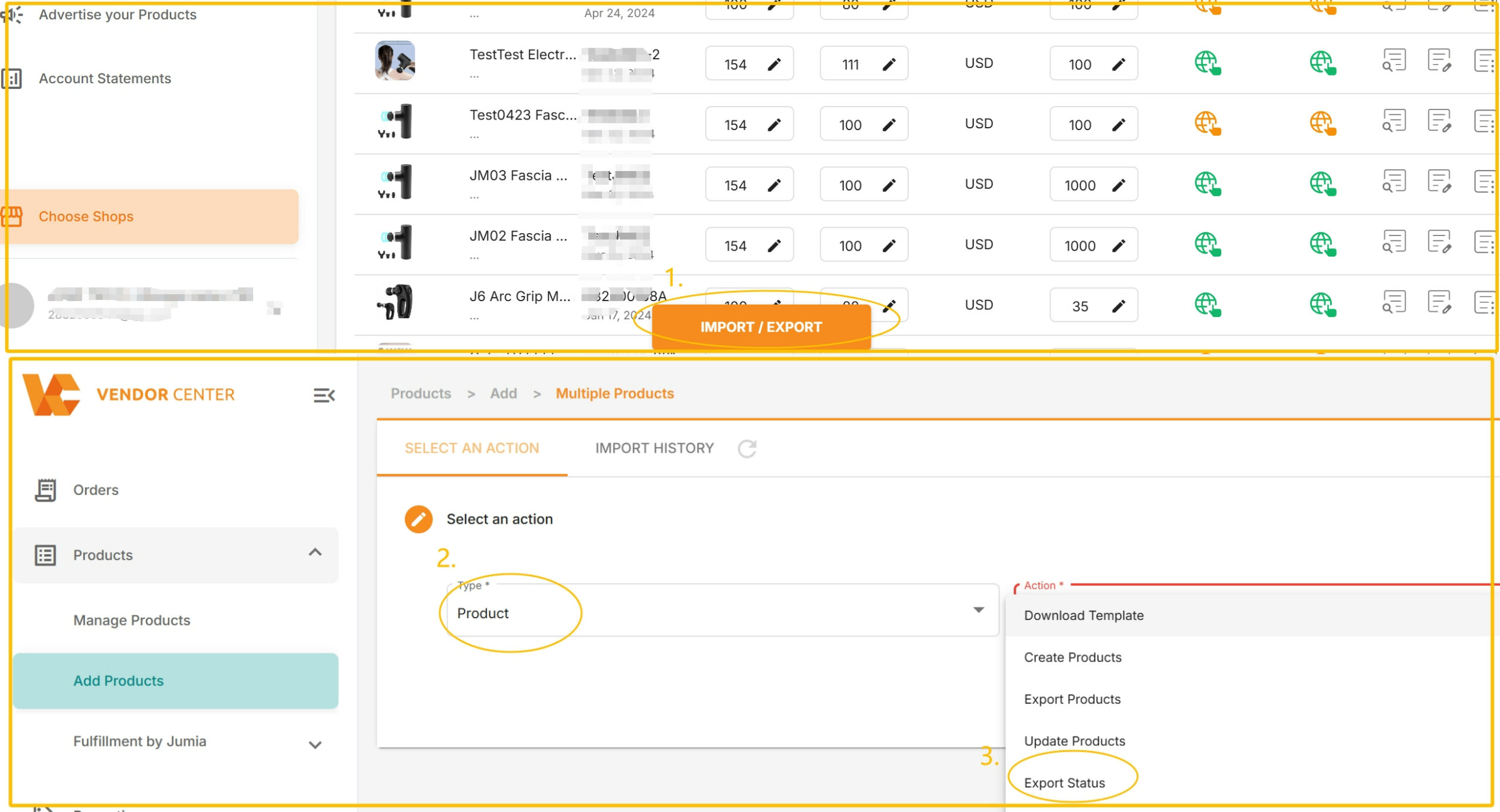
- Click “IMPORT / EXPORT” under Manage Products.
- Select Product for Type and Export Status for Action.
- Customize the product creation time and site, then click Export.
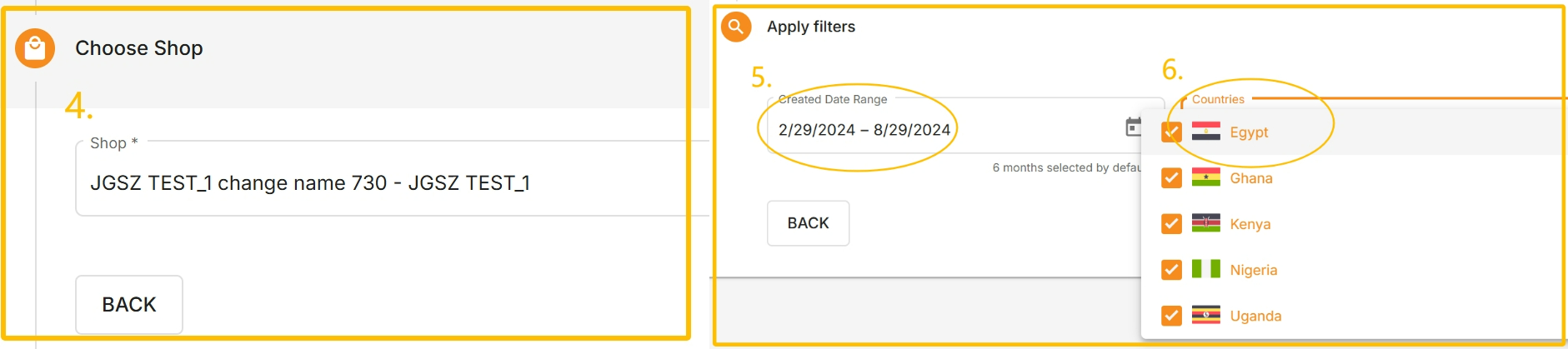
- You can see the status of each site by downloading the form.
- If you need to take the product offline: enter “INACTIVE”
- If you need to put the product online: enter “ACTIVE”
- You can enter according to actual needs in the corresponding country.
Suppose a seller needs to Inactive a certain SKU in all countries, here is an example:

- Edit the table and send it back: select “Product” for Type, select “Import Status” for Action, then drag the table to the box to upload it.

- Check the file upload results.
Click on Upload History to view the upload results, which include:
-
- Created at: Creation time.
- User: Creator.
- File: The uploaded file can be downloaded.
- Action: Operation category.
- Status: Status. Click on the status to view the completion progress percentage (%).
- Progress: “Finished” indicates completion, or download the error file.
There are 5 types of statuses:
-
- Pending: Waiting to upload.
- Completed: Completed.
- In progress: Uploading in progress.
- Failed: Upload failed. Please download the error report to check the reason.
- Failed: Partially failed. Click on the progress bar to view the success percentage.

