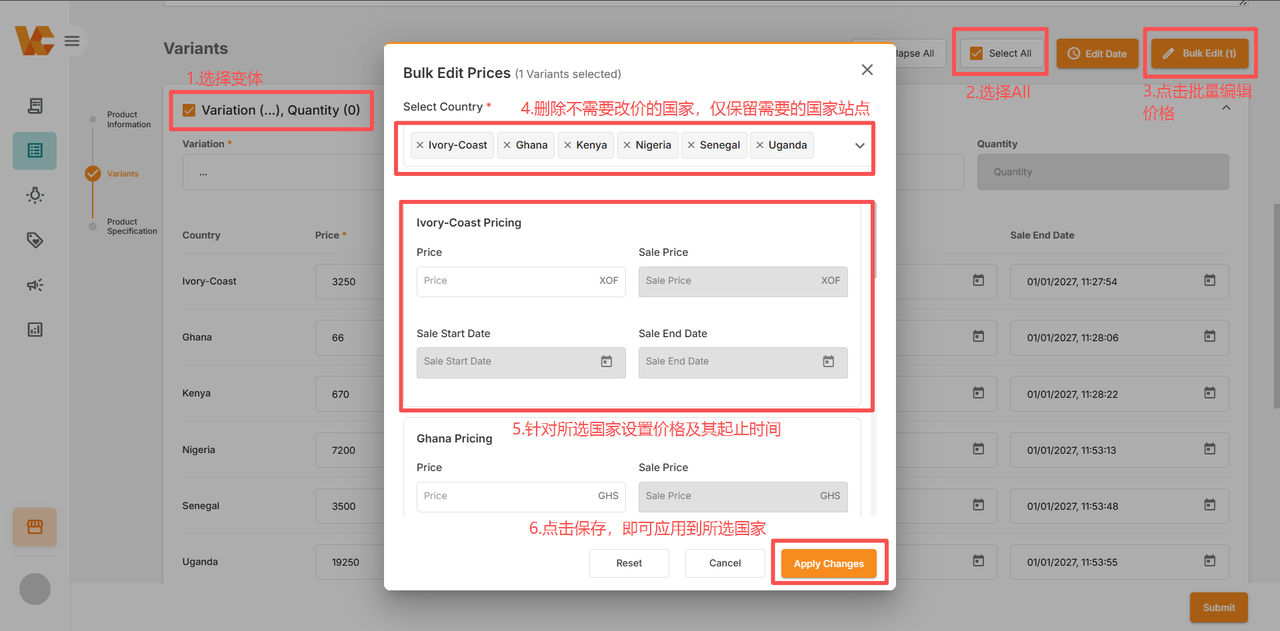
Individual product updates involve updating the price information for that single product.
1. Change Price on the Product Management Page
Select the country where the product you want to modify is located. If you need to filter the corresponding products first, you can directly edit the corresponding price and actual selling price by clicking 🖊.
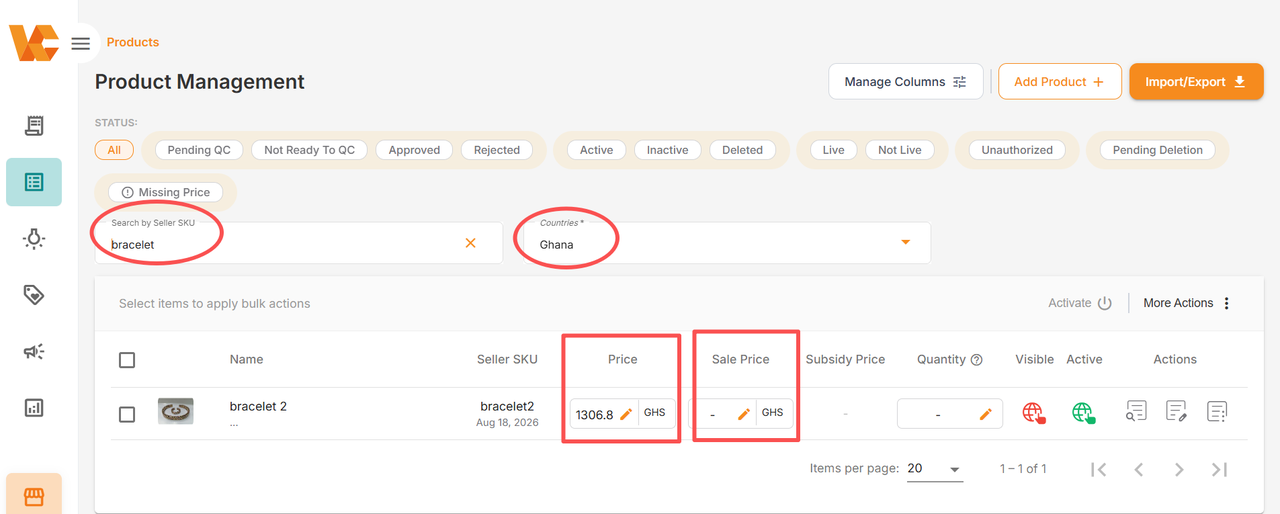
2. Add Variations
Applies to adding size variations for Fashion category products. For variation rules, please see: Step 2: Variants
Path: Products >> Manage Products >> Action >> Edit Product >> + ADD VARIATION
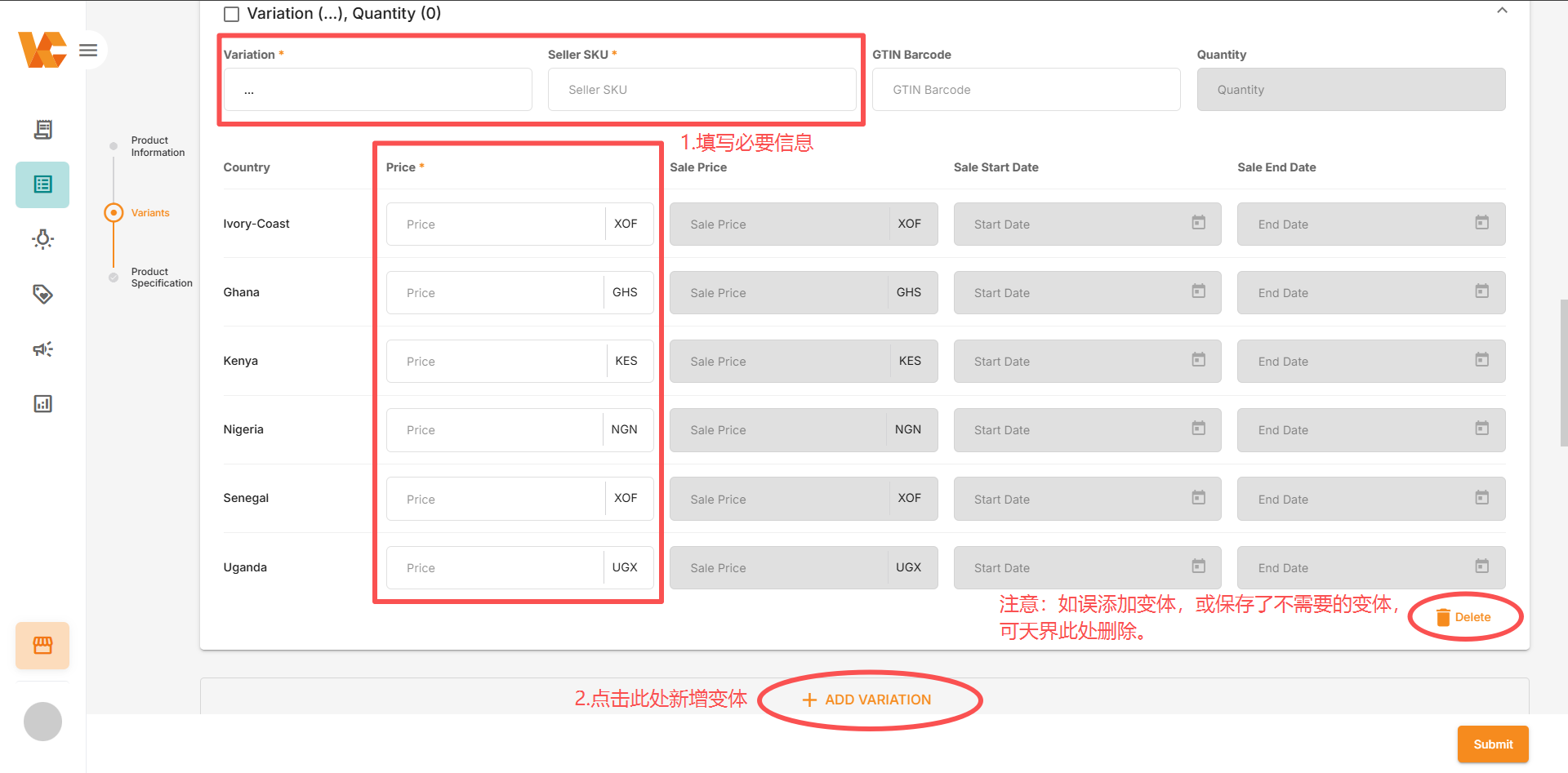
3. Update Price/Content in Product Details
Applicable to modifying basic product information, descriptions, site-specific variant prices, and promotion dates.
Path: Products >> Manage Products >> Action >> Edit Product
3.1 Update Content (Click the content box to be modified)
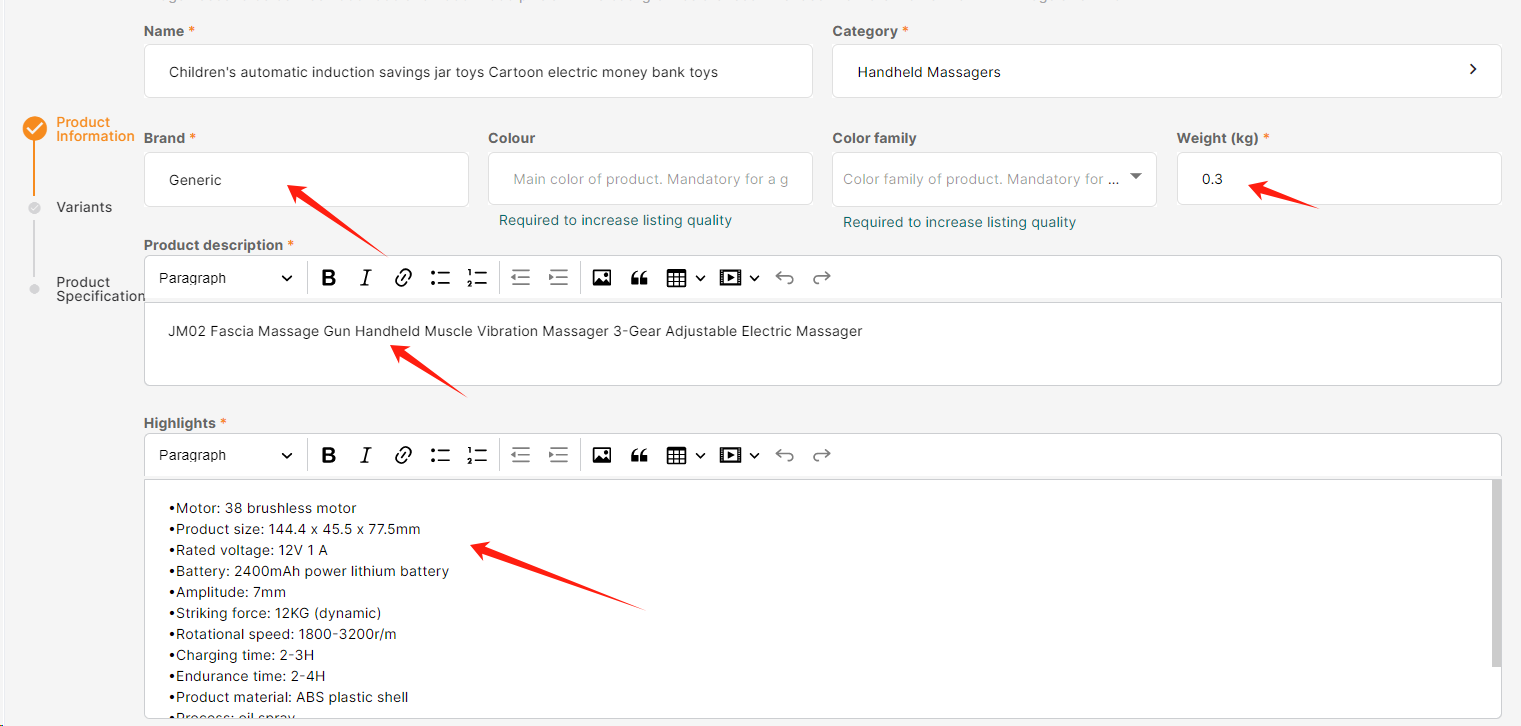
3.1.1 Direct Edit
Click the corresponding text box (e.g., name, description, weight) to edit directly.
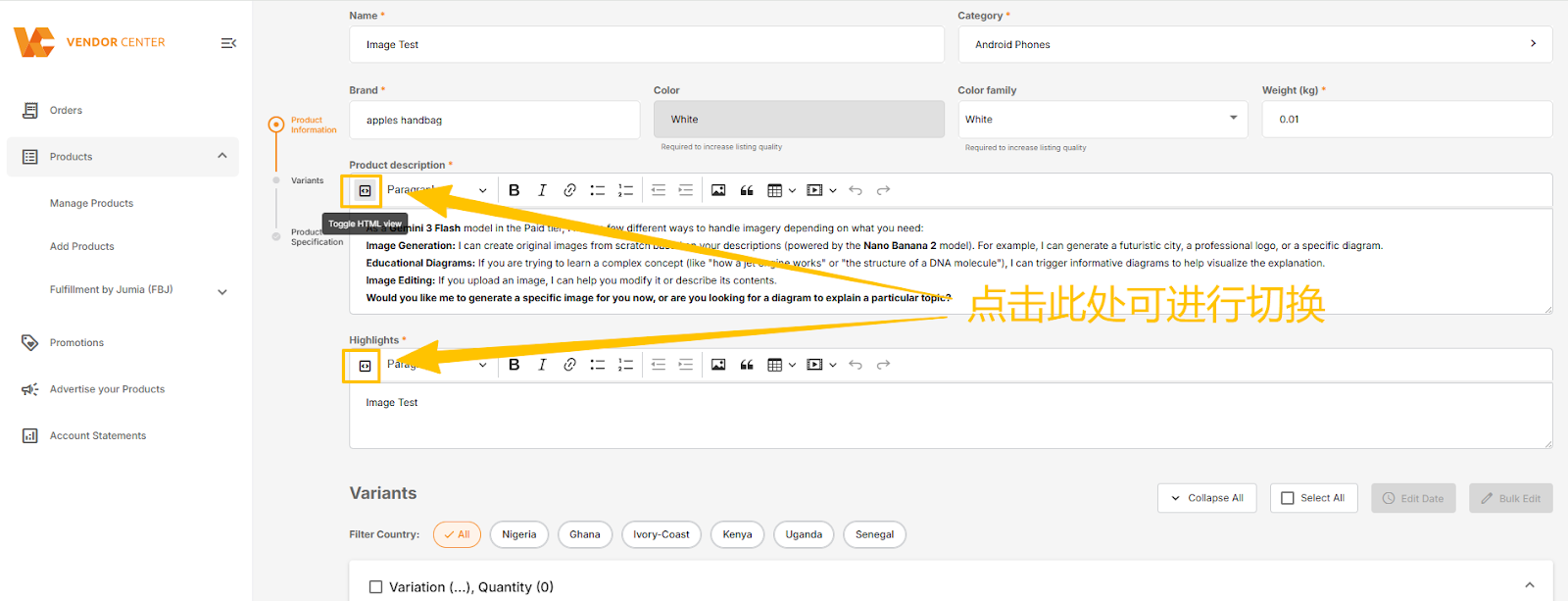
3.1.2 Update via HTML Text
Click the icon in the upper left corner of the edit box to switch text formats. Supports submitting more detailed product descriptions via HTML source code.
3.2 Change Price
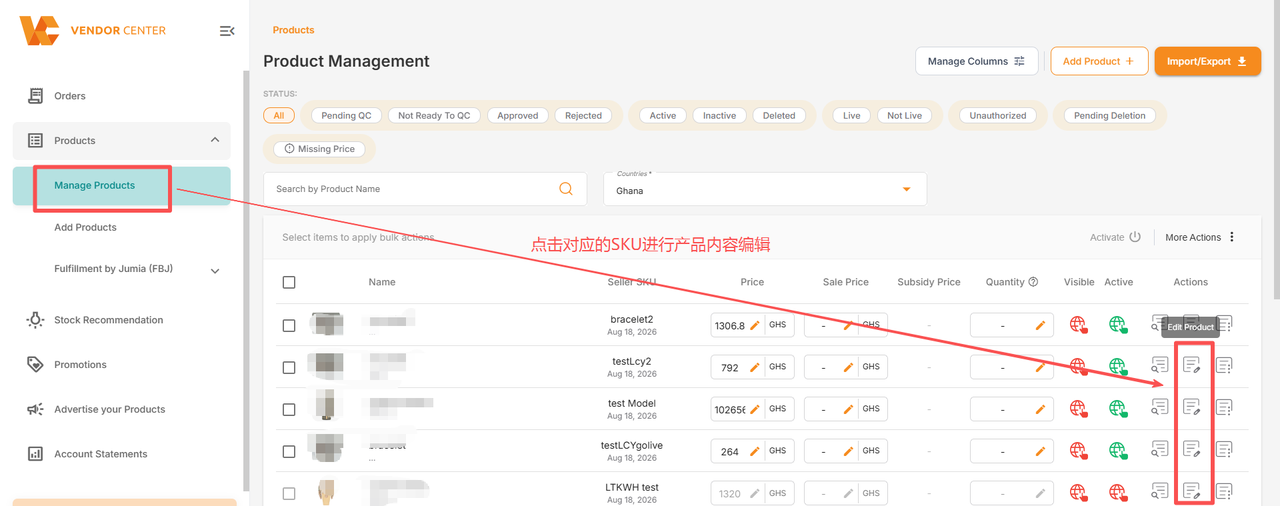
In the variant section, you can differentiate pricing for different country sites.
Note: The effective date of the price must be in the future.
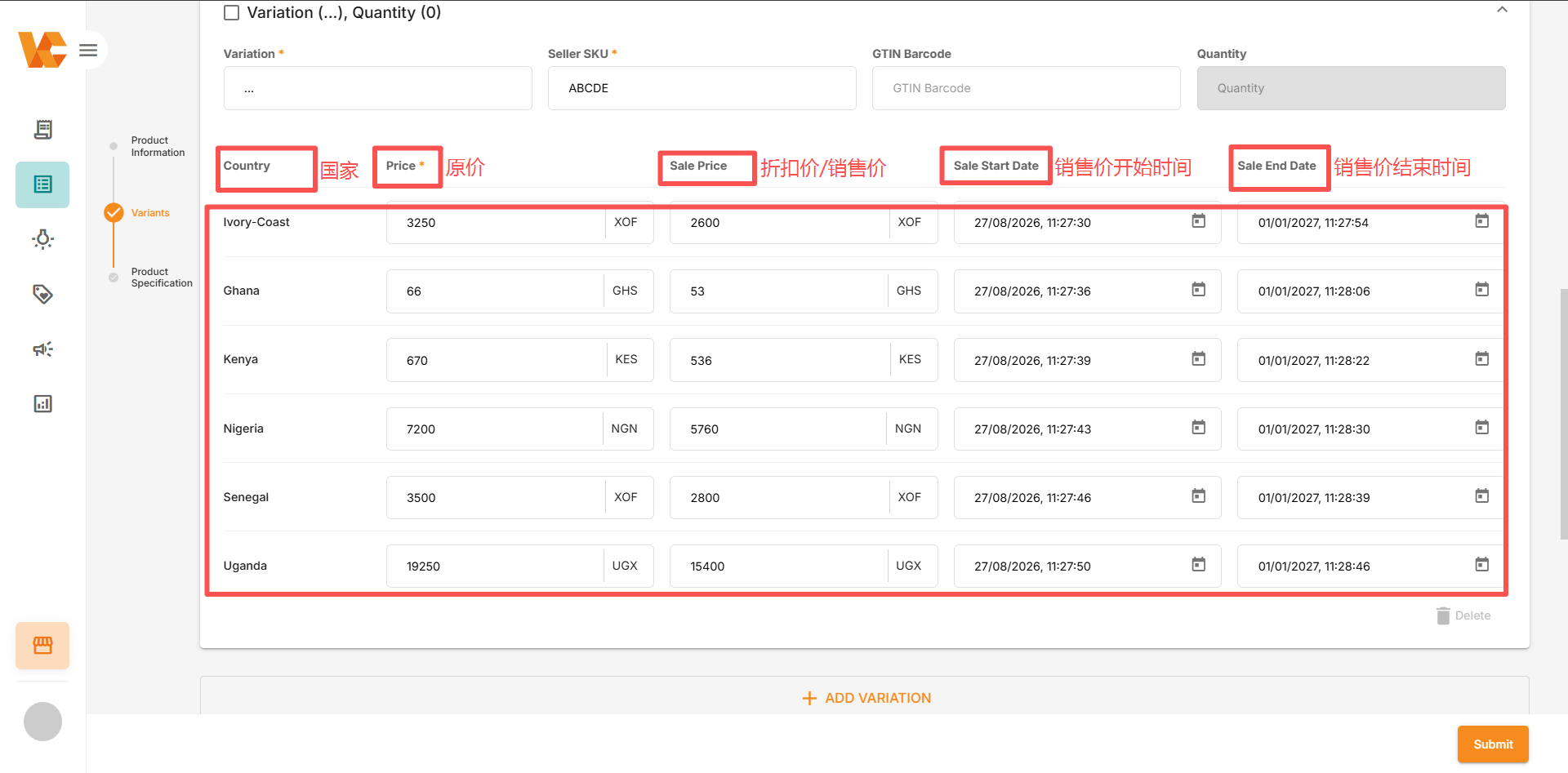
Quickly Modify Promotional Prices and Promotion Start and End Dates.
3.2.1 Edit Date – Apply to all Countries
Clicking this button allows you to batch modify the start or end dates of promotions for all countries.
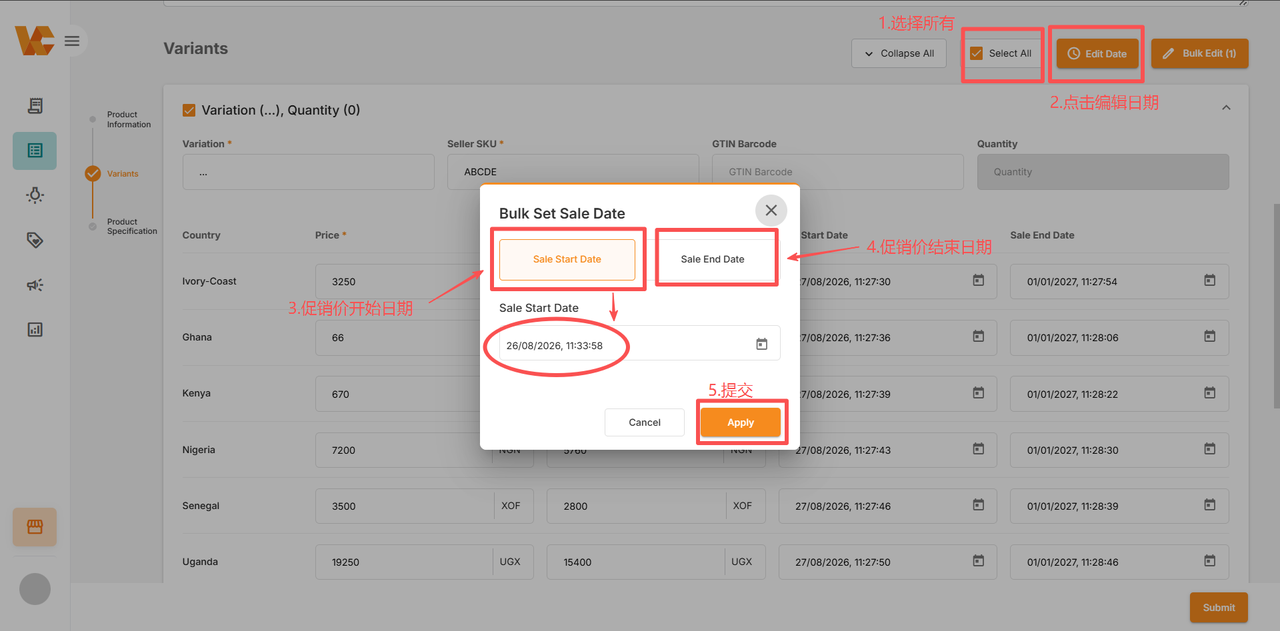
3.2.2 Edit Date – Apply to some Countries
Click this button to batch modify the effective or end dates of promotions for selected countries.
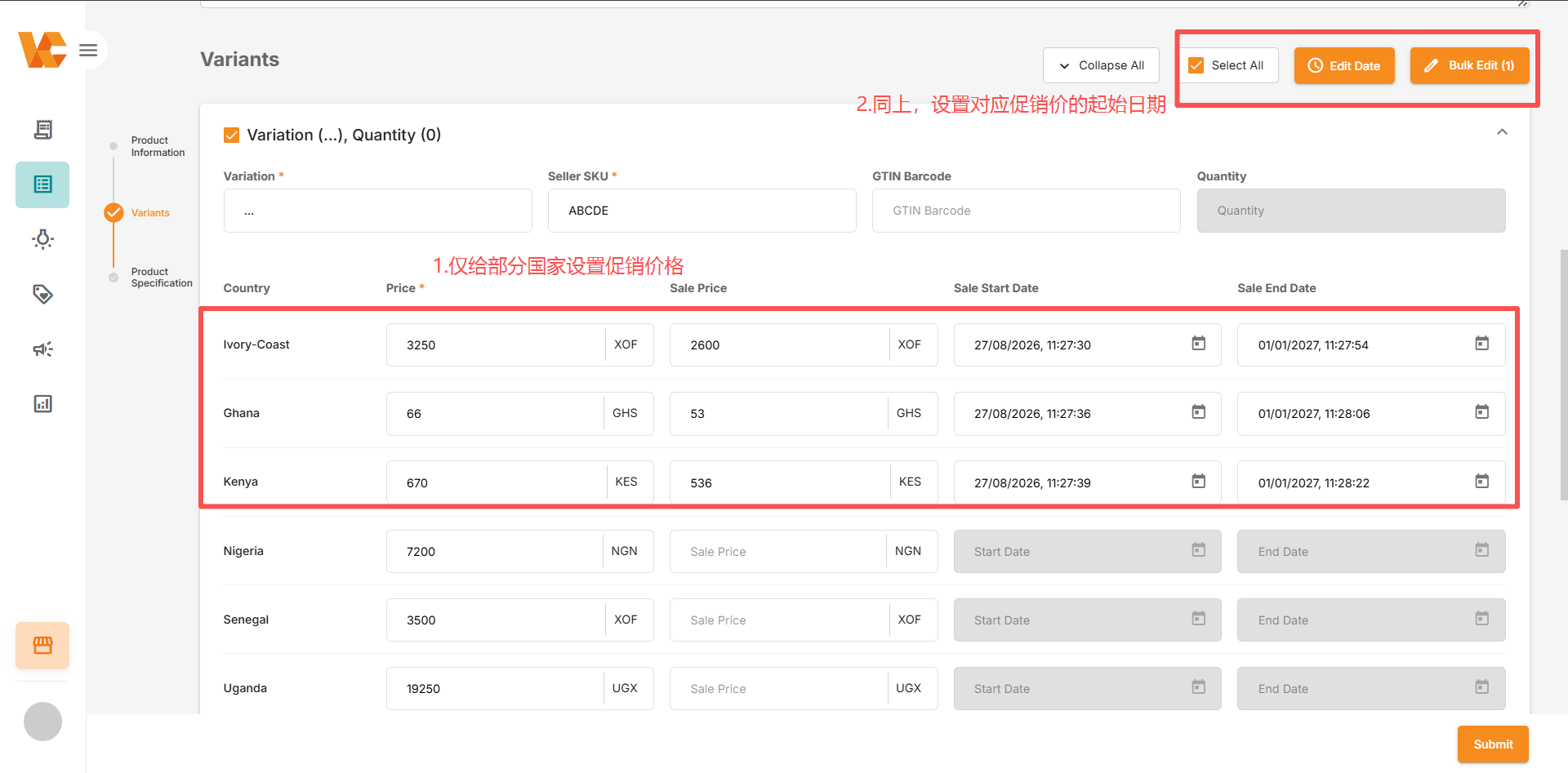
3.2.3 Bulk Edit (Bulk Price Modification)
Click this button, set the price and start/end time, then filter the target countries to synchronize price information with one click.