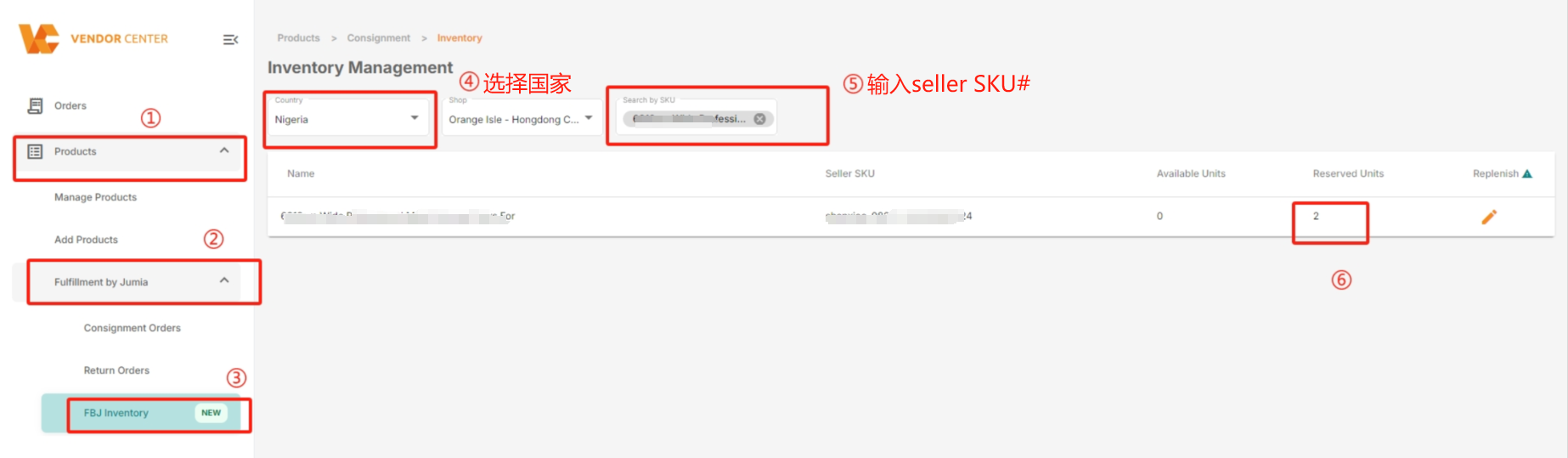
The following order page introduction is for reference and understanding only for FBJ Sellers, and no actual action is required.
1. Filter orders
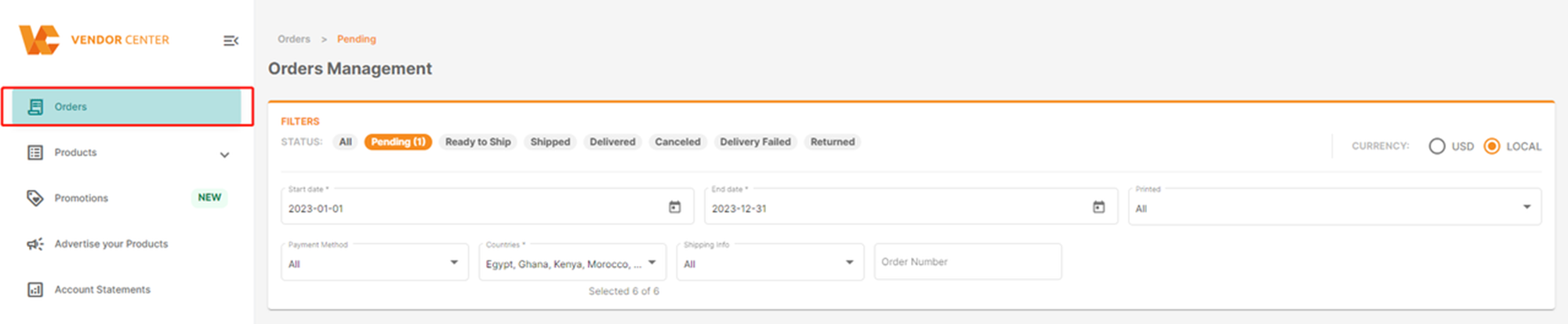
Click “Orders” in the left sidebar to enter the order management page

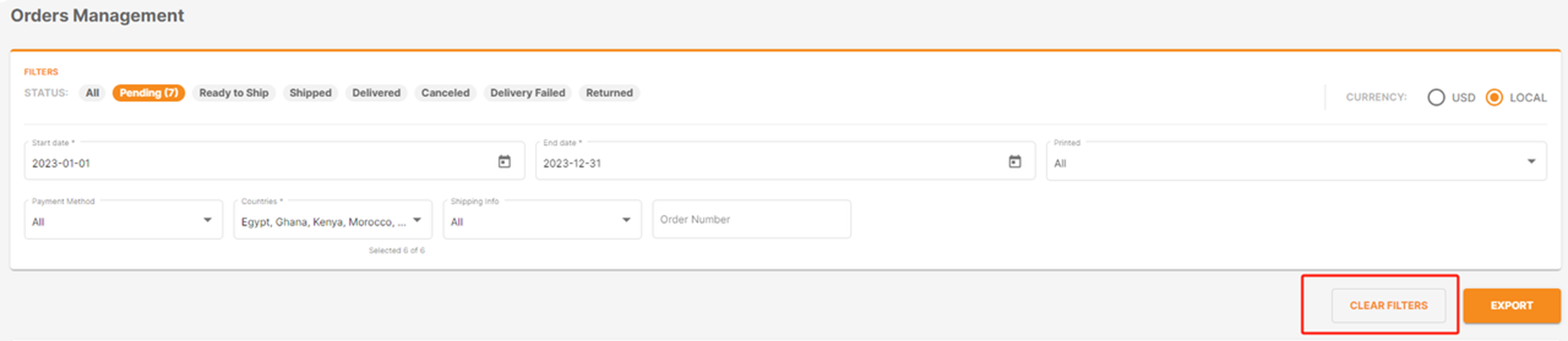
1.1 Clear all filter conditions
- Click “Clear Filters”
- It will not remove the filters, but only apply the default values
1.2 Status Filtering
- Click any of the following options
- Sellers can filter according to the order status, and the default value is Pending

1.3 Start and End Date Filtering
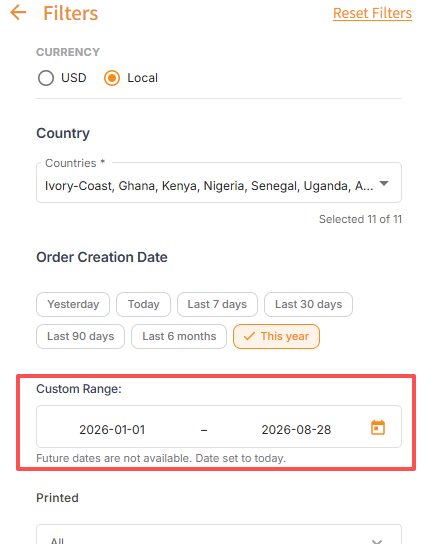
- Supports manual keyboard input: Sellers can directly input date ranges manually in YYYY-MM-DD format, while calendar selection remains and is synchronized in real time.
- Automatic error correction: If a future date is entered, the system will automatically correct it to the current date and provide real-time verification prompts.
1.4 Print Filtering
- Select printedor not printed
- Users can filter orders based on whether the shipping labels have been printed. The default value is all.

1.5 Payment Method Filtering
- Select prepaid or postpaid
- Sellers can filter orders by postpaid or prepaid payment methods, with the default being all

1.6 Country Filtering
- Select a country from the list
- Sellers can filter orders by country (only for countries where stores exist), and the default value is all selected countries

1.7 Screening of Shipping Information
- Can choose between Dropshipping, Cross docking or Fulfillment by Jumia
- Sellers can filter orders by shipping type, with the default value being all

2. Order Navigation
Click “Orders” in the left sidebar to enter the order management page, and scroll down to the bottom of the order page.

2.1 Order Pagination
Can navigate to the next page, previous page, first page, and last page

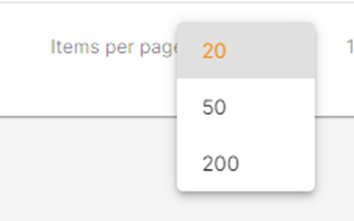
2.2 Number of products per page
- You can select 20, 50, or 200 products per page
2.3 Order Sorting
Orders can be sorted in the following ways:
- Order Number
- Order Date – The date and time when the order was created
- Updated Date – The date and time when the order was last updated
- Pending Since – The length of time the order has been in Pending or Ready to Ship status
- Payment Method
This information may vary depending on the applied status filter.
2.4 Default Status Sorting
- Updated Date (descending order) – Under All, Shipped, Delivered, Canceled,Delivery Failed, and Returned statuses
- Order Date (descending order) – Under Pending and Ready to Ship statuses
3. Export orders
Click “Orders” to open the order page
3.1 Export all orders
- Click “Export”, select “Export all orders”, and click “Go”
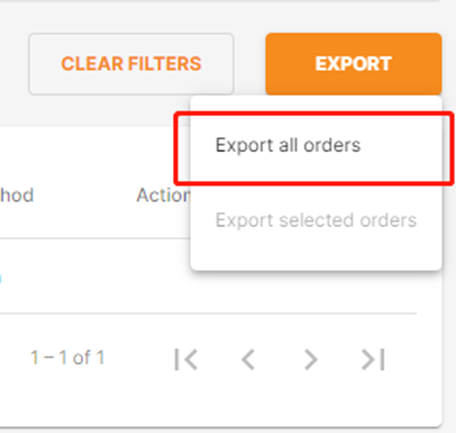
3.2 Export selected orders
- Click “Export”, select “Export selected orders”, and click “Go”

4. Order Details Information Page
Included information:
- Order information
- Product information
- Product history
- Transaction history
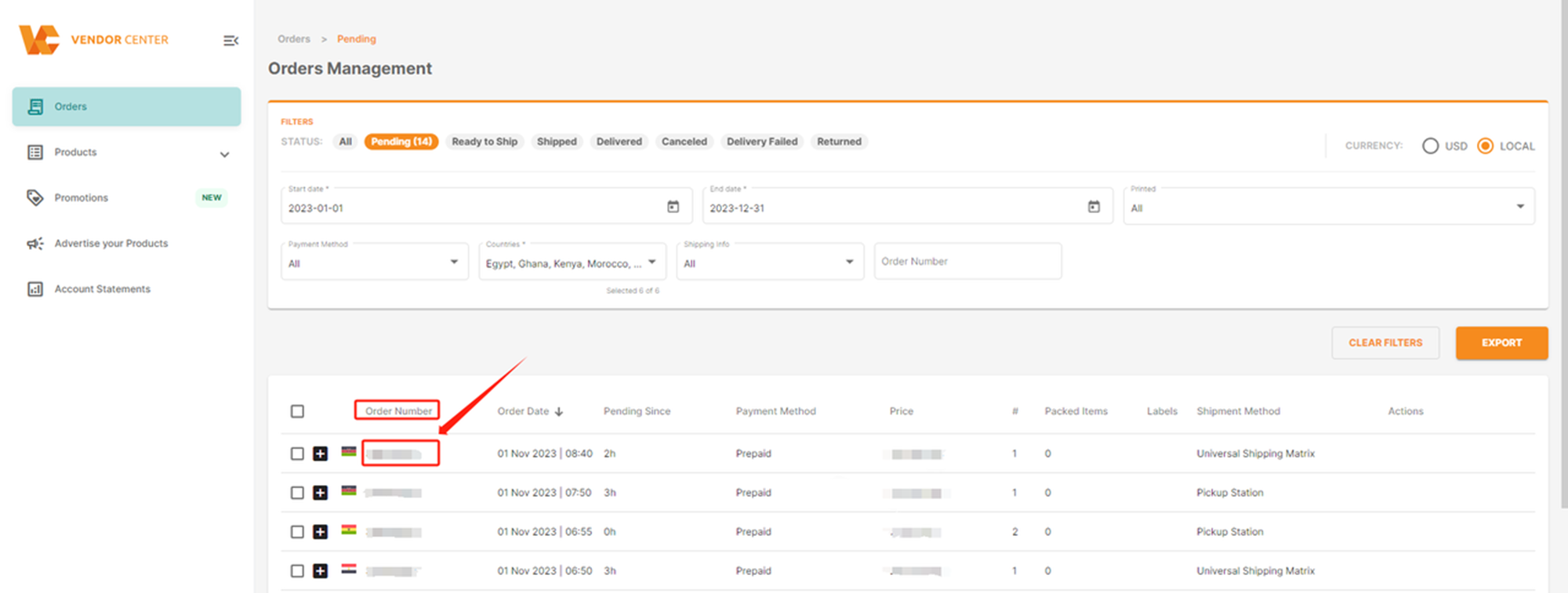
4.1 On the order details page, you can see the customer information, shipping address, and order items information of the order.
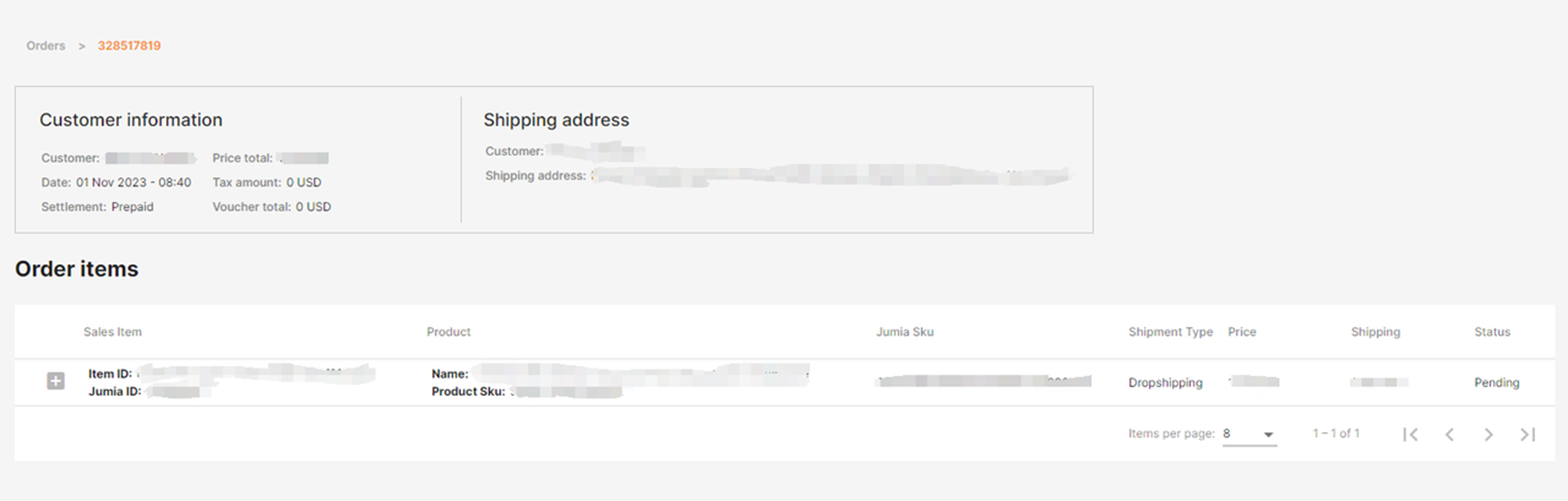
Order information includes the following details:
- Customer name and shipping address
- Order date (Date)
- Settlement
- The sum of the total prices of all products in the order(Grand Total)
- Tax amount
- Voucher Total
In the “order items information” section, you can see a list of order products with the following information:
- Item-Id: System identifier for VC’s sales order products
- Jumia-Id: System identifier for OMS/BOB’s sales order items
- Seller SKU: Product number provided by the seller when creating the product
- Jumia SKU: Product number provided by the platform
- Product name (Product)
- Shipment Type: Usually FBJ or DS
- SOI unit price (Price): “Price” of the product in the order
- SOI shipping fee (Shipping): “Shipping fee” of the product in the order
- Current status of the product: “Status”
4.2 On the order details page, you can expand an order product -> view the historical status of the order product
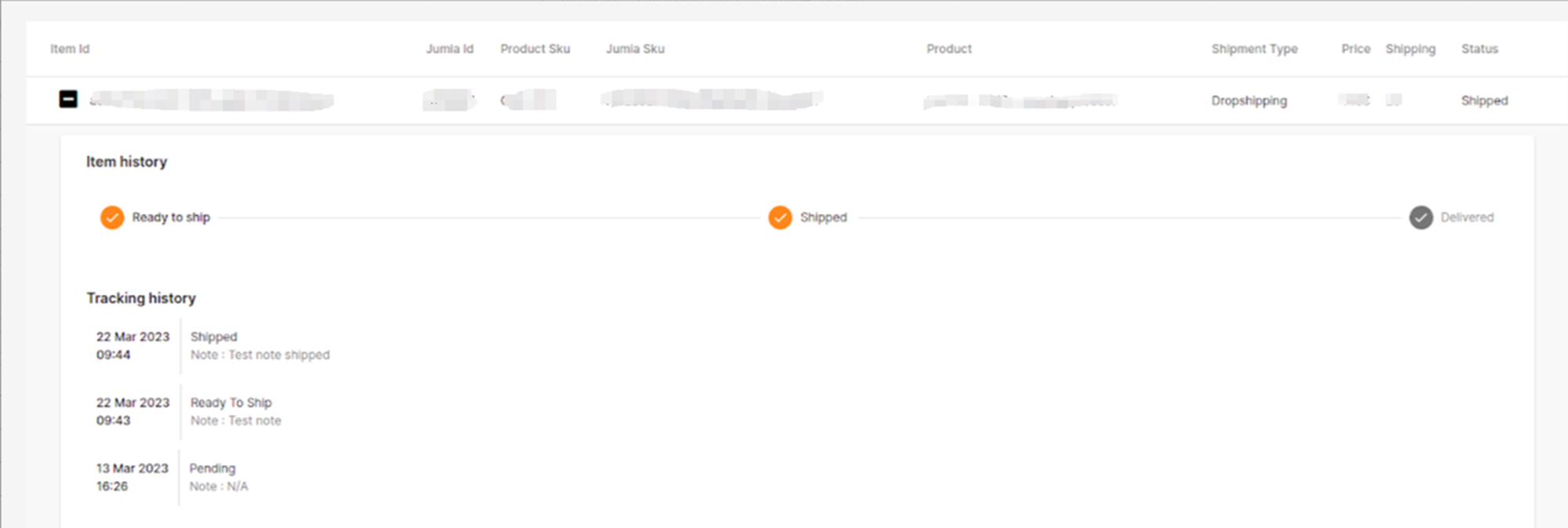
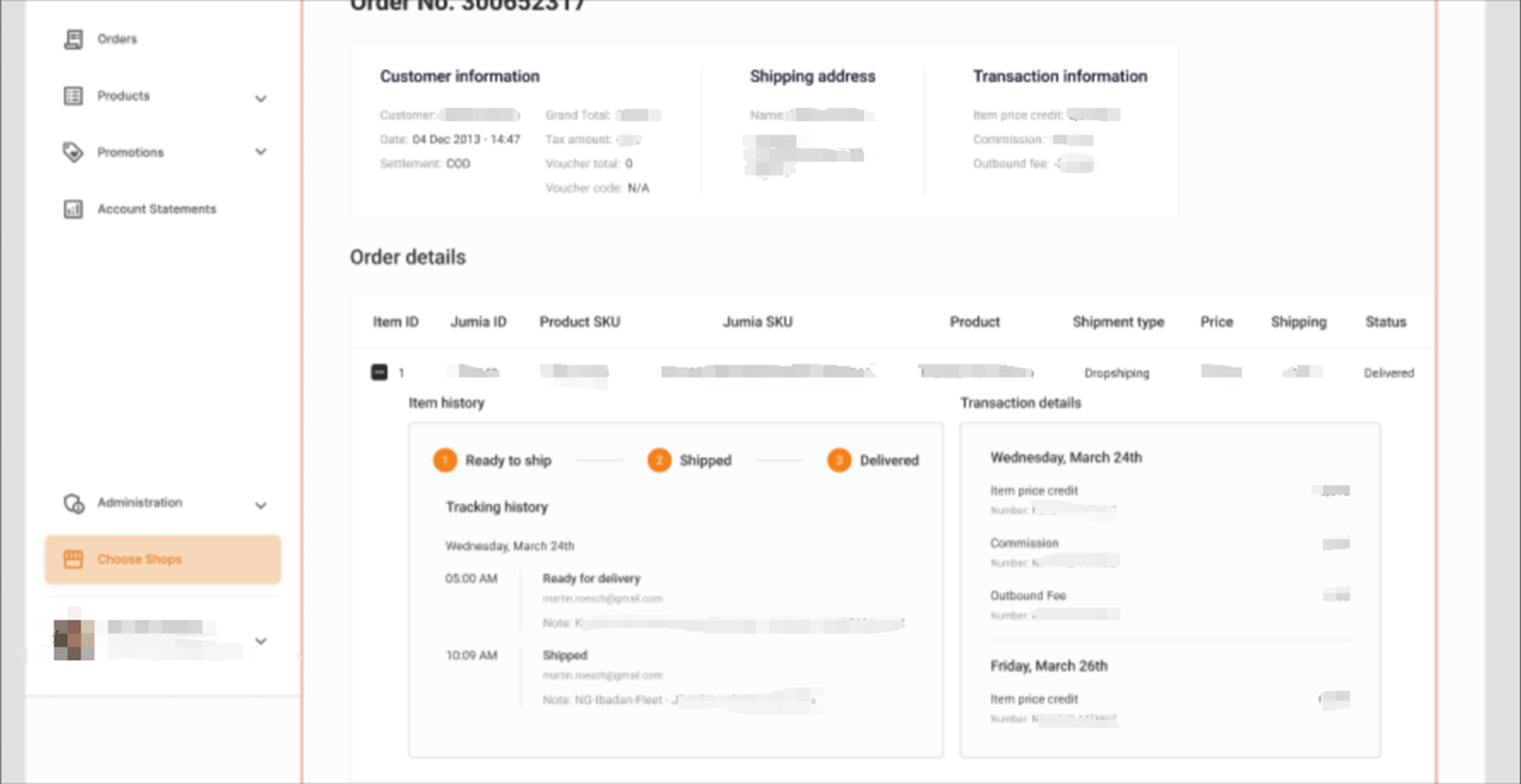
Note: If the order item is in Pending status (no historical status) => You cannot expand the historical status of the order product

5. Cancelled、Returned and Delivery failed orders
5.1 How to check the reasons for Cancelled、Returned and Delivery failed?



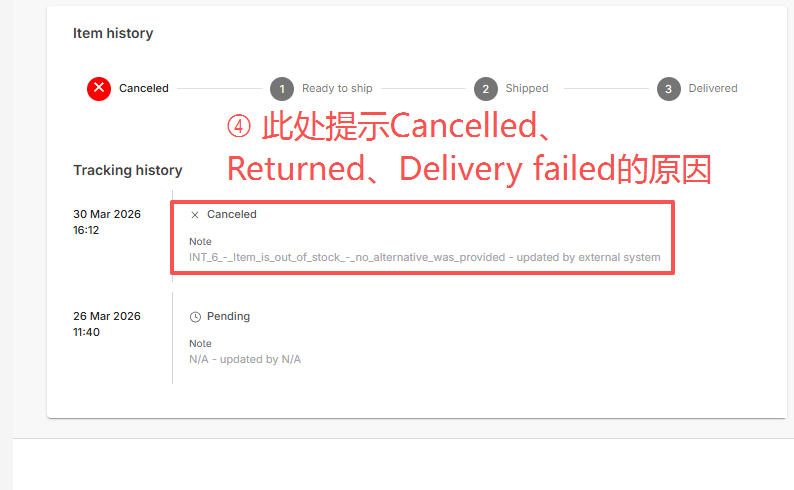
5.2 How to check whether products with Cancelled、Returned and Delivery failed status are re-listed for sale