1. How to Participate in Promotions?
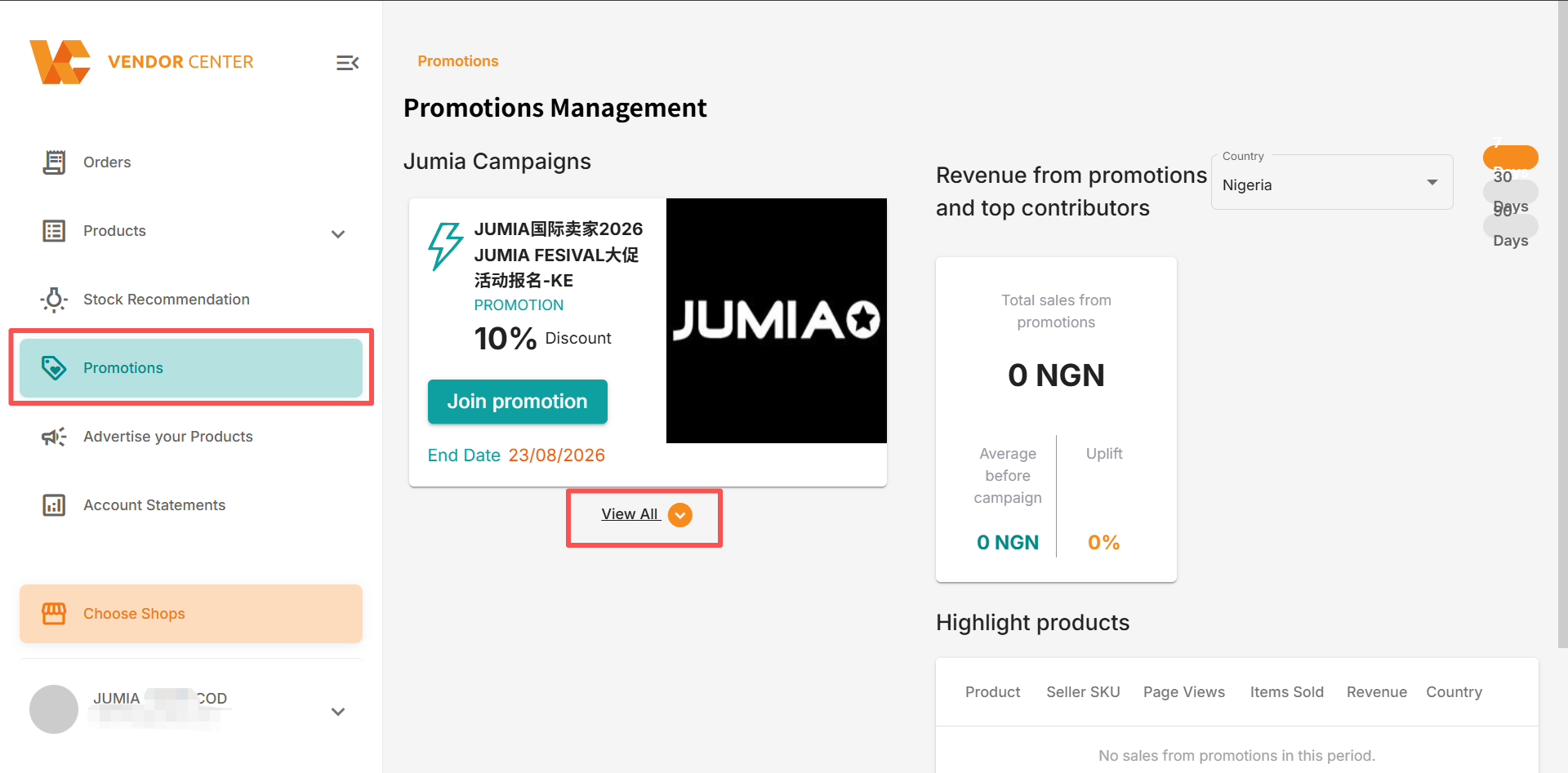
1.1 Go to the Promotion page and click “view all” to see all available promotions.
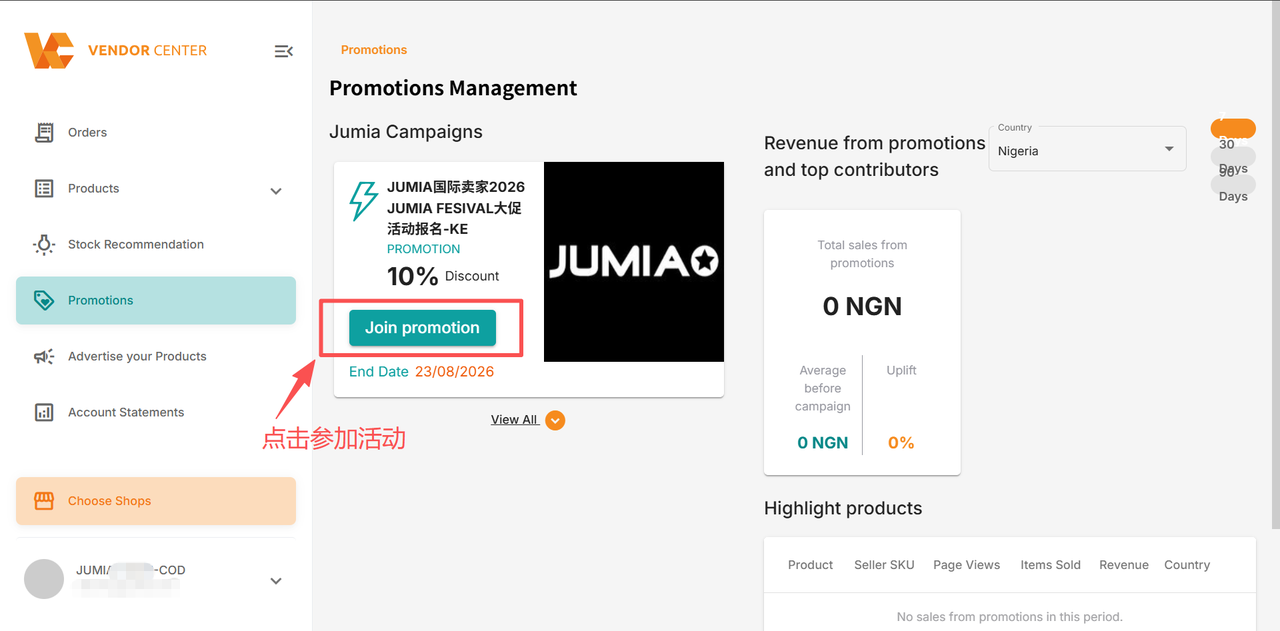
1.2 Click “Join Promotion”.
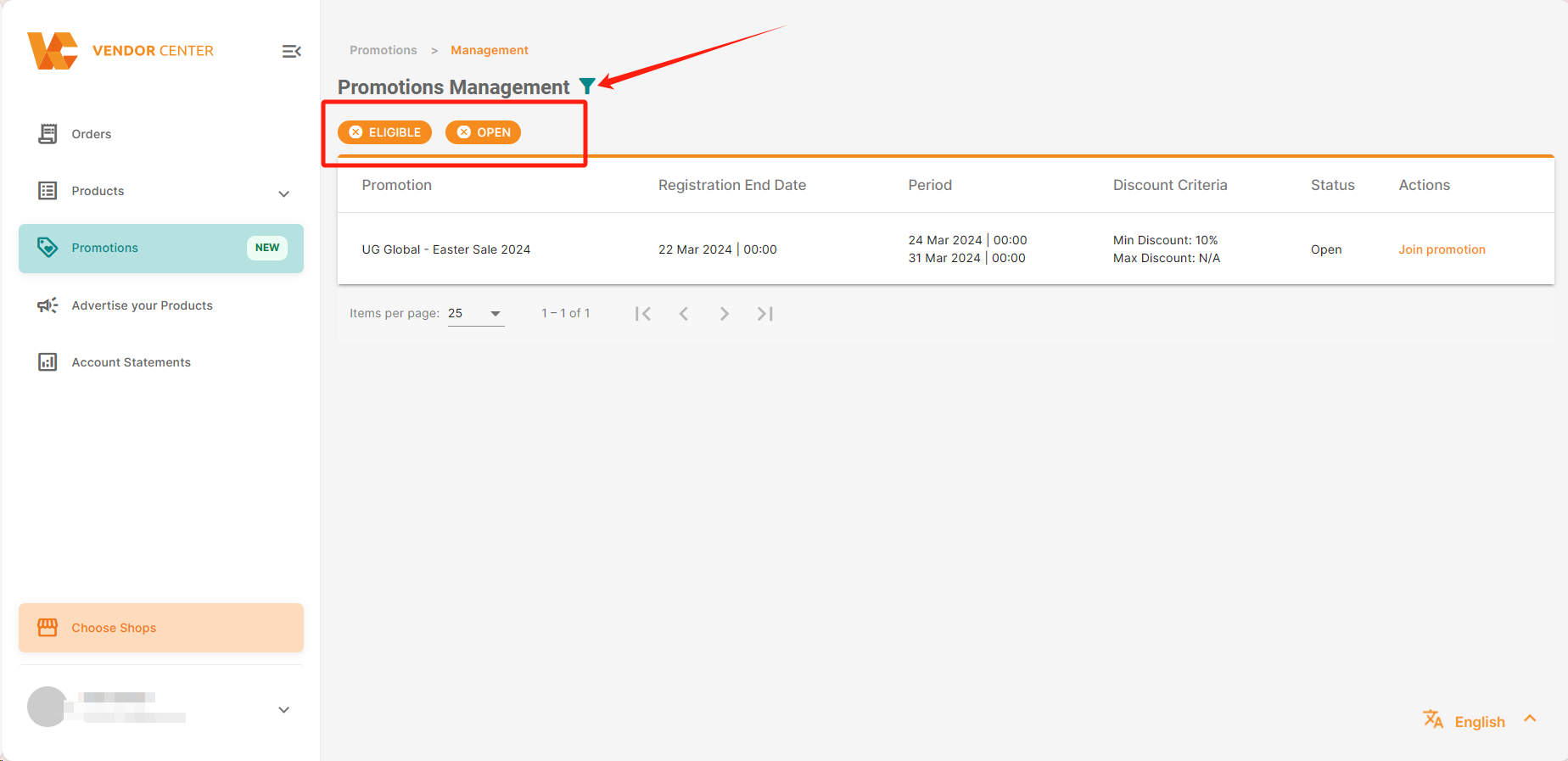
You can use filters to reduce the number of results in the list. For example, filter for “open” and “eligible” to see currently open and available promotions.
1.3 There are two ways to submit promotion prices: directly on the page or by uploading a form.
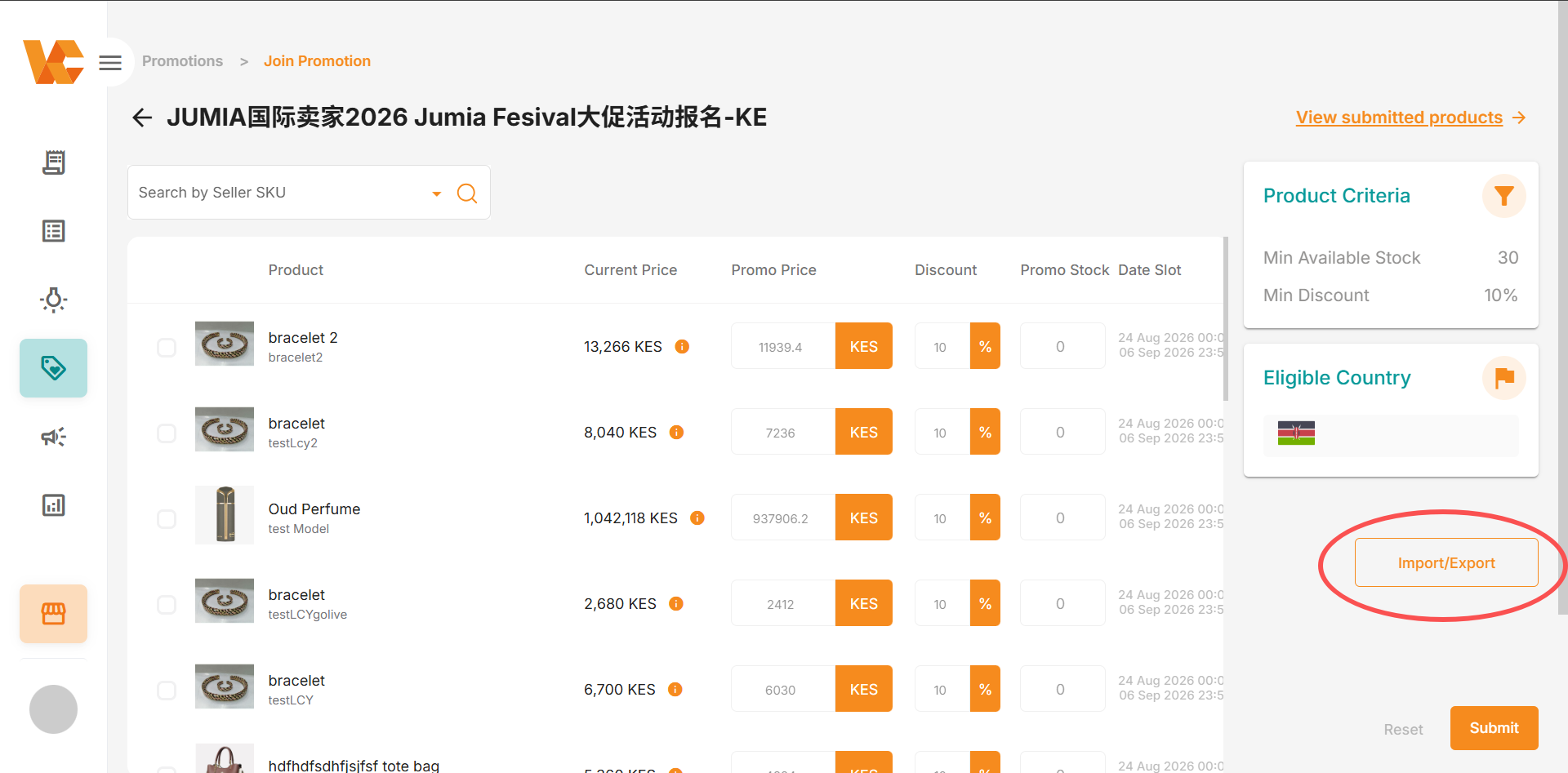
Method 1: Edit directly on the Promotion page. Edit the price and inventory according to the rules and requirements of the promotion.
- The page only displays eligible products that meet the promotion requirements.
- Items displayed in gray indicate that the seller has not yet provided a discount price. Sellers can add a discount price (Promo Price) or directly enter the desired discount rate (Discount) on this page. Sellers also need to enter the quantity of inventory they want to include in the promotion (Promo Stock).
- If the promotion has a time period option, sellers can choose the time period according to their actual needs; it is not mandatory.
- Both current prices and promotional prices are presented in local currency (LCY).
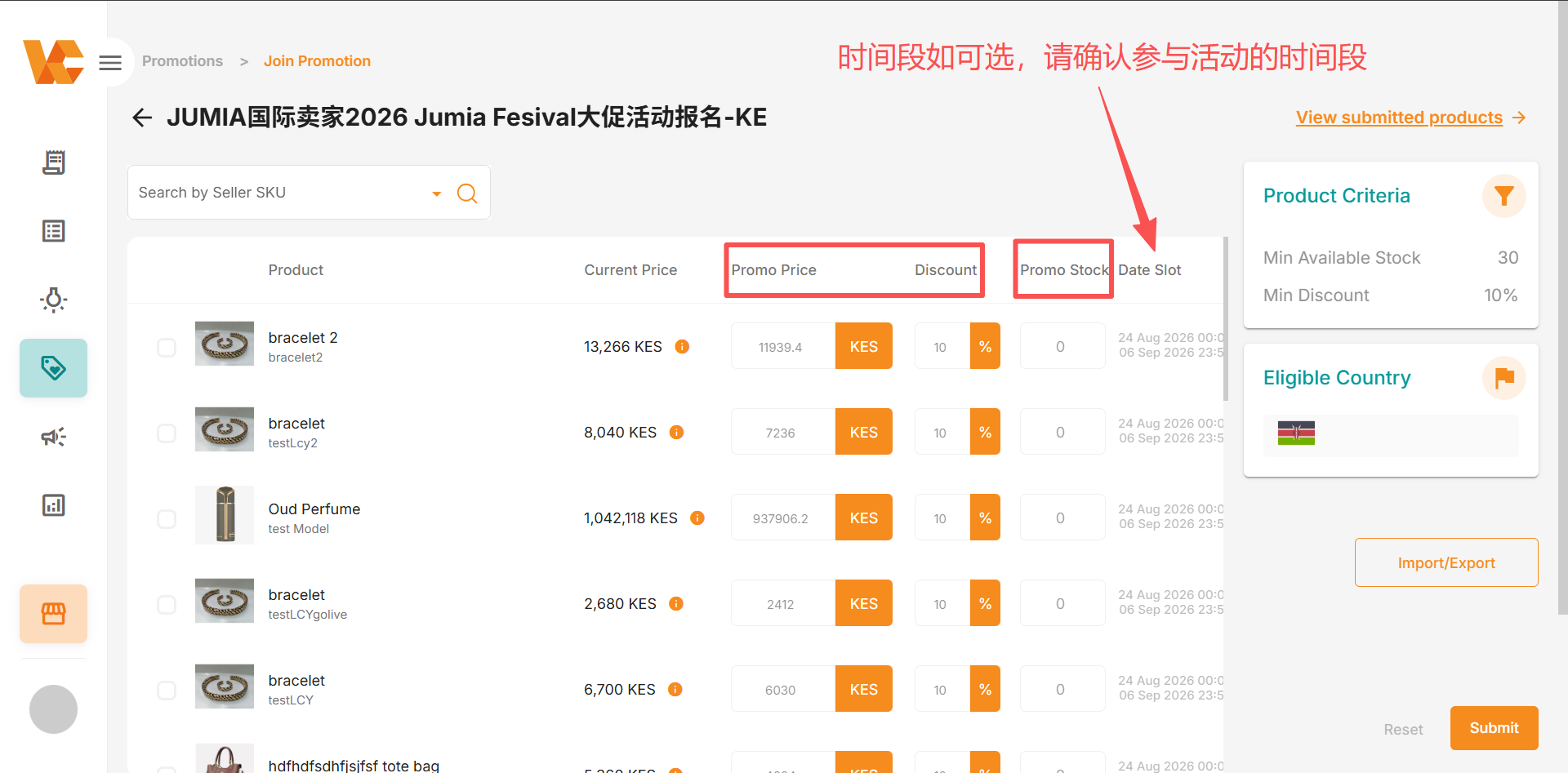
Current Price: The current selling price of the product.
Discount: The percentage discount offered.
Promo Price: The promotional price.
The promotional price must comply with the rules and standards of the promotion:
- Must be greater than 0
- Must be less than the current price
- Cannot be empty.
- The information must be entered strictly according to the activity rules (e.g., inventory must not be less than X units, discount must not be less than X%).
If the discount standards have been set in advance for the activity, the system will automatically calculate the discount type based on the promotional price. Sellers can edit this information according to their actual needs.
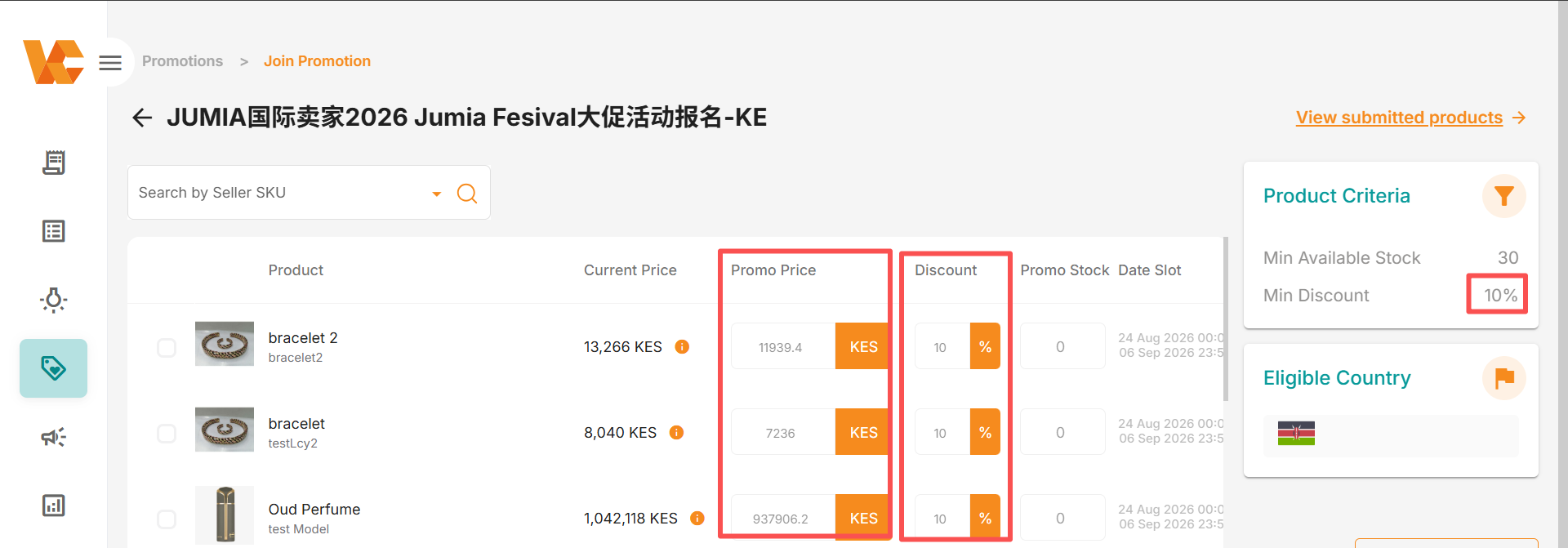
Promo Stock: The system displays the current inventory of the product by default (as shown in the image above). Sellers can edit and adjust this information according to their actual needs.
- Cannot be empty.
- Must be greater than 0.
- Jumia promotions generally have minimum inventory requirements (Min Avaliable Stock). Inventory must be greater than a certain quantity. For example, the Jumia Festival promotion in the image above requires Min Avaliable Stock ≥ 30.
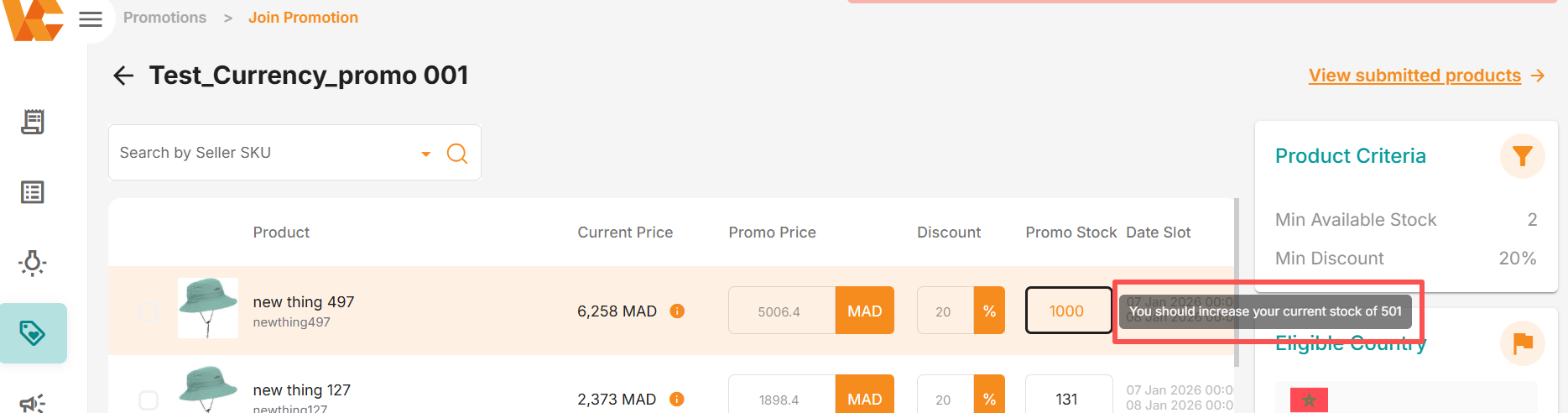
- If the promotional inventory is greater than the current product inventory, the system will display “You should increase your current stock of XX” (as shown in the image below). The seller must modify the current product inventory before submitting.
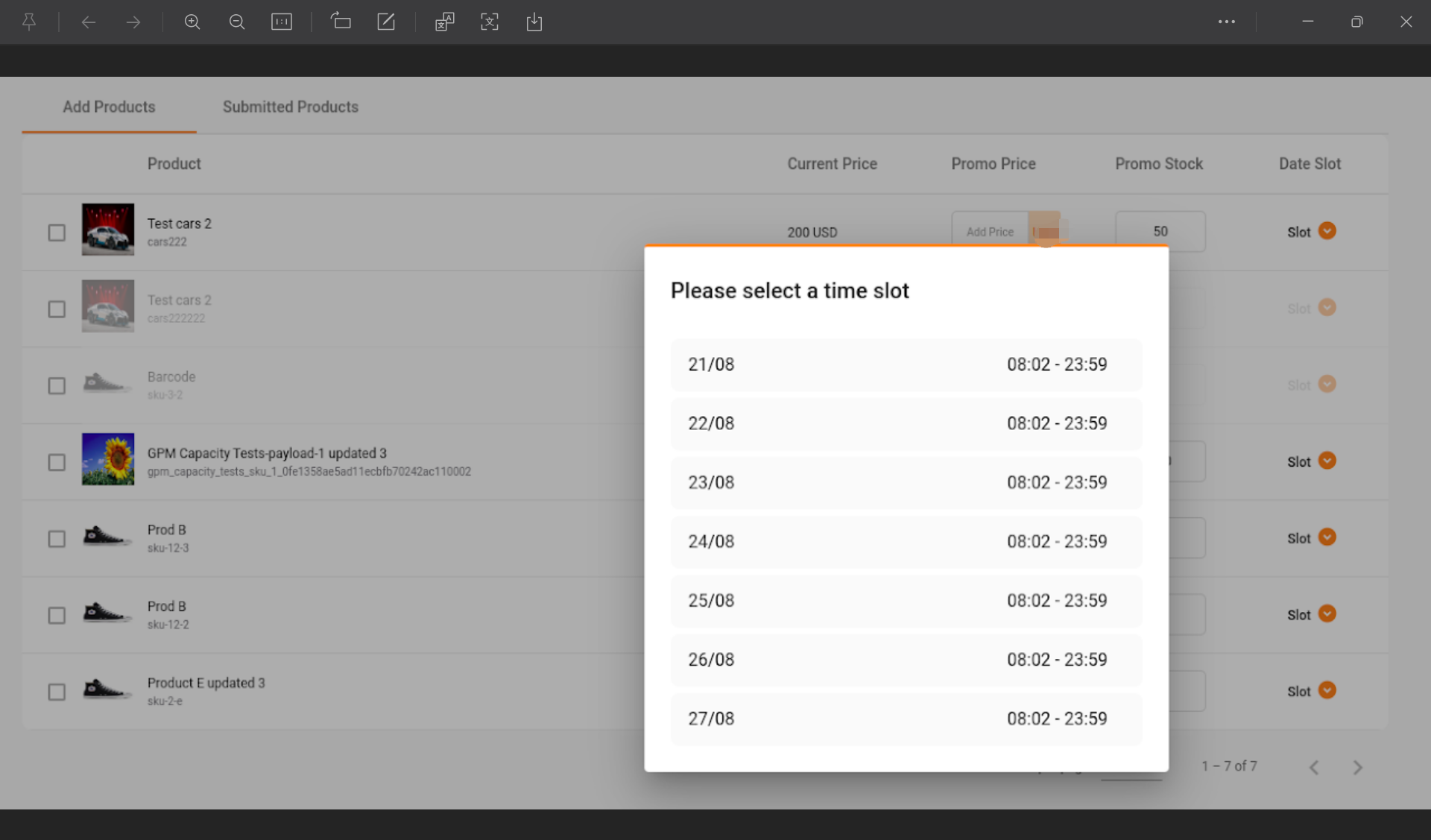
Select a Promotional Slot for the Product
This is optional.
- If multiple slots are available for the promotion, you can select the desired slot for your product.
- If only one slot is available, you will see that the “Date Slot” column has a default value and is not editable.
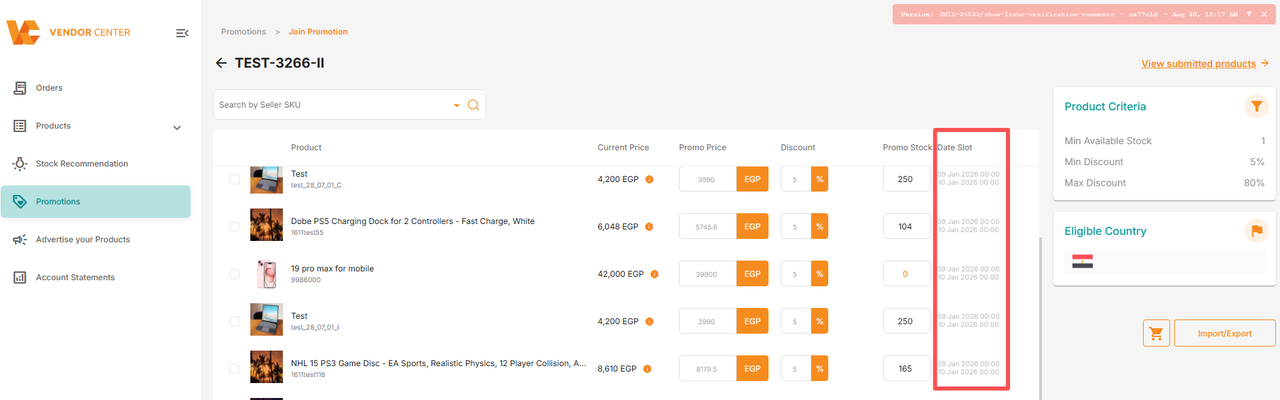
If the same product group has multiple products/variants that meet the promotion criteria:
- When selecting a slot for a variation, the same slot will be assigned to all variations in that product group.
- If you try to change the slot for one of the variations, you will see a warning message that the variation will be added to different slots. This means that the product will be displayed as a promotional item at different times.
How to add the product to the application list after adding the promotional price and inventory.
- Click the small square checkbox in front of the corresponding product image to select the desired item, and then click “Submit” in the lower right corner to submit and add it to the promotion application list.
- You can only fill in the input and click the submit button if you have permission to manage promotions.
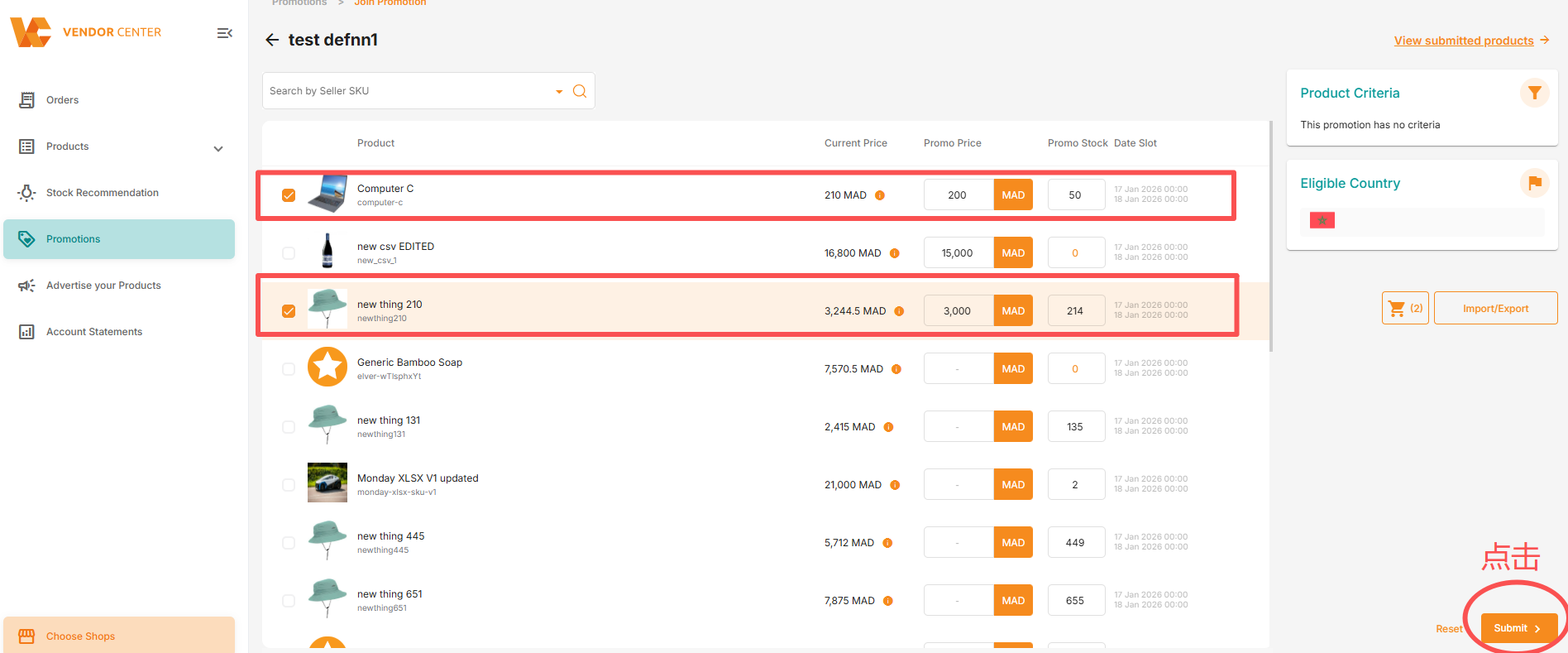
After submitting your application to join the promotion,
the review process is generally real-time, and sellers can see the review results within 2-3 minutes.
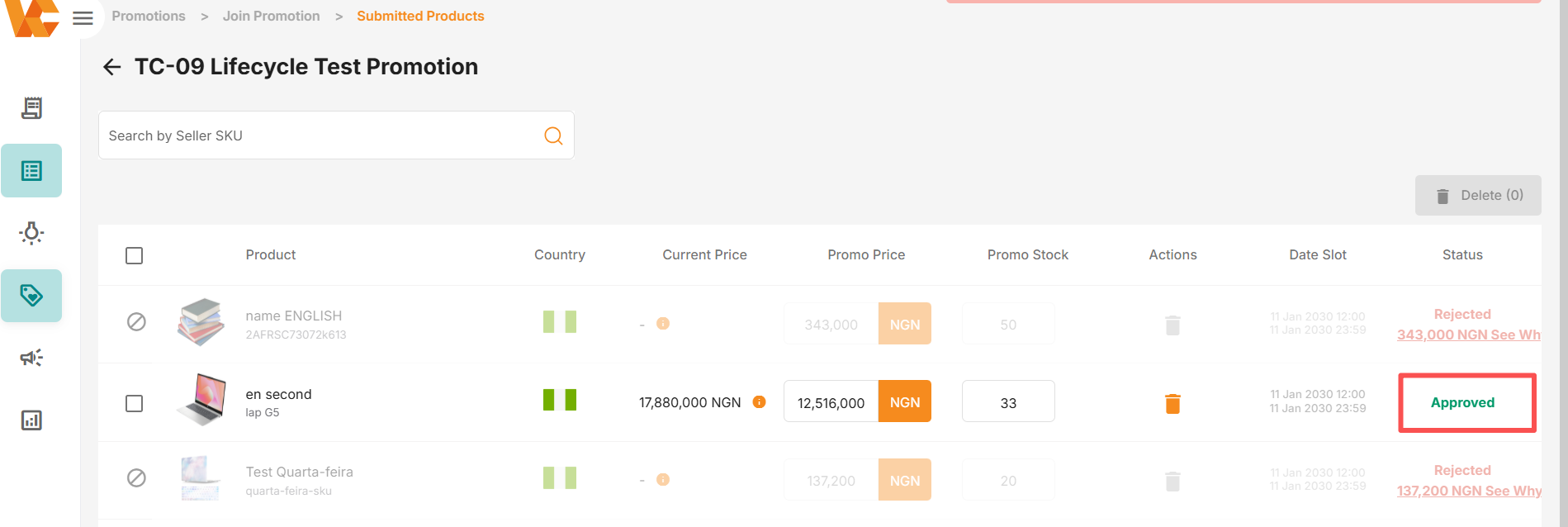
- Clicking “View submitted products” in the upper right corner will take you to the “Submitted Products” page.
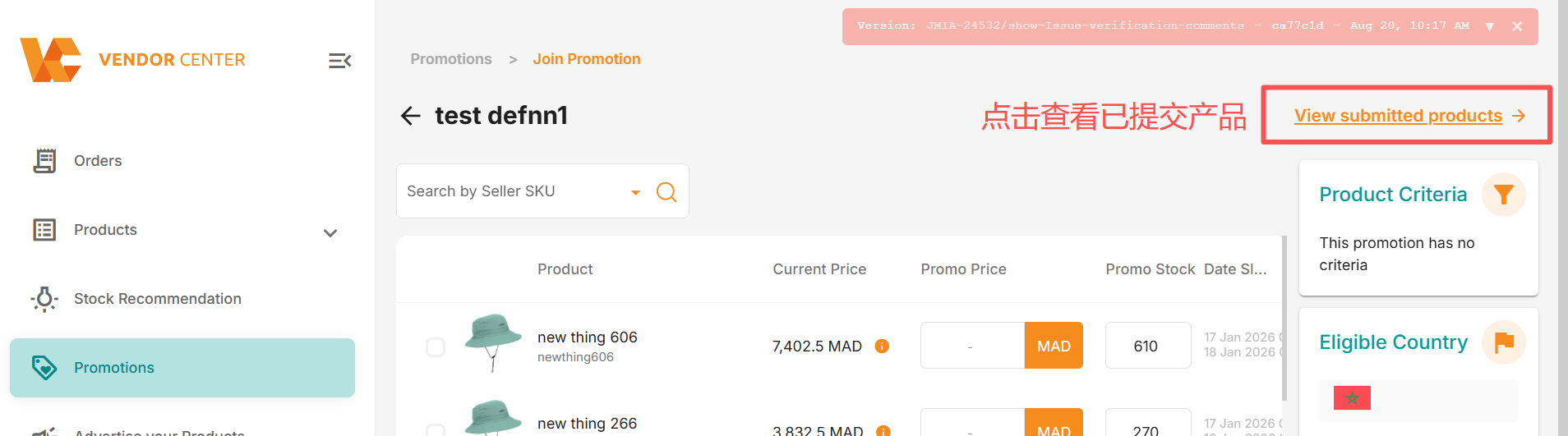
- Here you can see all products subscribed to this promotion. You can view the countries where products were submitted in the “Country” section. You can exit the promotion by clicking the button under Actions.
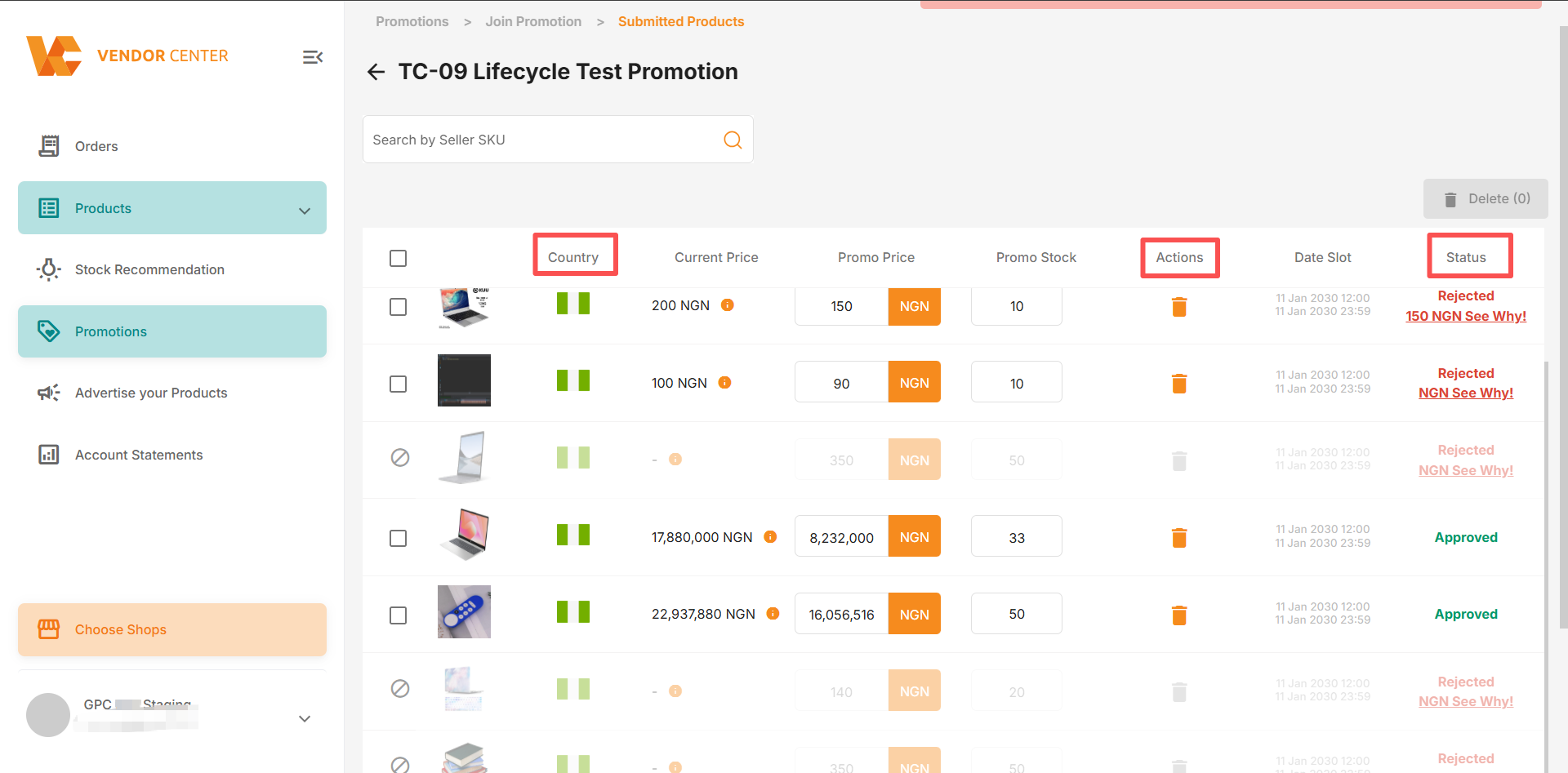
- Status of the Product subscription: (See “Status” in the image above for the product’s status in the promotional submission)
- Pending: Product under review
- Approved: Approved
- Rejected: Rejected. You can click “See Why” under “Status” to see the specific reason for rejection and revise accordingly.
- Unsubscribed: The product has been unsubscribed by Jumia. You can learn more about product unsubscription through RAC.
Method Two: Submit Promotional Products via Import Form
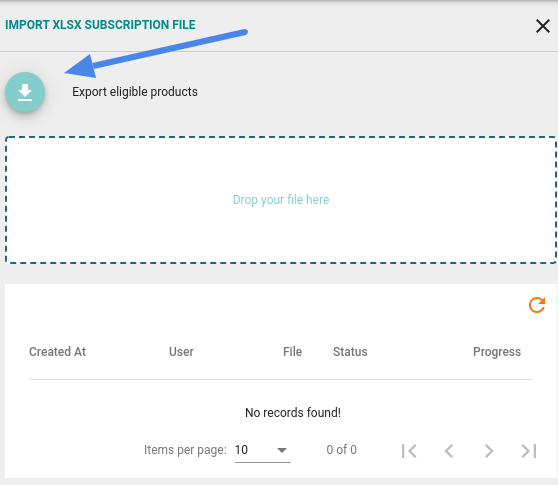
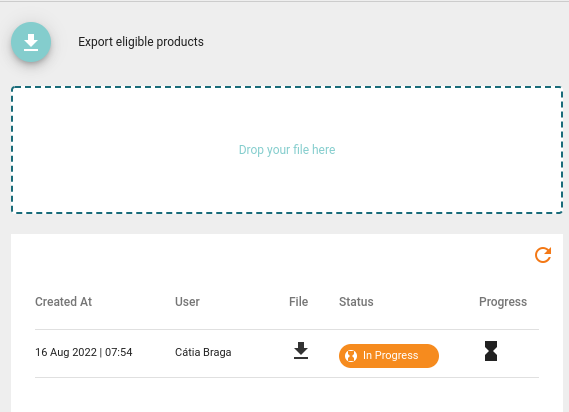
- Click “Import/Export” – “Export eligible products” to export the file.
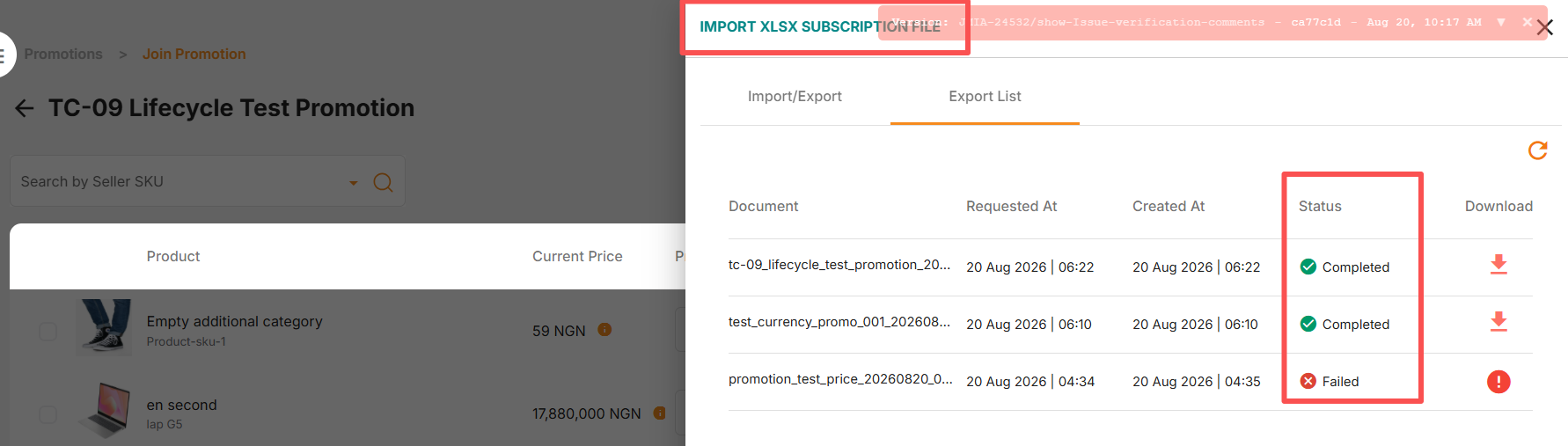
- The file export status is as follows: Completed indicates successful file export. Then click the Download icon to download the file.
- The file should contain the following: Product Sid / Product Name / Seller SKU / Product Price / Promo Price / Promo Stock / Promo Slots. Add the promotional price and inventory for the products you want to order for the promotion.

- Save the completed file and place it in the designated area (“Drop your file here”) to import it.
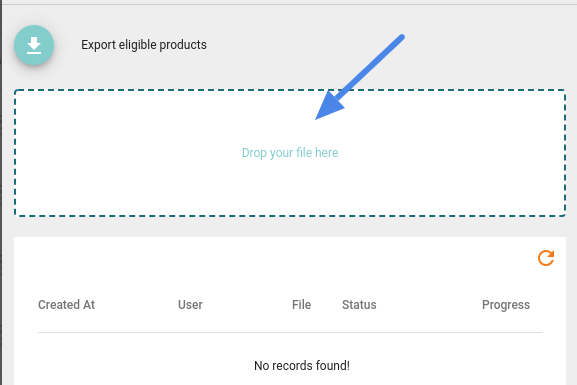
- You can view the import progress (Status) in the history table, such as “Download error report,” “In Progress,” etc.
- If the promotion submission is successful, you can see the added products and an “Approved” notification on the product submission page.
2. Seller and Product Criteria
Each promotion has its own set of conditions. Only if the conditions are met can the store and products participate in the corresponding promotion.
Seller Criteria:
- Is it only for international sellers or local buyers?
- Is it an official store?
- Store creation time
Product eligibility: (Factors considered for product eligibility to participate in promotional activities)
- Category: Allowed categories
- Maximum return rate: Not applicable if return rate is higher than X
- Brand: Allowed brands
- Minimum inventory: Minimum X units
- Minimum page views
- Minimum sold quantity
- Product creation must have been completed more than X days ago.
3. How to monitor promotional activity performance?
On the main menu, by clicking “Promotion,” you can monitor your revenue generated through promotions and your main SKUs over the past 30 days.
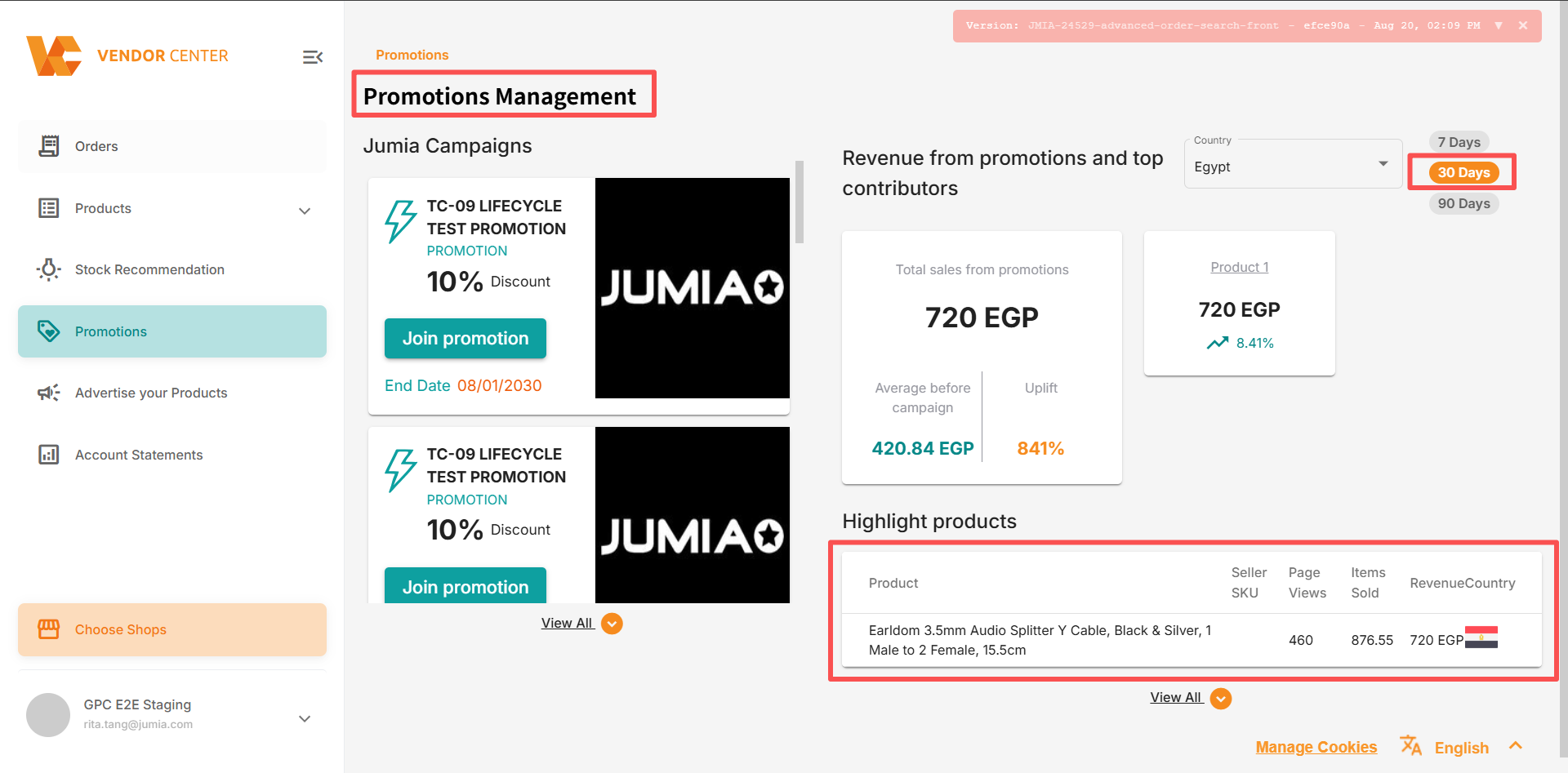
- Revenue generated through promotions in the past 30 days, sales revenue from participating in the activity, sales revenue before the activity, etc.
- The “Highlight products” grid contains the four highest-grossing products, with fields for: Product Name, Seller SKU, Page Views, Sold Items, and Revenue.
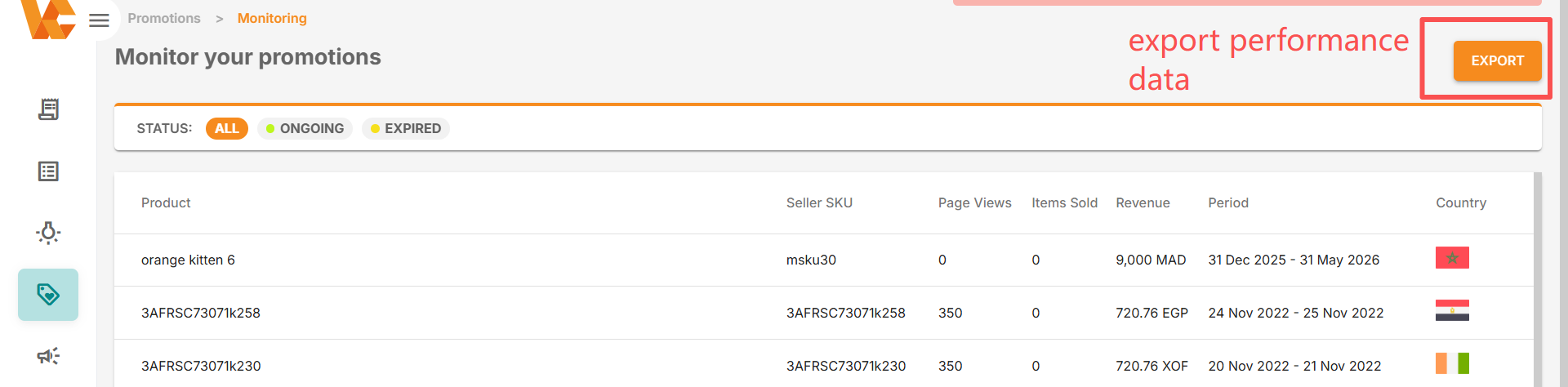
- Click the “View All” option to see more details, such as: Product Name, Seller SKU, Page Views, Sold Items, Revenue, Promotion Period, and Country (Flag), etc.
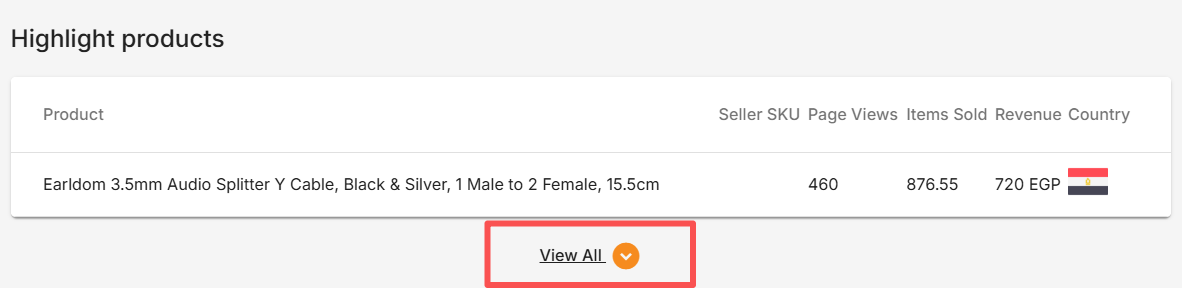
- You can filter by promotion status (All, Ongoing, and Expired).
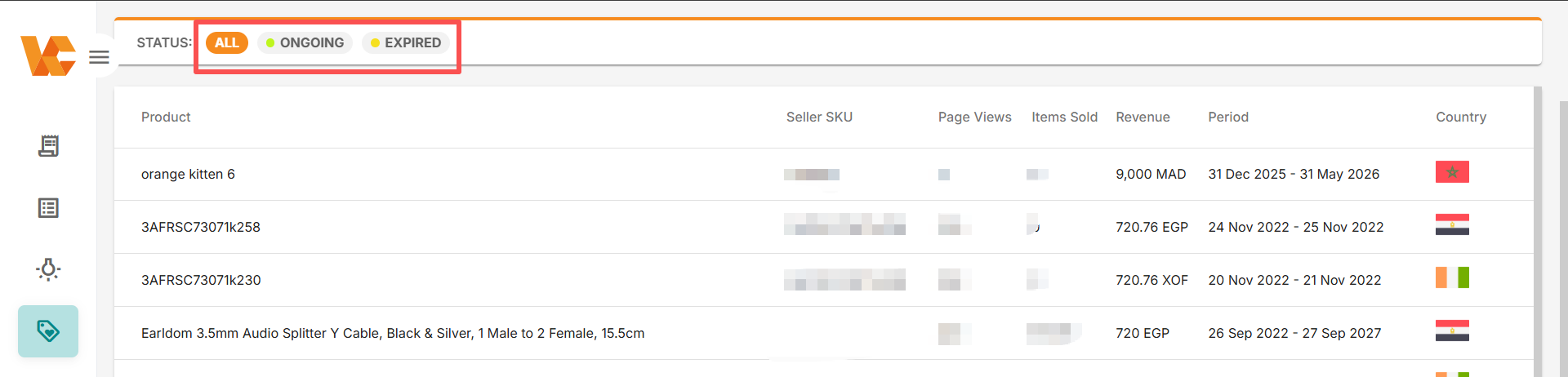
- You can choose to export promotional product KPIs/performance.
4. How to view the list of promotional activities?
Step 1: You will see a “Promotions” section on the main menu. Click “View All”.
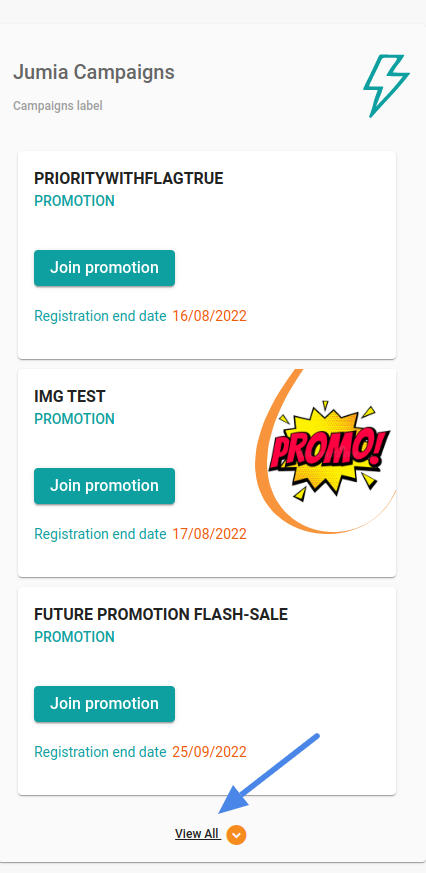
Step 2: Click on any activity to view its detailed information.
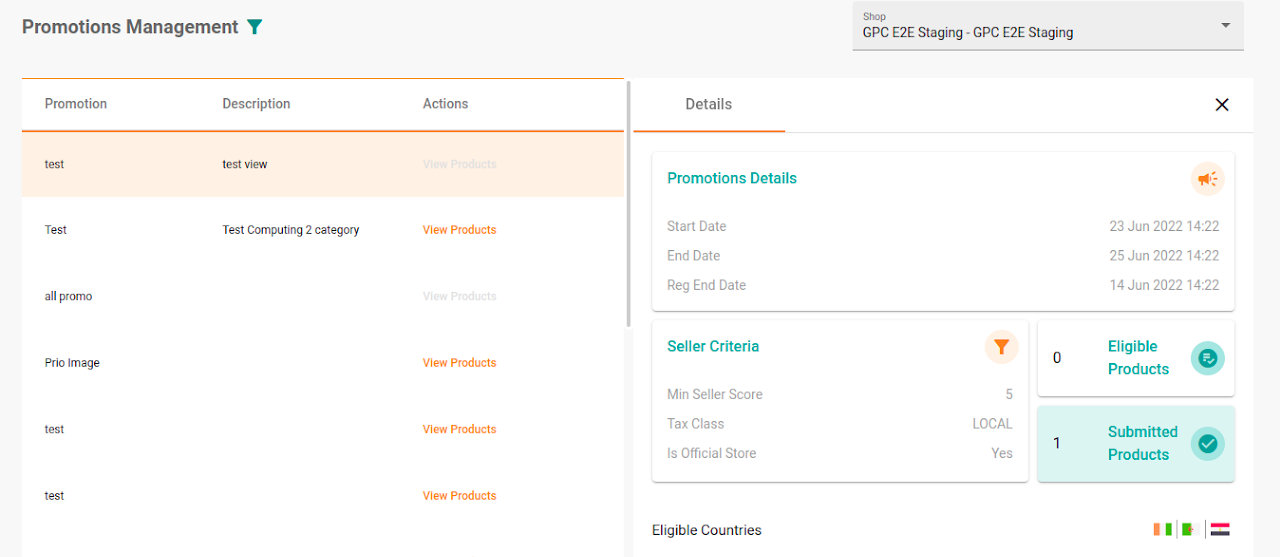
The information includes: activity start and end times, minimum seller rating, and applicable seller type, etc.