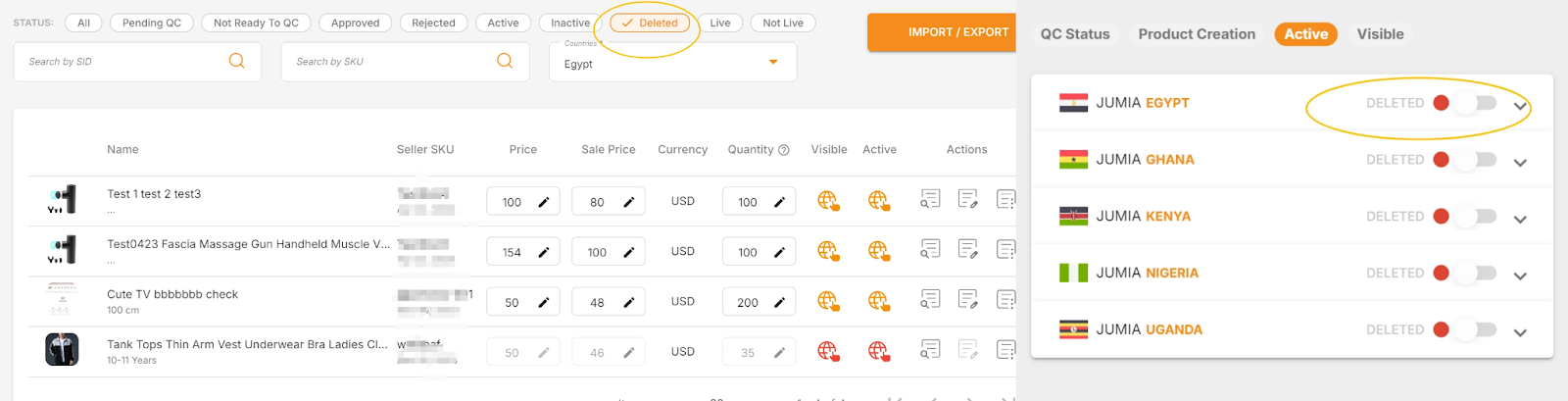
There are currently two ways to delete products in the VC system: 1) direct deletion; 2) batch deletion via a table.
Please note that the deleted status cannot be recovered, and the product will still appear under the “All” filter in the backend. Special note: If an FBJ product has inventory, the system does not allow deleting the corresponding product.
The operations are as follows
1. Direct Product Deletion
Products can be deleted directly from the product management interface. This supports deleting the SKU from all countries/regions, or deleting by a single country/region.
Note: Deletion is only allowed when there is no FBJ inventory, no pending or generating consignment requests, and no valid orders.
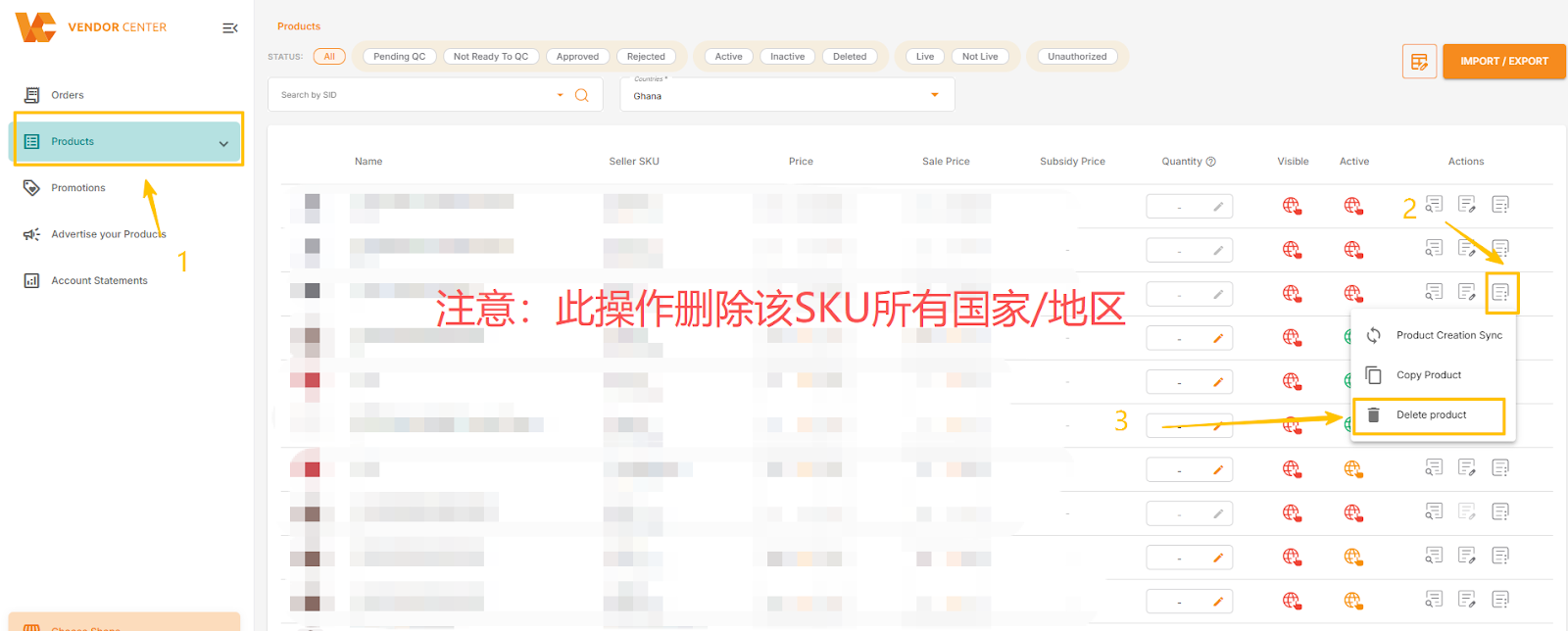
1.1 Deleting Product Information for a SKU from All Countries/Regions
Select the SKU to be deleted, click Operation → Delete Product, and the SKU will be removed from all countries/regions.
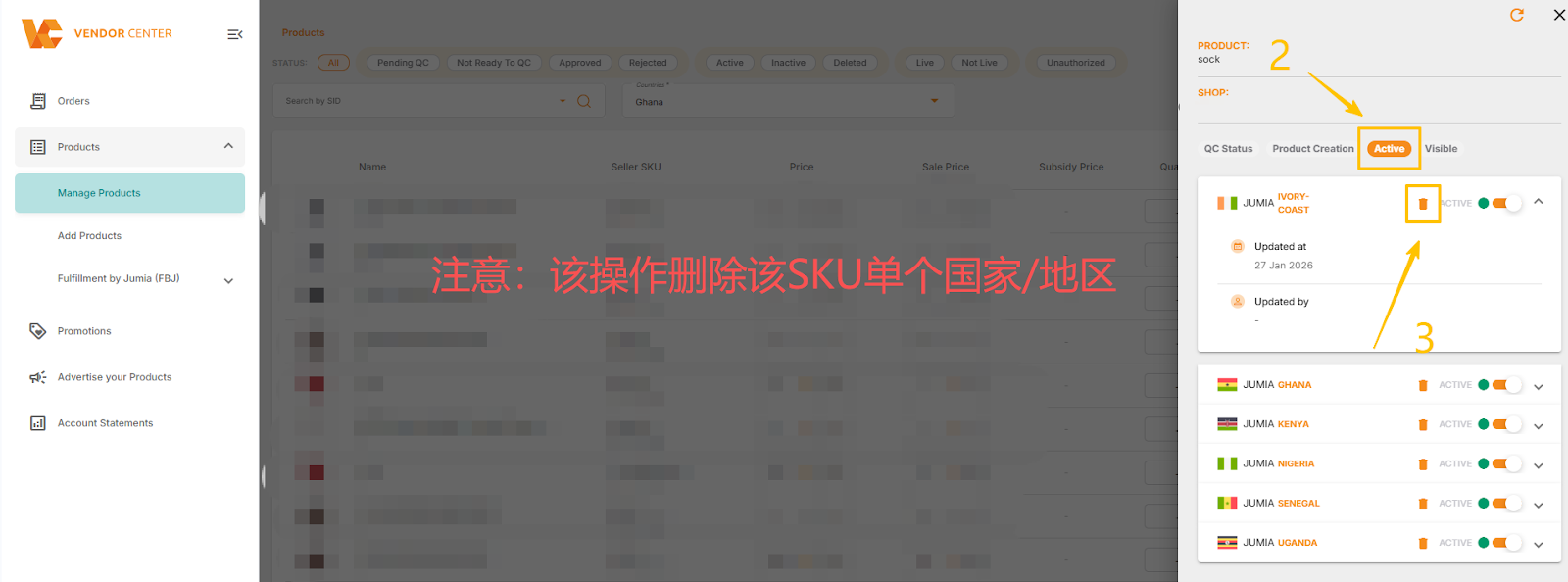
1.2 Deleting Product Information for a Single Country/Region for a SKU
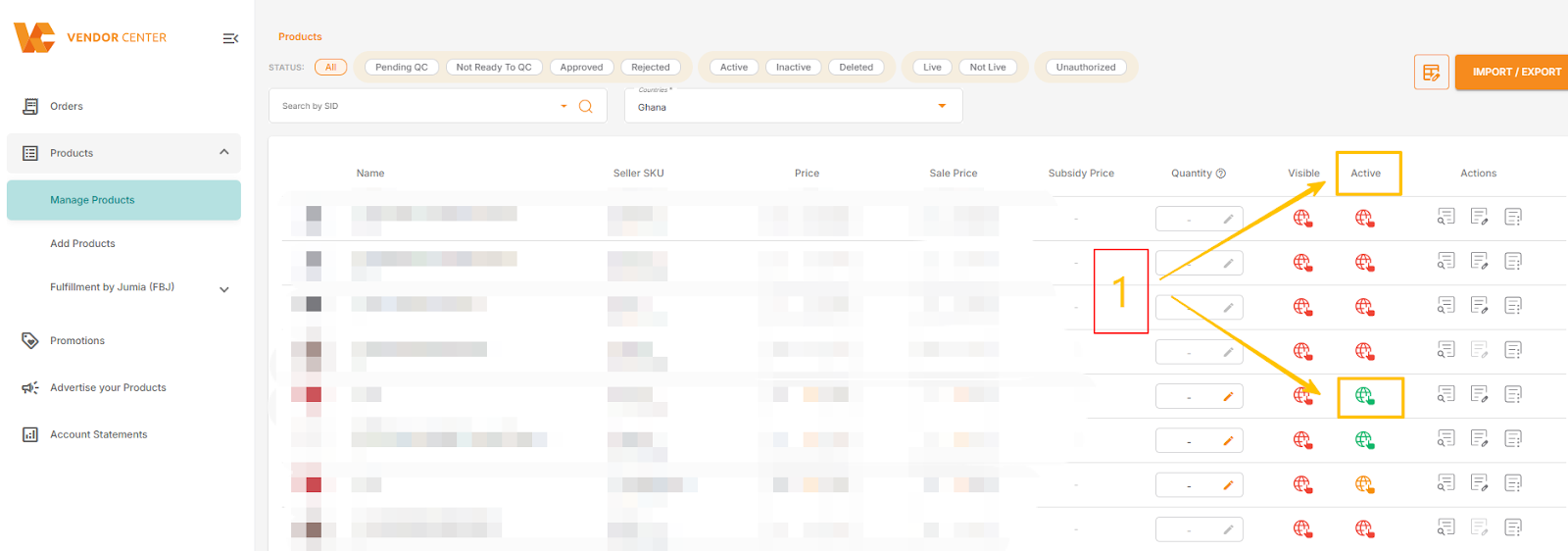
Click the spherical icon for the corresponding SKU, click the status bar, select the target site, and click the delete icon next to the status bar to delete the product for that site.
2. Batch Deleting Products
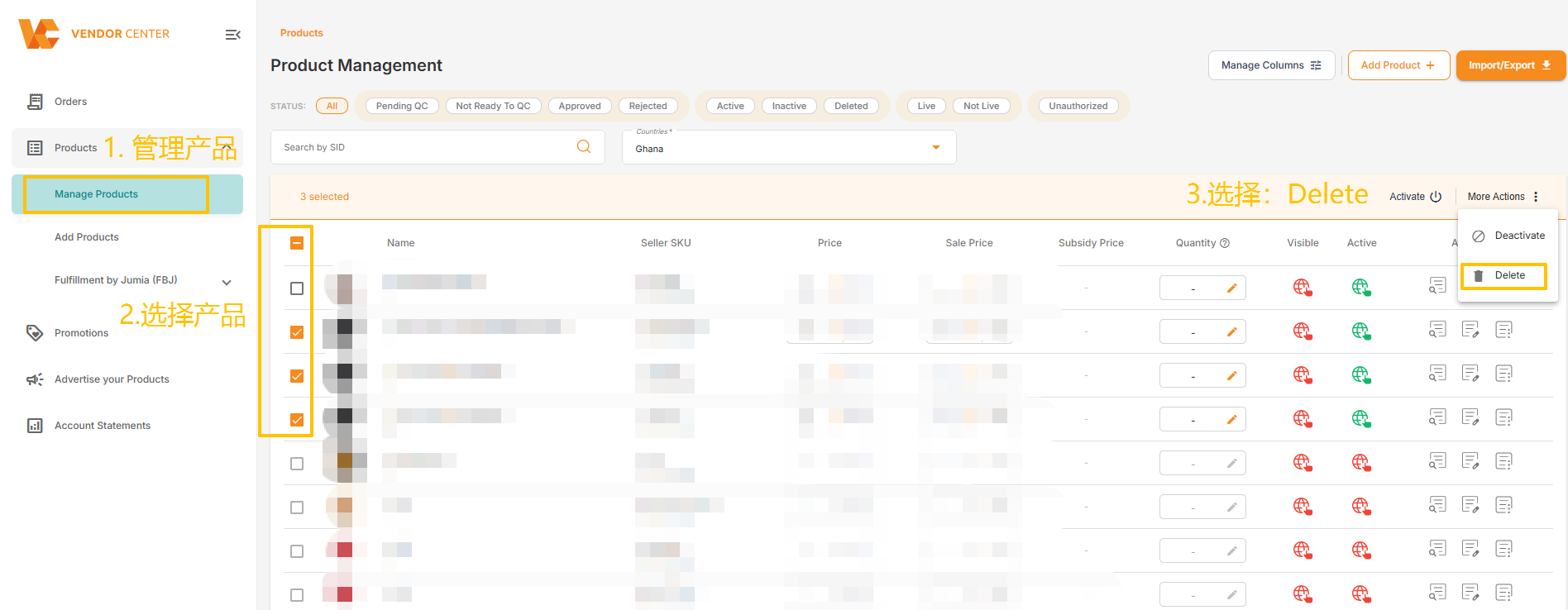
2.1 Batch Deleting Products via Product Management Interface
Path: Products >> Manage Products >> Select Products >> Actions >> Delete
Note: This operation can only select a maximum of 100 products at a time. Once deleted, they cannot be recovered. Additionally, please carefully check whether these products are included in any pending orders.
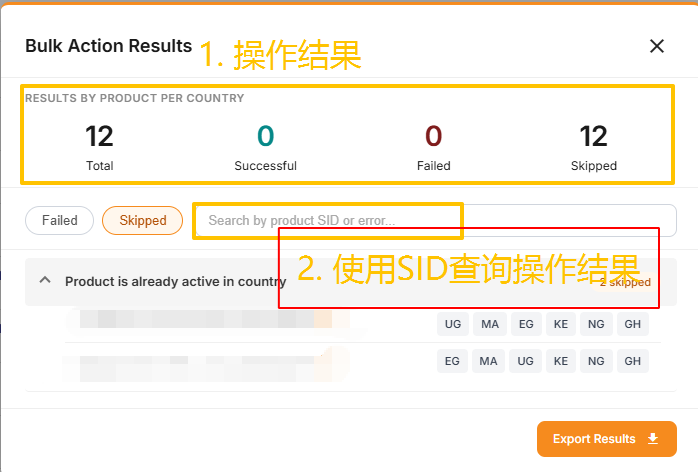
If deletion fails, the system will display a detailed explanation of the results. You can view the results by searching for the product SID on this page, or download the results report for management.
2.2 Batch delete products via file
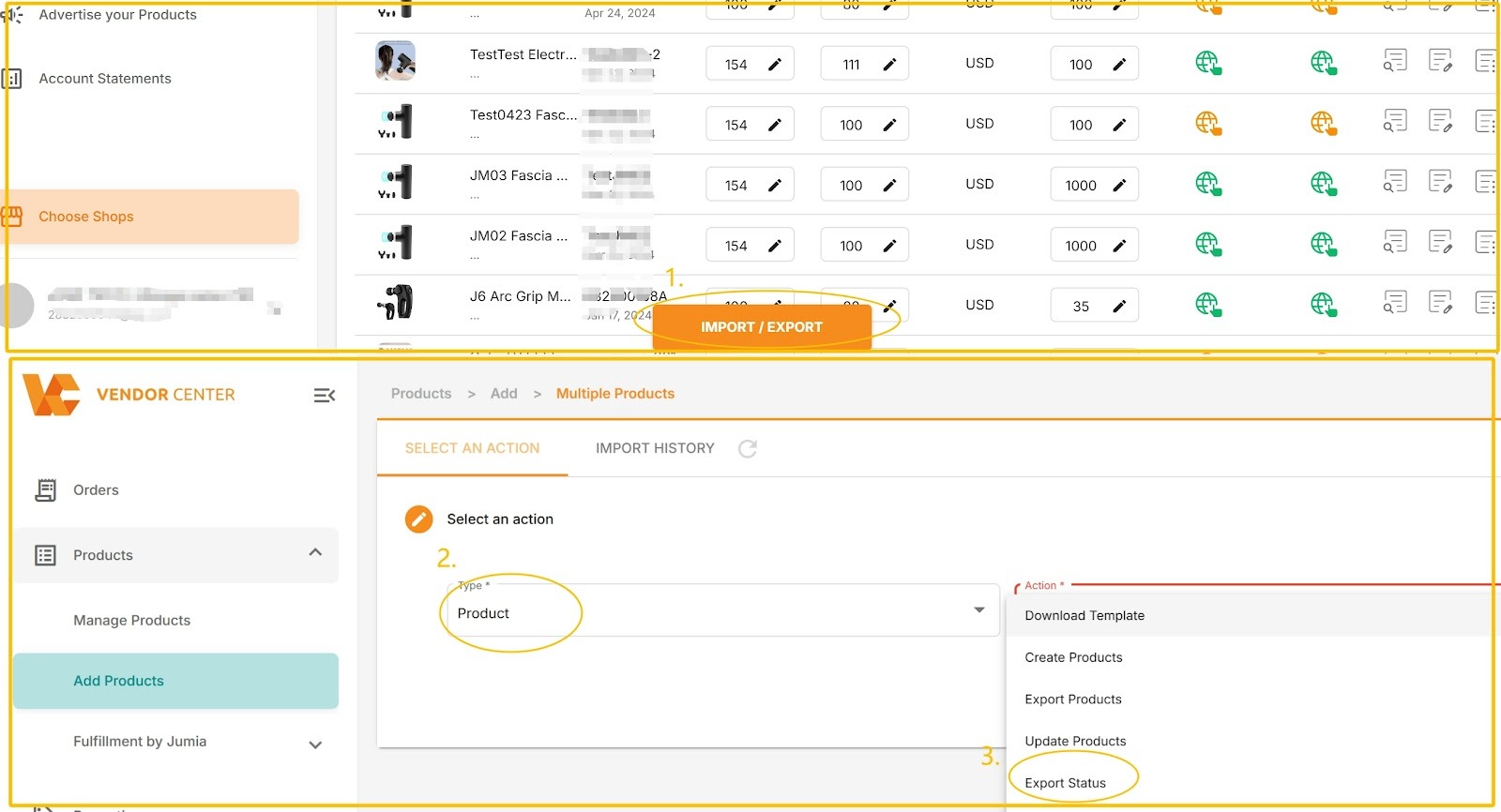
- Click “IMPORT / EXPORT” under Manage Products.
- Select “Product” for Type and “Export Status” for Action.
- Customize the product creation time and site, then click Export.
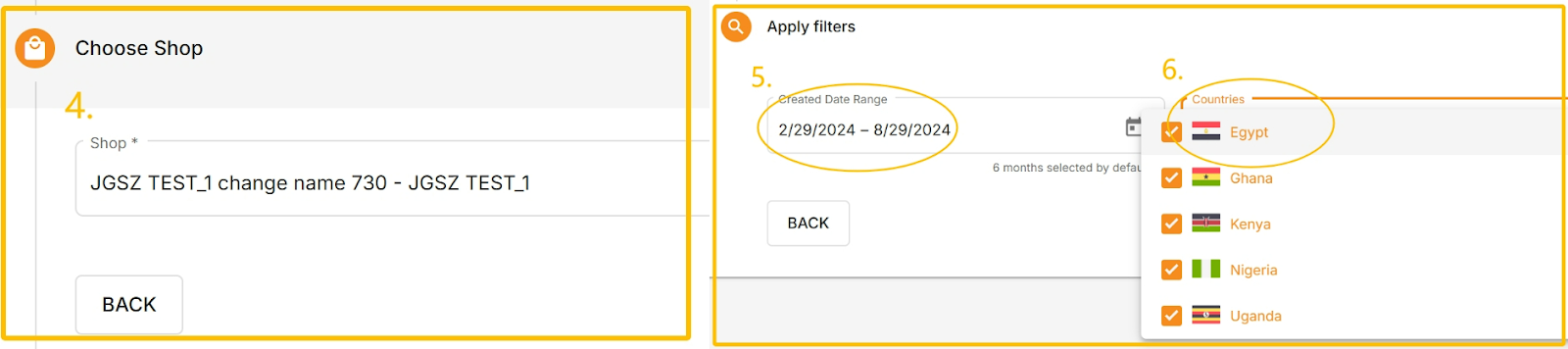
- Download the form to view the status of each site.
- If you need to take the product offline: enter “DELETED “.
- You can enter it in the corresponding country according to actual needs.
Suppose a seller needs to mark a certain SKU as DELETED in all countries, here is an example:

- Edit the form and send it back: select “Product” for Type, select “Import Status” for Action, then drag the form to the box to upload it.

- Check the file upload results.
Click on Upload History to view the upload results, which include:
-
- Created at: Creation time.
- User: Creator.
- File: The uploaded file can be downloaded.
- Action: Operation category.
- Status: Status. Click on the status to view the completion progress percentage (%).
- Progress: “Finished” indicates completion, or download the error file.
There are 5 types of statuses:
-
- Pending: Waiting to upload.
- Completed: Completed.
- In progress: Uploading.
- Failed: Upload failed. Please download the error report to check the reason.
- Failed: Partially failed. Click on the progress bar to view the success percentage.

3. How to check if a product has been successfully deleted
Go to the product management page and click “DELETED” to display all products that have been successfully deleted (including products deleted in some countries and products deleted in all countries).